

The Memory Management BSOD is a Windows stop error that commonly appears with the code 0x0000001A. It occurs when Windows detects a serious problem while managing physical or virtual memory, and the computer shuts down to prevent further damage. Although the name suggests a RAM problem, faulty memory is only one possible cause. Corrupted drivers, damaged system files, storage errors, unstable BIOS settings, and software conflicts can produce similar symptoms. This guide explains how to troubleshoot the Memory Management blue screen step by step.
1. What Is a Memory Management Error?
The "Memory Management" error typically appears during a Windows BSOD and is often accompanied by an error code such as 0x0000001A. This means the operating system detected an abnormality while allocating or releasing memory—such as a memory leak, access to an invalid address, or memory corruption.
This error can result from a variety of issues, including hardware failure, driver conflicts, or corrupted system files. In severe cases, it may cause frequent crashes or even data loss.
2. Common Causes of Memory Management Errors
Faulty or loose RAM
Incompatible or corrupted drivers
Missing or damaged system files
Software conflicts or malware infections
Hard drive errors or storage issues
Incorrect or outdated BIOS settings
3. How to Fix Memory Management Errors
Method 1: Run the Windows Memory Diagnostic Tool
Press Win + R, type "mdsched.exe", and press Enter.
Choose "Restart now and check for problems (recommended)".
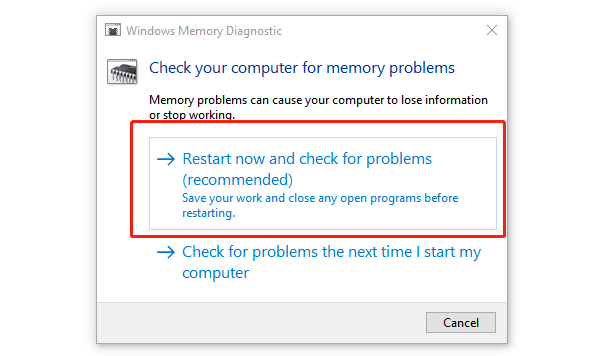
Your computer will restart and automatically check the memory.
If any errors are detected, consider replacing your RAM.
Method 2: Check for Driver Updates
Outdated or damaged drivers, or those incompatible with the OS, are a common cause of BSOD errors. Keeping your device drivers up to date can resolve the issue. It's recommend to use Driver Talent X for automatic detection, which saves time and prevents downloading incorrect drivers.
Click the Download button to get the latest version of Driver Talent X, then install and launch it.
In the "Drivers" section, select "Scan", then click "Scan" to detect the status of all drivers.

Locate the drivers that need updating in the scan results and click "Upgrade".
Restart your computer after the updates for changes to take effect.
Method 3: Run the System File Checker Tool
Open Command Prompt as Administrator.
Type the command "sfc /scannow" and press Enter.
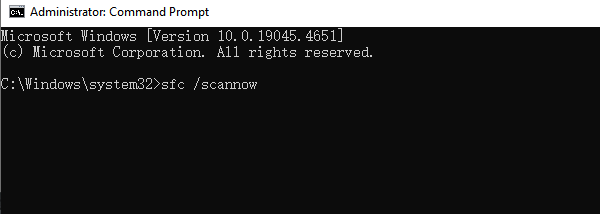
Wait for the system to scan and repair corrupted system files.
Reboot the computer and check if the issue is resolved.
Method 4: Check Hard Drive Status
Open Command Prompt with administrator privileges.
Enter the command: chkdsk C: /f /r and press Enter.
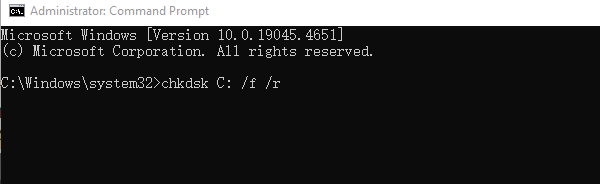
The system will prompt to schedule a scan at the next restart—type "Y", then reboot your PC.
This will check the hard disk for bad sectors or read/write errors.
Method 5: Disable Automatic Paging File Management
Right-click "This PC", select "Properties" > "Advanced system settings" > "Settings" under the Performance section.
In the "Advanced" tab, click "Change" under Virtual Memory.
Uncheck "Automatically manage paging file size for all drives", then select "Custom size".
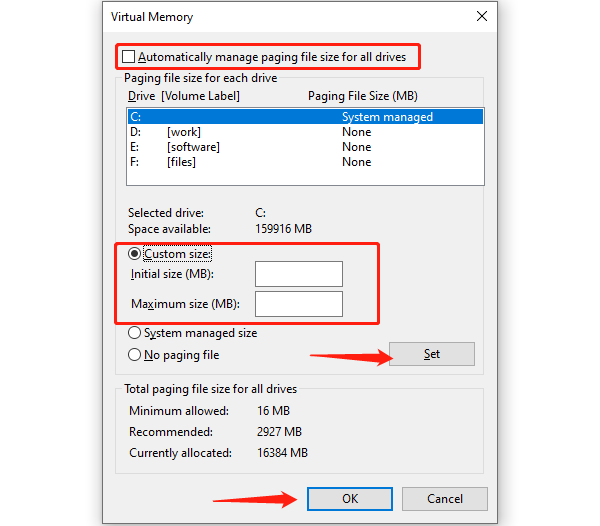
Set the "Initial size" and "Maximum size" based on your RAM (e.g., 4096MB for 4GB RAM).
Click "OK" and restart your computer.
Method 6: Update BIOS and Windows Patches
Visit your motherboard or laptop manufacturer's website to download the latest BIOS version.
Carefully follow official instructions to update BIOS.
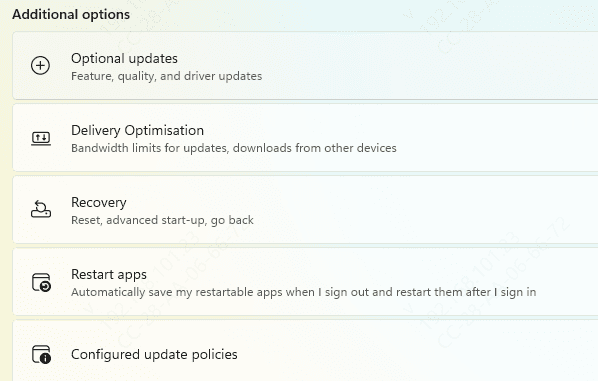
Use Windows Update to ensure all system patches are installed.
4. Frequently Asked Questions (FAQ)
Q1: What should I do if the memory management BSOD keeps appearing?
A: First, test your RAM and check for recently installed drivers or software that may be causing conflicts.
Q2: I replaced my RAM, but the issue persists. Why?
A: Use memory testing tools to verify compatibility, and also check for system or driver-related problems.
Q3: How do I back up important data just in case?
A: Use an external hard drive or cloud storage service to back up your files and prevent data loss.
Memory management BSOD errors in Windows may seem complex, but with structured troubleshooting and repair steps, most users can resolve them successfully. Start with hardware checks, driver updates, and system file repairs.
If the problem persists, consider consulting professional repair services or replacing faulty components. Hope this guide helps you quickly resolve the "Memory Management" BSOD error and restore your system's stability and performance.
