

ASUS Driver Hub issues can prevent your laptop or desktop from receiving important driver and firmware updates, leading to hardware errors, crashes, and performance problems. This guide explains how to fix common ASUS driver update problems by repairing drivers, using ASUS update tools, downloading drivers manually, and applying Windows troubleshooting methods to restore system stability.
Method 1: Use the MyASUS Application
The MyASUS app is the primary portal for system diagnostics and official driver delivery on modern ASUS PCs.
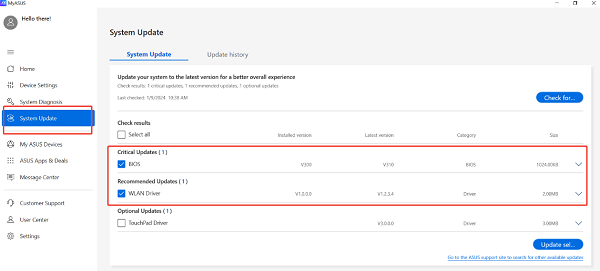
Launch Utility: Search for and open the MyASUS application.
Check for Updates: Navigate to the "Customer Support" or "System Update" section.
Install Critical Updates: Run the diagnostics tool, and then check for driver updates. Install all recommended and critical updates, especially any related to the ASUS System Control Interface or BIOS/UEFI.
Reinstall MyASUS: If the app itself is crashing or not finding updates, uninstall it via "Settings" > "Apps", restart the PC, and then reinstall the latest version from the Microsoft Store or ASUS website.
Method 2: Manually Download from the ASUS Support Website
If automated tools fail, the manual download ensures you get the exact file for your specific model.
Identify Model: Find your ASUS PC's exact model number (e.g., UX434FA).
Go to Support: Visit the official ASUS Support website and enter your model number.

Download Drivers: Navigate to the "Driver & Utility" section and select your operating system. Download the latest drivers for Chipset, Management Engine Interface (MEI), and ATK/ASUS System Control Interface.
Install: Install these files one by one, ensuring you restart the PC after each major installation.
These steps address system settings and file corruption that can interfere with driver installations.
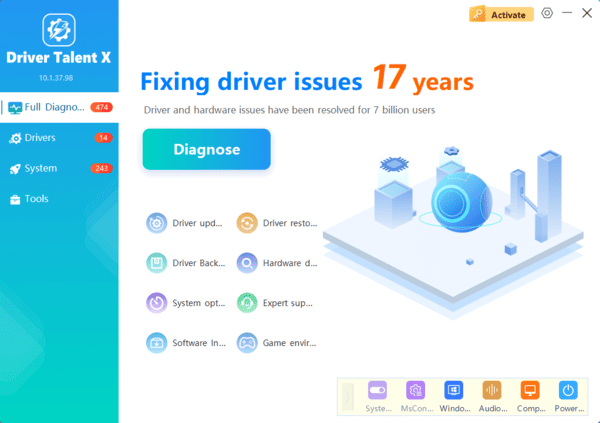
Method 3: Driver Update with Driver Talent X
Manually attempting to find and update the correct, OEM-specific drivers for complex components (like ASUS ACPI, keyboard hotkeys, or customized USB controllers) is challenging and error-prone. A specialized utility streamlines this process by identifying and installing the correct, compatible, and manufacturer-specific driver versions.

Method 4: Run System File Checker (SFC)
Corrupted core Windows files can prevent driver components from being installed or loaded correctly.
Open Command Prompt as Administrator (Win + R > type "cmd" > right-click and choose "Run as administrator").
Type the command: sfc /scannow
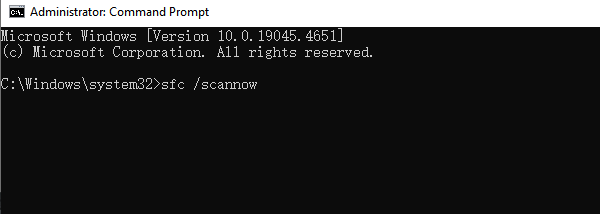
Press Enter and wait for the scan to reach 100%. If the tool fixes errors, restart your PC.
Method 5: Check and Disable Windows Update Interference
Windows Update sometimes tries to install generic drivers that conflict with the highly customized ASUS OEM drivers.
Press Windows Key + I to open Settings.
Go to "Update & Security" > "Windows Update" > "Advanced options".
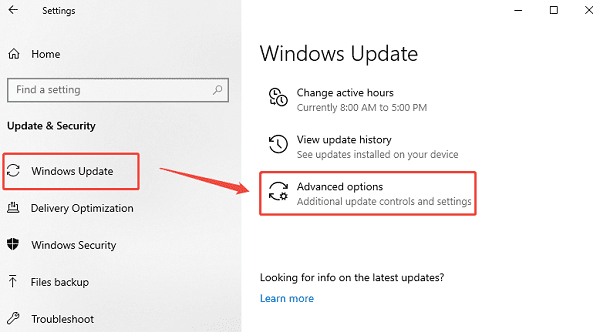
Click "Optional updates" > "Driver updates". If any generic or old ASUS drivers are listed here, do not install them. Use Method 1 in Part I instead. If necessary, you may need to temporarily pause Windows updates to complete a manual installation.
Conclusion
Fixing common ASUS driver hub issues requires addressing both the core operating system stability and the specific ASUS utilities. The most reliable strategy is to first ensure system-wide driver synchronization and stability with Driver Talent X.
By combining this foundational fix with the MyASUS application for official updates and utilizing the System File Checker to resolve core Windows file corruption, you guarantee a smooth, reliable, and optimally performing ASUS system.
