

ASUS gaming desktop PCs are well known for their powerful hardware configurations, stable build quality, and strong gaming performance. Whether you use an ASUS ROG, TUF, or a mainstream gaming desktop, keeping drivers updated and system settings properly configured is essential to achieve maximum performance and avoid lag, crashes, or compatibility issues. Before optimizing performance or making system adjustments, the most important step is to ensure all drivers are fully updated. This guide begins with updating drivers using Driver Talent X, followed by a performance review and practical optimization tips to help you get the best experience from your ASUS gaming desktop PC.
ASUS Gaming Desktop PC Performance Review
Gaming Performance:
ASUS gaming desktops typically feature modern Intel or AMD CPUs paired with NVIDIA GeForce or AMD Radeon GPUs. With updated drivers:
Modern AAA games run smoothly at high or ultra settings
Stable frame rates with reduced stuttering
Improved GPU utilization and lower input latency
Thermal Performance:
ASUS desktops are equipped with efficient cooling systems, including multiple case fans and optimized airflow. Proper setup and driver updates help maintain stable CPU and GPU temperatures during extended gaming sessions.
System Stability:
With the correct chipset, BIOS-related drivers, and GPU drivers installed, ASUS gaming desktops offer strong system stability, minimal crashes, and consistent performance.
Essential Setup Tips for ASUS Gaming Desktop PCs
Tip 1: Optimize Graphics Settings
Right-click the desktop and open "NVIDIA Control Panel" or "AMD Adrenalin Software".
Set Power Management Mode to "Prefer maximum performance".
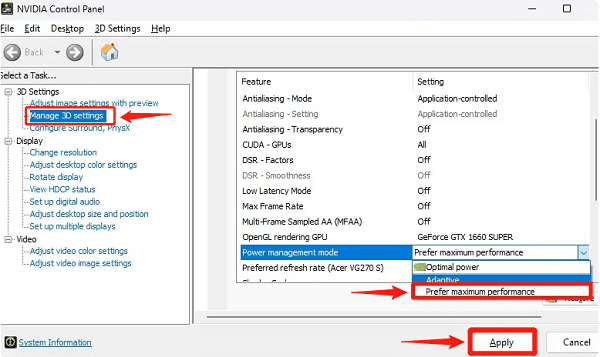
Enable "Low Latency Mode" for competitive gaming.
Adjust texture filtering and anisotropic sample optimization for better FPS.
Tip 2: Enable High Performance Power Plan
Open Control Panel > Power Options.
Select "High Performance" or "Ultimate Performance".

Apply changes and restart the system.
Tip 3: Update Windows System Components
Go to Settings > Update & Security > Windows Update.
Click "Check for updates", install all pending updates.
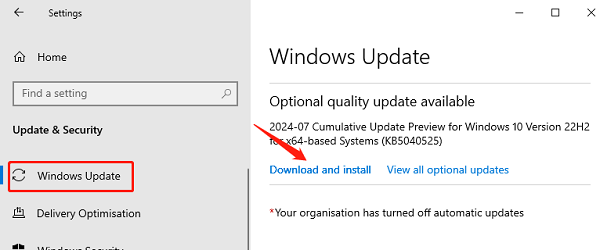
Restart your PC to finalize updates.
Tip 4: Optimize Startup Programs
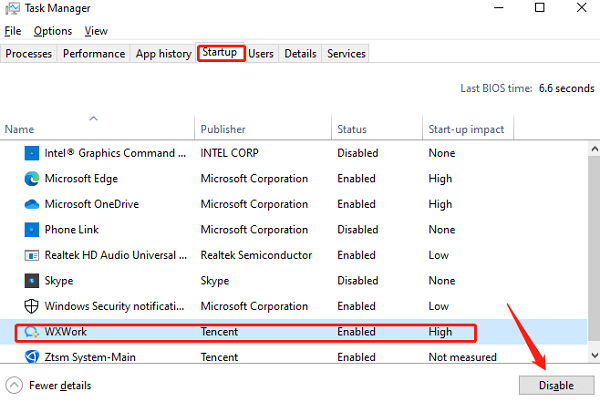
Press Ctrl + Shift + Esc to open Task Manager.
Go to the "Startup" tab.
Disable unnecessary startup applications to reduce boot time and background CPU usage.
Tip 5: Monitor Hardware Performance
Use built-in ASUS utilities or third-party monitoring tools to track CPU, GPU, and memory usage.
Ensure temperatures stay within safe ranges during gaming.
Update System Drivers
Outdated or corrupted drivers are one of the main causes of low gaming performance, FPS drops, stuttering, and hardware instability. Driver Talent X ensures that all critical components such as graphics cards, chipsets, network adapters, and audio devices are fully updated.
Download and Install:
Click the "Download" button to download the latest version of the software. Save the installer to your desktop or downloads folder.
Double-click the installer and follow the on-screen instructions. Choose the installation directory and complete the setup process.
Perform a Full System Scan:
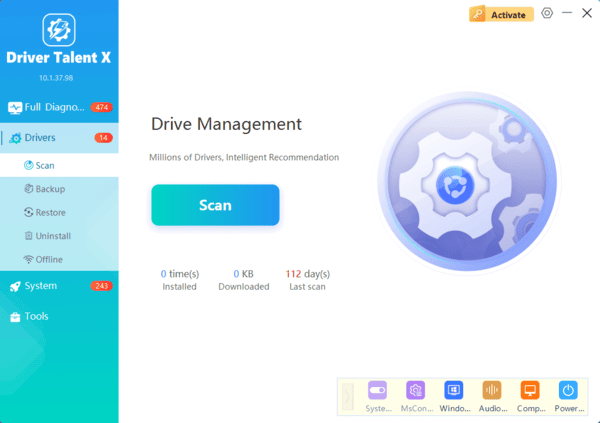
Open Driver Talent X from the desktop shortcut or Start menu, go to "Drivers" > "Scan", click "Scan".
Driver Talent X will detect outdated, missing, or incompatible drivers on your ASUS gaming desktop.
Update All Drivers:
Pay close attention to graphics drivers (NVIDIA or AMD), chipset drivers, LAN drivers, and audio drivers. Click the "Upgrade" or "Repair Now" button.
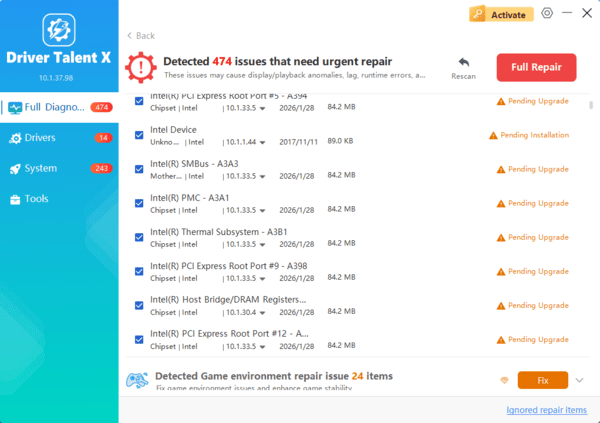
Driver Talent X will reliably download the latest drivers and execute a clean installation, critical for performance enhancements and stability fixes.
Common Issues and Additional Fixes
Issue 1: Low FPS After Setup
Reinstall graphics drivers using Driver Talent X
Verify game settings match your GPU capabilities
Disable background applications consuming system resources
Issue 2: Random Freezes or Crashes
Update chipset and storage drivers
Check for BIOS updates from ASUS support
Ensure RAM is running at the correct speed in BIOS
Issue 3: Network Lag During Online Gaming
Update LAN or WiFi drivers with Driver Talent X
Use a wired Ethernet connection when possible
Disable bandwidth-heavy background downloads
Conclusion
ASUS gaming desktop PCs deliver excellent performance when properly set up and maintained. By first updating all system drivers with Driver Talent X and then applying the optimization and setup tips outlined above, you can achieve higher frame rates, improved system stability, and a smoother gaming experience. Regular driver updates and system maintenance are key to keeping your ASUS gaming desktop running at peak performance over time.
