

Keeping ASUS ROG laptop drivers updated is important for maintaining gaming performance, system stability, and hardware reliability. Outdated or incompatible drivers can cause issues such as FPS drops, overheating, crashes, and malfunctioning features. This guide explains how to update and manage ASUS ROG drivers using effective methods to keep your gaming laptop running smoothly.
MyASUS or ASUS Armoury Crate App
ASUS provides dedicated software tools that manage specialized ROG components and firmware, often delivering more stable versions than generic downloads.
1. Launch Utility: Open the pre-installed MyASUS application or Armoury Crate.
2. Check for Updates: Navigate to the "Customer Support" or "System Update" section within the app.
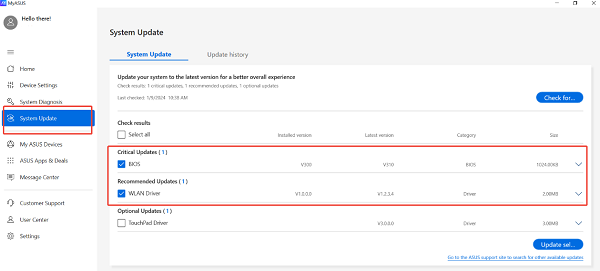
3. Install Critical Updates: The tool will check ASUS servers for updates specific to your ROG serial number, including:
BIOS/UEFI Firmware (Crucial for CPU support and stability).
Armoury Crate Service Drivers (Essential for fan control and performance modes).
Interface Drivers (For touchpad and function keys).
4. Install and Restart: Select the recommended updates, install them, and follow all prompts to restart the system immediately after firmware/BIOS updates.
Download from the ASUS Support Website
For major updates or clean Windows installs, the official website is the primary source.
Find Model: Determine your exact ROG model number (e.g., G733Q).
Go to ASUS Support: Visit the official ASUS Support website and enter your model number.
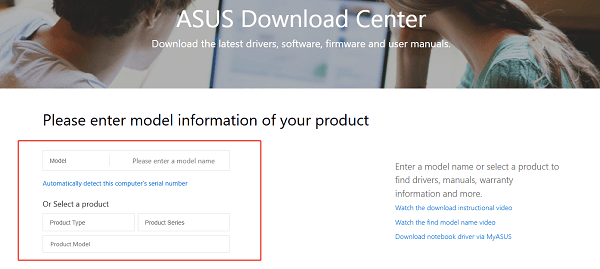
Download Drivers: Navigate to the "Driver & Tools" section and select your operating system (Windows 10/11).
Installation Order: Download drivers by category and install them in this recommended order: Chipset > ATK/ACPI > Graphics > Audio > Others.
Automated Driver Update Method
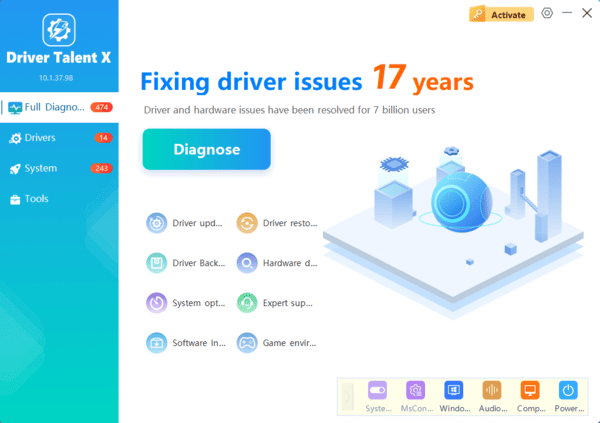
Manually updating the dozens of drivers required by a modern ROG laptop can be tedious and risky, often requiring specialized versions from ASUS. A specialized utility simplifies this by identifying and installing the correct, manufacturer-specific driver versions for your system configuration.

Troubleshooting and Configuration Fixes
These steps address common conflicts that lead to non-functioning features or poor performance.
Method 1: Clean Graphics Driver Reinstallation
If the dedicated NVIDIA or AMD graphics card is performing poorly or crashing after an update, a complete removal of the driver is necessary.
Press Windows Key + X and select "Device Manager".
Expand "Display adapters".
Right-click the dedicated graphics card and select "Uninstall device".
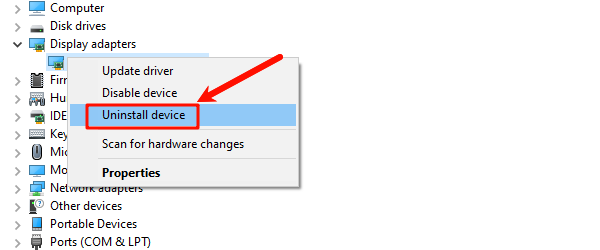
Crucially, check the box that says "Attempt to remove the driver software for this device".
Restart your PC and use Method 1 in Part I to install the latest official driver on the clean system.
Method 2: Check Windows Update Optional Drivers
Windows Update sometimes has access to certified, stable versions of the drivers that have been approved by the system manufacturer.
Press Windows Key + I to open Settings.
Go to "Update & Security" > "Windows Update" > "Advanced options".
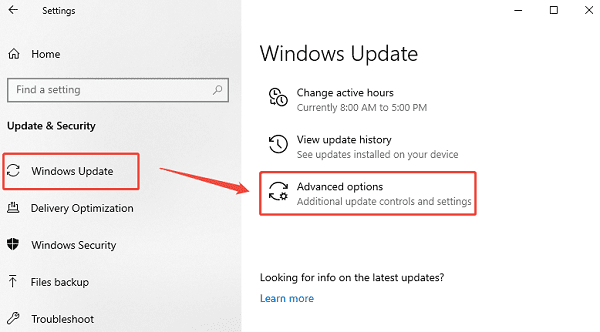
Click "Optional updates" > "Driver updates". If any ASUS or system-related drivers are listed, select and install them.
Conclusion
Maximizing the high-performance potential of your ASUS ROG laptop requires diligent, synchronized driver management. The most reliable strategy is to first ensure system-wide driver integrity and a stable foundation with Driver Talent X.
By combining this foundational fix with using the MyASUS/Armoury Crate app for specialized firmware updates and performing a clean graphics driver reinstallation when necessary, you guarantee a smooth, optimized, and crash-free gaming experience.
