

Downloading the correct Brother printer driver is essential for reliable printing, scanning, and device communication on Windows. Using the wrong driver or an incomplete installation can cause problems such as the printer not being detected, failed print jobs, USB connection errors, or missing multifunction features. This guide explains how to identify your Brother printer model, download the appropriate driver from Brother Support, install it through USB, check driver problems with Driver Talent X, and use Windows Update as an additional driver source.
Check Your Brother Printer Model Before Downloading a Driver
On the front of the printer
On a product label
On the printer control panel
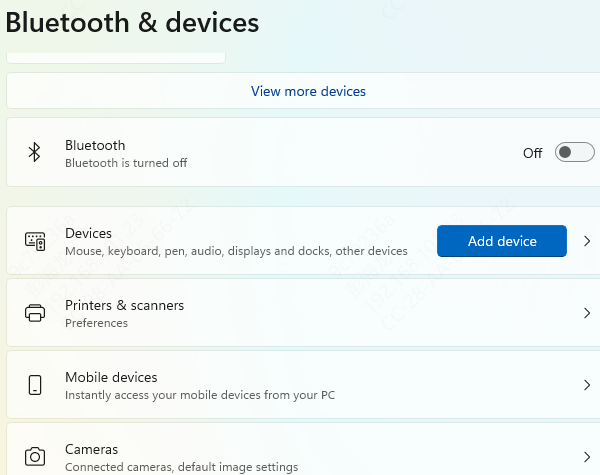
In Windows Printers & scanners
On the original packaging
Method 1: Download Brother Printer Drivers from Brother Support
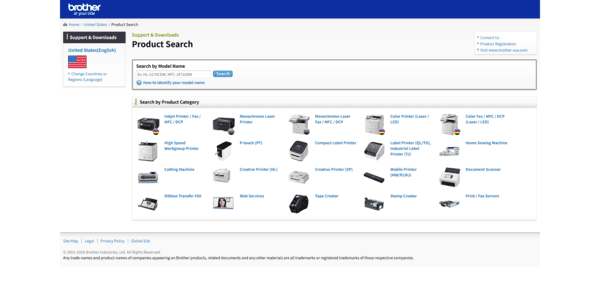
Go to Brother Support
Search for your exact Brother printer model.
Choose the package that matches what you actually need.
Download the package and save it somewhere easy to find.
Method 2: Install a Brother Printer Through USB
Run the downloaded installer and follow its instructions.
Follow the installer's instructions regarding when to connect the printer. The exact procedure can vary by model and software package, so use the sequence displayed by the Brother installer rather than repeatedly connecting and disconnecting the USB cable.
After installation, open:
Settings > Bluetooth & devices > Printers & scanners
Confirm that your Brother printer appears.
Select the printer and print a test page to verify that the driver and USB connection are functioning correctly.
Method 3: Check Brother Printer Drivers with Driver Talent X
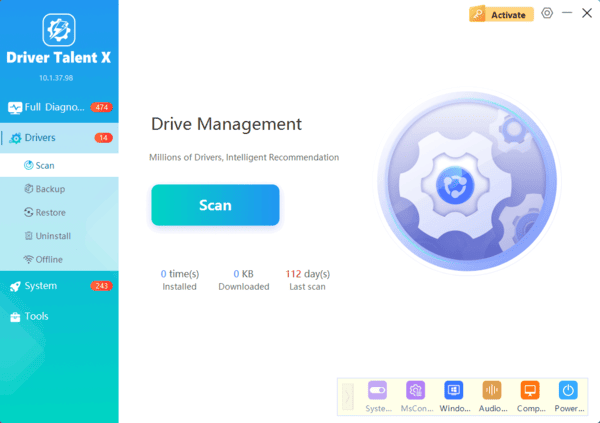
If you are experiencing driver-related problems and are unsure whether the printer or another Windows driver component is involved, Driver Talent X provides another troubleshooting option.
This can be particularly useful after reinstalling Windows or when Device Manager contains multiple driver errors.
To scan the computer:
Download and install Driver Talent X.
Launch the program.
Open Drivers.
Click Diagnose.
Wait for the system scan to finish.
Method 4: Check Windows Update for Printer Drivers
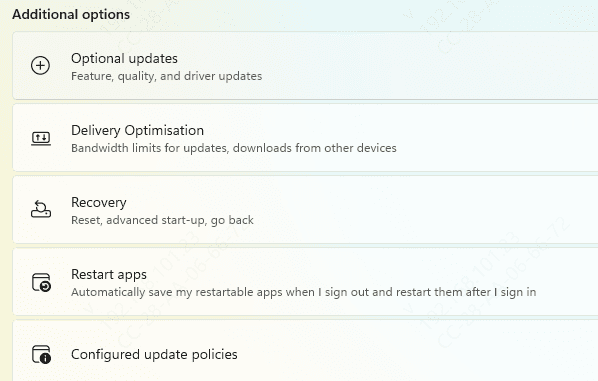
Open: Settings > Windows Update
Click Check for updates.
Allow Windows to finish searching for available updates.
If an applicable printer driver appears, install it and restart the computer if required.
Frequently Asked Questions
Should I download the full Brother software package or only the printer driver?
Choose the full package if you need printing, scanning, maintenance tools, and device management. Install the basic driver if you only require standard printing.
Why is my Brother printer connected by USB but not detected?
Try another USB port or cable, restart the printer and computer, and reinstall the Brother driver. Connect the USB cable only when the official installer prompts you.
Can Windows Update install Brother printer drivers automatically?
Yes. Windows Update can install compatible basic drivers for many Brother printers. However, model-specific scanning and management features may require software from Brother Support.
Conclusion
Installing the correct Brother printer driver begins with identifying the exact printer model. Brother Support is the best choice for model-specific drivers and full software packages, while Windows Update can provide basic printing support. Driver Talent X can also help detect related USB, chipset, or other driver problems. After installation, restart Windows and print a test page to confirm that the printer is working properly.
