

Kyocera printers are known for their reliability, but issues like offline status, stuck print jobs, blank pages, or no response can still occur. These problems are often caused by outdated drivers, connection errors, or Windows settings rather than hardware failure. This guide explains common Kyocera printer problems and provides effective solutions to restore normal printing.
Common Signs of the Problem
The most obvious sign is a print job that gets sent but produces no output
Other symptoms include jobs stuck in the queue that never process, blank or garbled pages, the printer appearing as offline in Windows, and error messages on the printer's control panel
Identifying which symptom applies to your situation helps narrow down the cause faster
Fix 1: Update or Reinstall the Printer Driver
The driver is the most critical link between Windows and the Kyocera printer. If it is outdated or broken, the printer will not respond to commands properly.
Open Device Manager and look for the Kyocera printer under Printers or Imaging Devices
A warning icon indicates a driver problem, but even without one the driver may still be causing issues
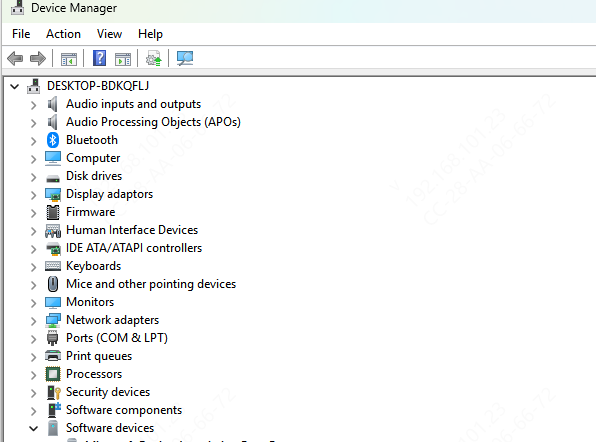
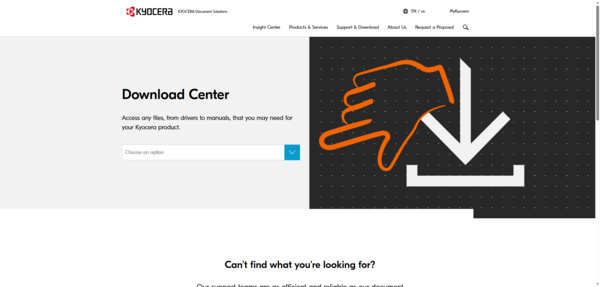
Uninstall the current driver and download a fresh version from the official Kyocera support website by searching for your printer model. Install it as administrator, then restart the computer
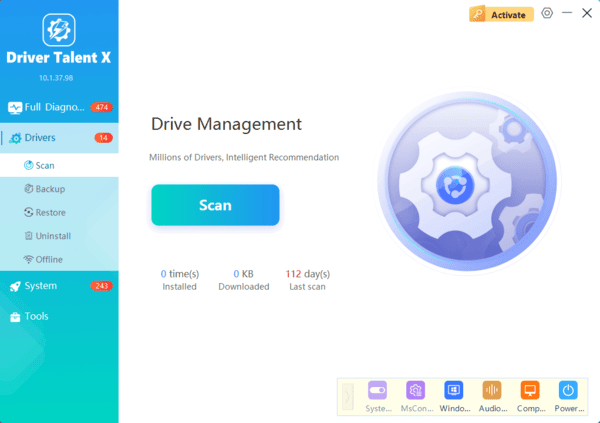
If you prefer a faster method, Driver Talent X can scan the system and identify outdated or broken printer drivers automatically, which is helpful when you are unsure which version to install
Fix 2: Check Connections
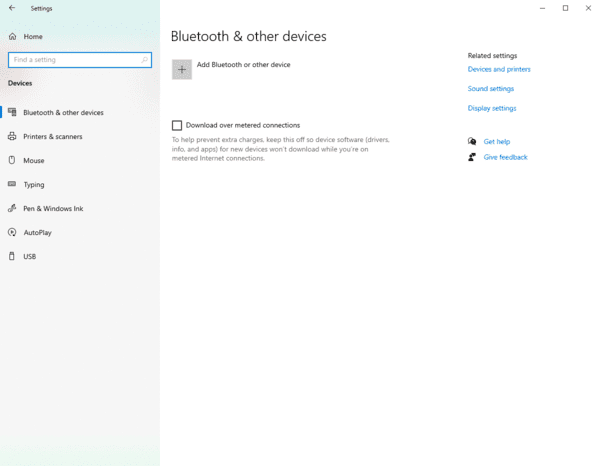
For USB printers, make sure the cable is fully seated at both ends and is not damaged. For network printers, print a configuration page from the printer's control panel to check the current IP address
If the IP has changed, update the printer port settings in Windows to match. For wireless printers, confirm the device is still connected to the correct network
Fix 3: Restart Both Devices
Turn the Kyocera printer off completely, wait thirty seconds, then turn it back on
Restart the computer at the same time
This clears temporary software errors, stalled processes, and driver communication failures. Many printing problems are resolved with this simple step alone
Fix 4: Clear the Print Queue
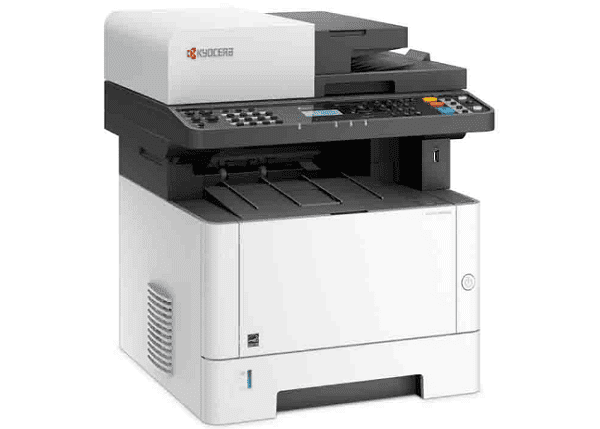
A frozen print queue is one of the most common reasons a printer accepts jobs but produces nothing.
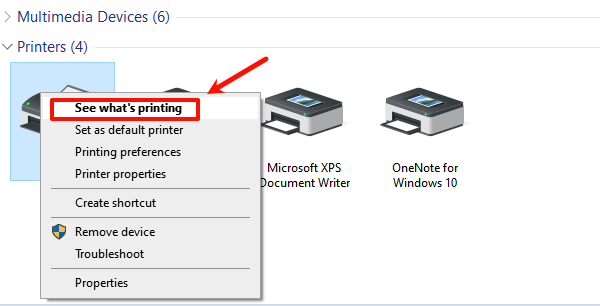
Go to Control Panel, open Devices and Printers, right-click the Kyocera printer, and choose to see what is printing
Cancel all pending jobs. If any job cannot be cancelled normally, stop the Print Spooler service in Windows Services, clear the spooler folder manually, restart the service, and then try again
Fix 5: Check Printer Status and Default Settings
In Devices and Printers, right-click the Kyocera printer and check whether Use Printer Offline is enabled.
If it is, click it to disable offline mode. Also confirm that the Kyocera printer is set as the default printer
When the wrong printer is selected as default, print jobs are sent to a different device without any visible error
Fix 6: Check Security Software
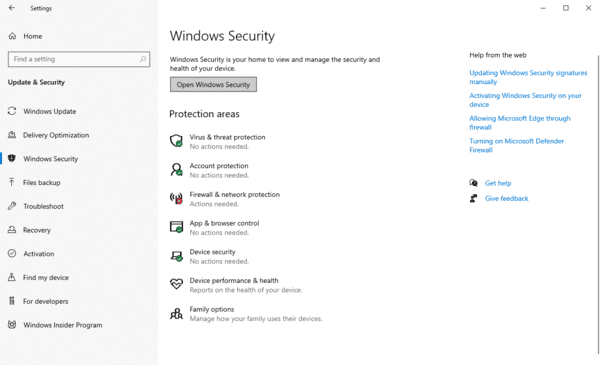
Firewall or antivirus tools can block communication between Windows and a network printer.
Temporarily disable the firewall and test whether the printer responds
If it works immediately, add the Kyocera printer software and relevant network ports to the firewall exclusion list so the connection remains open without permanently removing protection
Fix 7: Inspect Printer Hardware
Check the toner cartridge level and replace it if empty. A low-toner situation can cause blank pages or cause the printer to reject jobs without a clear warning
Also inspect the paper path for jams. Even a small piece of torn paper inside the mechanism can prevent the printer from operating. Remove any jammed material carefully, close all covers properly, and restart the printer before testing again
Fix 8: Update Printer Firmware
Outdated printer firmware can cause compatibility issues with newer Windows versions or certain file formats
Visit the Kyocera support website, search for your printer model, and check whether a firmware update is available. Installing it can improve stability and resolve issues that driver updates alone cannot fix
How to Prevent This Problem in Future
Keep the printer driver updated, especially after major Windows updates. Assign a fixed IP address to network printers so connection settings do not break after a router restart
Check toner levels regularly and use quality paper to avoid hardware wear. Periodic firmware checks on the Kyocera support page can also help catch known issues before they become problems
Conclusion
Most Kyocera printer issues can be resolved by updating the driver, clearing the print queue, checking the connection, and correcting the printer status in Windows. Hardware-related problems such as empty toner or paper jams are also straightforward to fix. For faster driver troubleshooting, Driver Talent X can help detect and repair printer driver issues more efficiently. With the right steps applied in order, the printer should be back to normal without needing professional service.
