

The Dell OptiPlex 3050 is a practical business desktop designed for office work, education, and everyday computing, but driver or hardware problems can occasionally affect its performance. After reinstalling Windows, upgrading components, or making system changes, you may encounter boot failures, black screens, missing network connections, unrecognized USB devices, or slow performance. These problems do not always indicate hardware failure and can often be resolved through proper configuration and driver maintenance. This guide covers the essential steps for setting up, upgrading, and troubleshooting the Dell OptiPlex 3050.
Proper Initial Setup Steps
Connect all peripherals: Attach keyboard, mouse, monitor, Ethernet cable, and power cord securely.
Power on the system and enter BIOS: Press F2 during startup to access BIOS settings.
Verify hardware detection: Ensure CPU, RAM, storage drive, and USB ports are recognized correctly.
Set boot mode and boot order: Use UEFI mode for modern Windows installations and confirm the correct boot drive is selected.
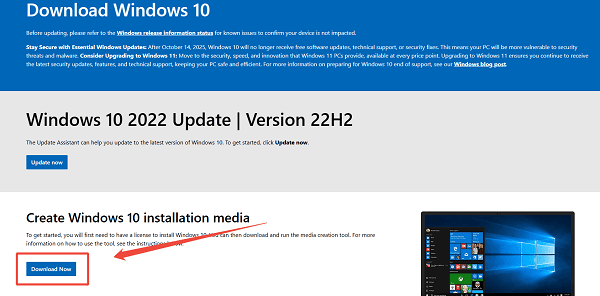
Install Windows 10 or Windows 11: Use official installation media and complete system setup.
Hardware Upgrade Options for Dell OptiPlex 3050
The Dell OptiPlex 3050 supports limited but practical upgrades depending on the form factor.
Supported Upgrade Components:
RAM upgrade up to 16GB DDR4
Storage upgrade to SSD or NVMe (model dependent)
Low-profile graphics card upgrade (Mini Tower versions)
Power supply upgrade (Mini Tower only)
Upgrade Best Practices:
Power off and unplug the system before opening the case
Use anti-static protection
Confirm compatibility with Dell motherboard and BIOS
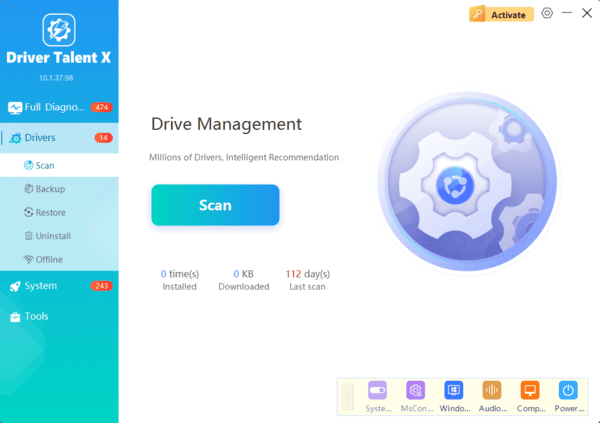
Update drivers after any hardware upgrade using Driver Talent X
Update Dell Drivers
Outdated or incorrect drivers are the most common cause of system instability, hardware malfunctions, and poor performance on the Dell OptiPlex 3050. Before changing hardware or adjusting system settings, updating all drivers should be your top priority.
Common Dell OptiPlex 3050 Problems and Solutions
Dell OptiPlex 3050 Not Booting
Possible causes include corrupted boot files, outdated BIOS, or faulty storage drivers.
Solutions:
Run Startup Repair from Windows recovery.
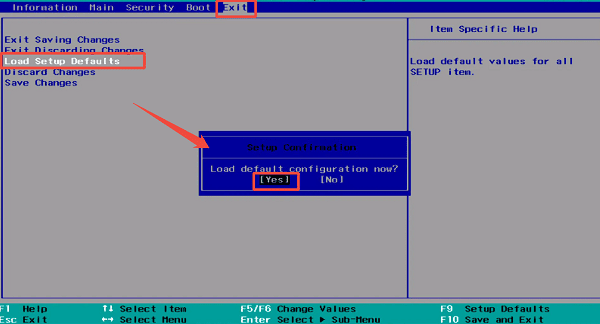
Reset BIOS settings to default.
Replace or reseat the storage drive.
No Display or Black Screen Issue
This issue is often related to graphics drivers or display configuration.
Solutions:
Check monitor cable and input source.
Boot into Safe Mode.
Reset display settings in Windows.
Update BIOS if necessary.
Network or Ethernet Not Working
Causes include missing network drivers or incorrect adapter settings.
Solutions:
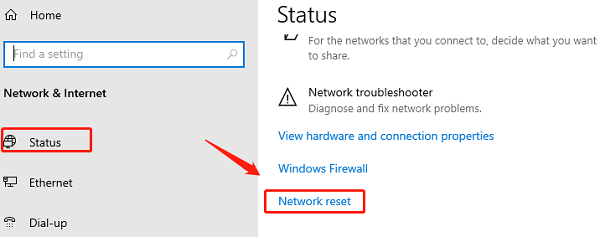
Reset network settings in Windows.
Disable and re-enable the network adapter.
Replace Ethernet cable or switch ports.
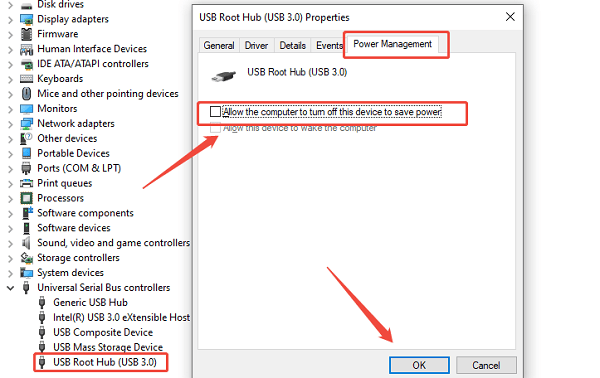
USB Ports Not Recognizing Devices
This is commonly caused by outdated chipset or USB controller drivers.
Solutions:
Disable USB power saving in Device Manager.
Check BIOS USB configuration.
Test devices on another system.
Slow Performance or Freezing
Performance issues often result from driver conflicts, low memory, or failing storage.
Upgrade RAM to 16GB.
Replace HDD with SSD.
Disable unnecessary startup programs.
Run disk health diagnostics.
BIOS Update Tips for Dell OptiPlex 3050
BIOS updates should only be performed if necessary, such as to fix hardware compatibility or stability issues.
Ensure stable power during update
Backup important data
Update drivers before flashing BIOS
Use Dell-approved BIOS versions only
Final Thoughts
The Dell OptiPlex 3050 remains a dependable desktop when properly configured and maintained. Whether you are setting it up for the first time, upgrading hardware, or troubleshooting common issues, keeping drivers up to date is the most important step. Using Driver Talent X ensures your system always has the correct and stable drivers, saving time and preventing unnecessary hardware or system failures.
