

Marvel Rivals may fail to launch and display the message "DirectX 12 is not supported on your system" even when DirectX 12 appears to be installed on Windows. In many cases, the real problem is not DirectX itself, but an unsupported GPU feature level, outdated graphics driver, older Windows build, or incorrect graphics configuration. Before assuming that your hardware needs to be replaced, there are several troubleshooting steps worth trying. This guide explains how to check DirectX 12 compatibility, update your GPU driver, configure Windows graphics settings, and resolve common issues preventing Marvel Rivals from starting normally.
Understanding the Error in Marvel Rivals
The DirectX 12 error usually appears when your PC is unable to initialize the required graphics interface for Marvel Rivals. This could be due to:
Incompatible GPU
Outdated graphics drivers
Corrupted DirectX files
Windows version not supporting DirectX 12
Incorrect in-game or system configuration
Check If Your System Supports DirectX 12
Before applying fixes, verify whether your PC supports DirectX 12:
Press Windows + R, type dxdiag, and press Enter.
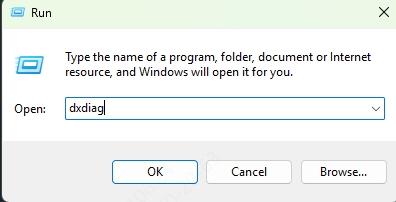
In the DirectX Diagnostic Tool, check the DirectX Version at the bottom of the System tab.
Go to the Display tab and confirm your GPU supports Feature Level 12_0 or higher.
If your GPU does not support Feature Level 12_0, you may need to upgrade your graphics card.
Fix 1. Install the Latest Version of DirectX
f your DirectX files are missing, outdated, or corrupted, Marvel Rivals will fail to initialize properly, throwing errors like "DirectX 12 not supported." Installing the latest version of DirectX is essential to ensure your system meets the graphical demands of modern games.
To ensure your PC is running the latest DirectX 12:
Visit the official Microsoft DirectX End-User Runtime page.
Download and install the latest runtime libraries.
Reboot your system after installation.
Note: DirectX 12 comes bundled with Windows 10/11 updates. Installing the latest Windows updates ensures DirectX is current.
Fix 2. Ensure Windows Is Up to Date
An outdated version of Windows may lack the system libraries and graphical enhancements required for DirectX 12. Microsoft bundles DirectX updates within its Windows updates, so keeping your system current is vital.
Go to Settings > Update & Security > Windows Update.
Click Check for updates.
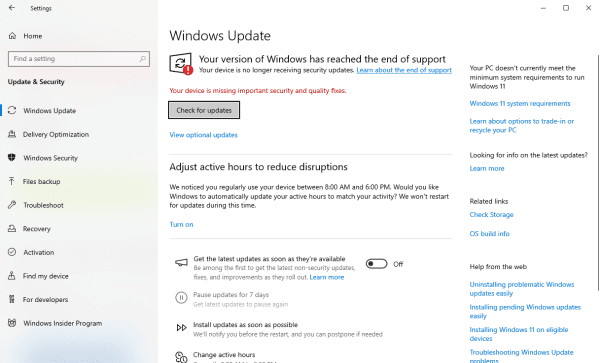
Install all available updates and restart your PC.
Upgrading to Windows 10 version 1909 or higher is recommended for better DirectX support.
Fix 3. Force Marvel Rivals to Use DirectX 12
Sometimes, even a fully compatible system fails to initialize DirectX 12 because the game defaults to an older API. Forcing Marvel Rivals to explicitly use DirectX 12 ensures it leverages the most advanced graphical features supported by your GPU and operating system.
Right-click Marvel Rivals in your Steam or Epic Games library.
Go to Properties > Launch Options.
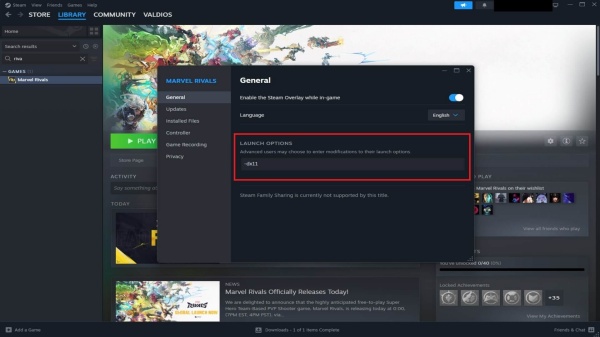
Add the following command: -dx12
Save and close, then relaunch the game.
This forces the game to initialize DirectX 12 explicitly, bypassing some auto-detection issues.
Fix 4. Update Your Graphics Drivers
One of the most common culprits behind the DirectX 12 error in Marvel Rivals is outdated or faulty graphics drivers. When your system tries to run the game using older driver architecture, it may fail to interface with DirectX 12 correctly. Updating your graphics drivers ensures compatibility with the latest APIs and delivers the best possible performance and stability. Whether you prefer automatic tools or manual updates from your GPU manufacturer, this step is critical in resolving DirectX-related crashes or errors.
Method 1: Use Driver Talent
We recommend using Driver Talent, a professional tool to update and repair drivers safely and automatically:
Step 1. Download and install Driver Talent.
Step 2. Launch the software and click Scan to detect outdated drivers.
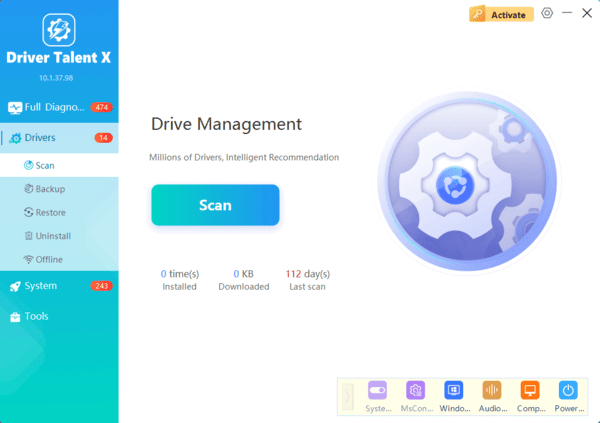
Step 3. Click Upgrade to install the latest graphics and system drivers.
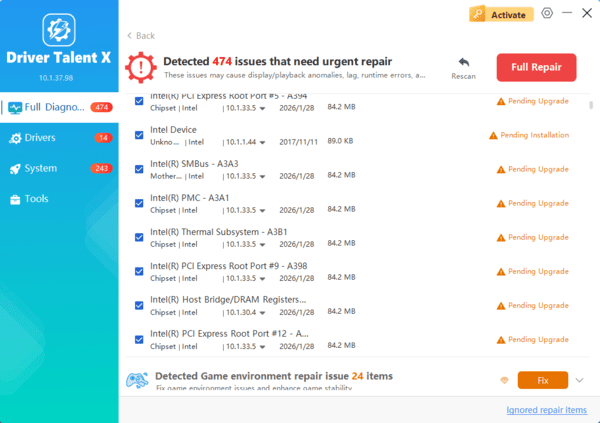
Step 4. Reboot your computer and relaunch Marvel Rivals.
Method 2: Update Manually via Manufacturer Site
Alternatively, update your GPU drivers manually:
NVIDIA users: NVIDIA Driver Download
AMD users: AMD Drivers and Support
Intel users: Intel Driver & Support Assistant
Always perform a clean install of the new drivers to avoid legacy conflicts.
Fix 5. Enable Hardware-Accelerated GPU Scheduling
Enabling Hardware-Accelerated GPU Scheduling offloads certain CPU tasks to the GPU, improving performance and reducing latency. This setting can directly influence how smoothly Marvel Rivals interacts with DirectX 12.
Go to Settings > System > Display > Graphics Settings.
Toggle Hardware-accelerated GPU scheduling to ON.
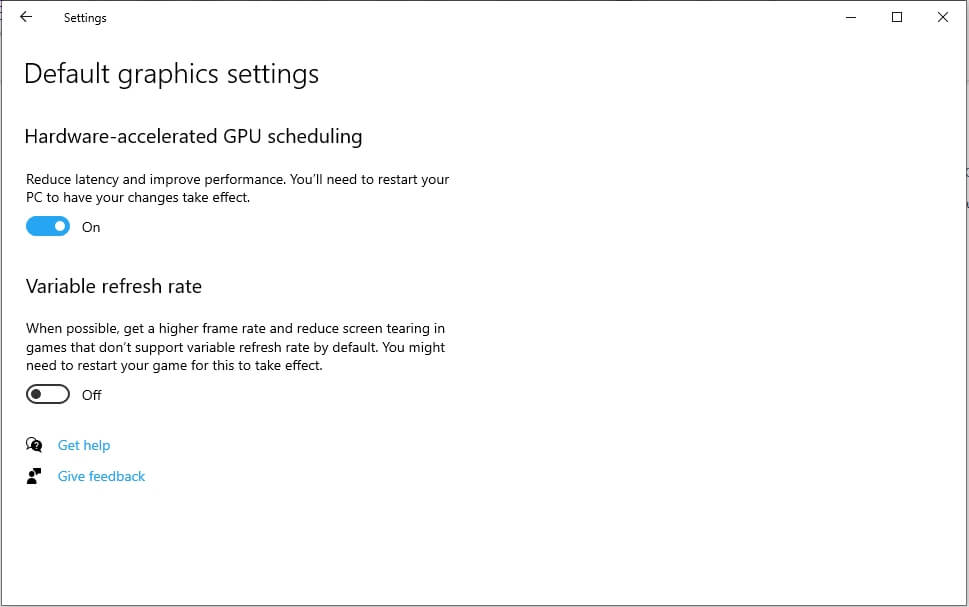
Restart your computer.
This feature optimizes GPU processing and may help with the DirectX 12 not supported error.
Fix 6. Disable Integrated GPU
Systems with both integrated and dedicated graphics cards can sometimes default to the weaker integrated GPU, which might not support DirectX 12. By disabling the integrated GPU, you ensure that Marvel Rivals runs on your high-performance dedicated graphics card.
Open Device Manager.
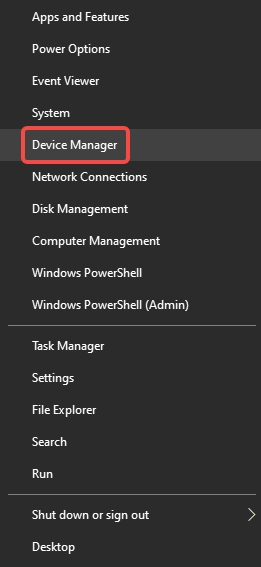
Expand Display adapters.
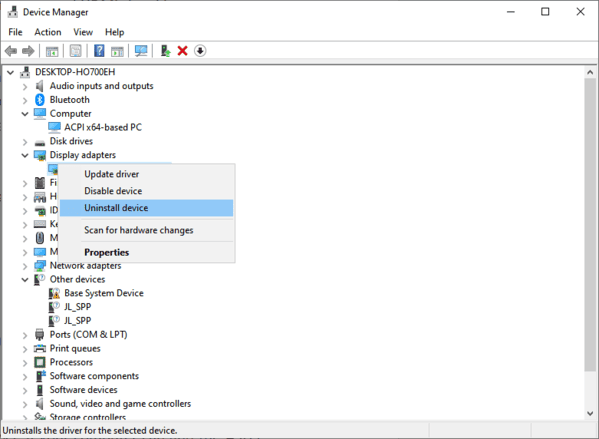
Right-click your integrated GPU (e.g., Intel HD) and click Disable device.
Ensure your system uses the dedicated GPU (e.g., NVIDIA or AMD).
Fix 7. Perform a Clean Boot
Background applications and services can conflict with Marvel Rivals or prevent DirectX 12 from initializing properly. Performing a clean boot ensures that your system runs only essential services, eliminating interference from third-party software.
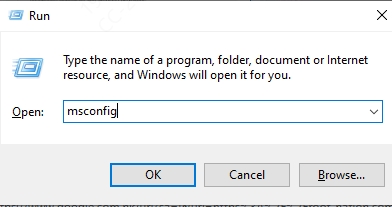
Press Windows + R, type msconfig, and press Enter.
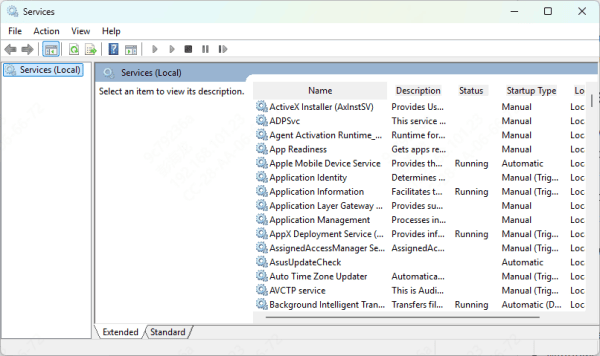
Go to the Services tab, check Hide all Microsoft services, and click Disable all.
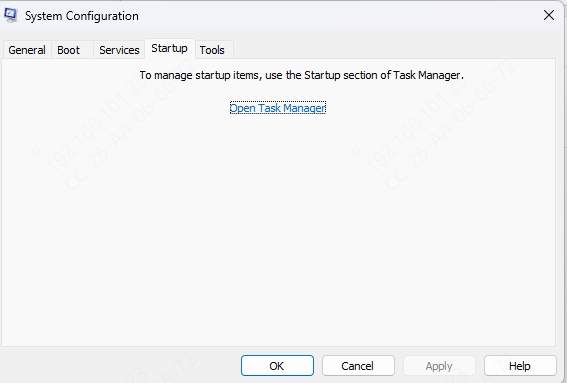
Under the Startup tab, click Open Task Manager and disable all startup items.
Restart your computer and launch Marvel Rivals.
Final Thoughts
The "DirectX 12 is not supported on your system" Marvel Rivals error stems from compatibility issues that are usually fixable with the right steps. Whether it's updating drivers, forcing the game to use DirectX 12, or checking hardware support levels, one or a combination of these solutions should resolve the issue.
