

When a PC using Intel HD Graphics 4600 starts showing unstable visuals, the issue may not come from the graphics hardware itself. A mismatched driver, recent Windows update, incorrect monitor setting, weak display connection, or power-related conflict can all lead to flickering, black screens, resolution problems, and failed external displays. This guide takes a practical troubleshooting approach, covering monitor and cable checks, display settings, driver rollback or reinstallation, Driver Talent X scans for graphics and chipset issues, Windows update review, system file repair, and hardware checks for older computers.
Check Resolution and Refresh Rate
Open the display settings in Windows and make sure the monitor is set to its recommended resolution. Older systems sometimes switch to a lower resolution after driver issues or updates.
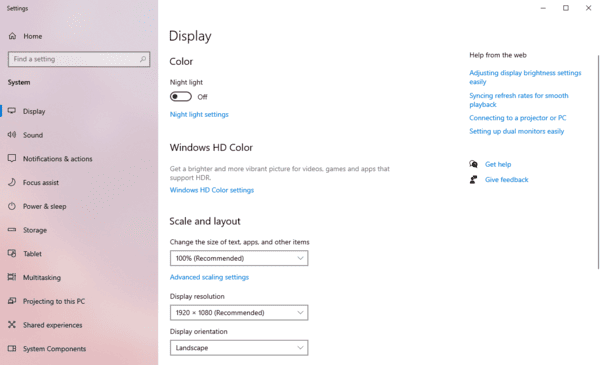
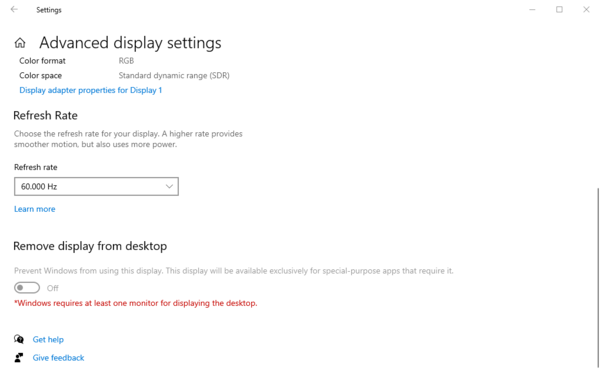
Then check the refresh rate in advanced display settings. A refresh rate that the monitor does not handle properly can cause flickering, unstable output, or a black screen. This is particularly important when using older monitors with Intel HD Graphics 4600, because some combinations of hardware are more sensitive to incorrect settings.
Test Another Monitor or Cable
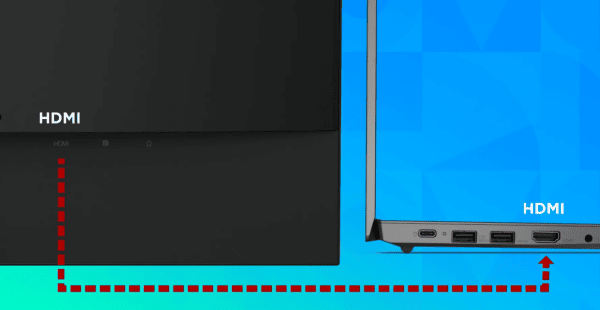
Test another monitor if possible. Also try another display cable of the same type. This is one of the fastest ways to separate a PC-side problem from a display-side problem
A faulty cable can cause flickering, ghosting, no signal messages, or random blackouts. Older VGA and HDMI cables are especially likely to create problems after long use
Check Graphics Driver
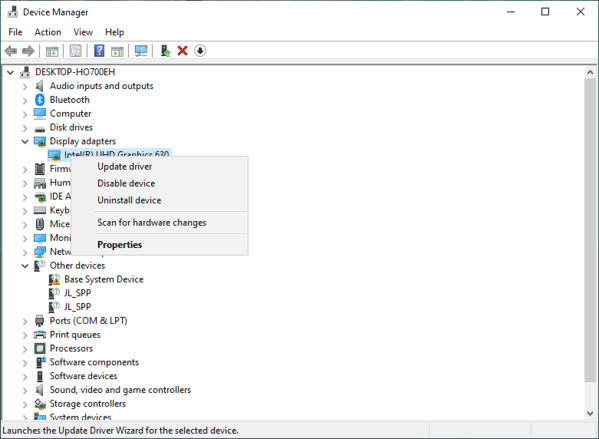
Graphics driver problems are one of the most common causes of Intel HD Graphics 4600 display issues. If the problem started after a Windows update or driver update, rolling back the graphics driver is often the best first move. This is because older hardware sometimes works better with a stable previous driver than with a newer generic update.
Rollback Drivers
If rollback is not available or does not help, reinstall the graphics driver completely. Use the correct driver for your exact laptop or desktop model whenever possible
A clean reinstall is often more effective than simply updating over the old driver
Use Driver Talent X
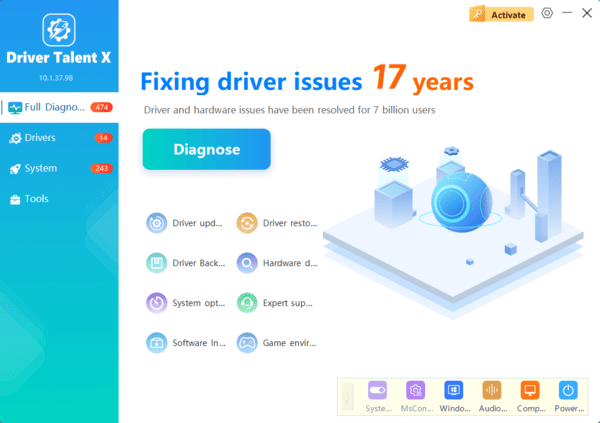
If you are not sure which graphics or related system driver is causing the issue, Driver Talent X can make the process easier
This can be especially useful if the problem began after Windows changed the driver automatically or if more than one related driver is damaged at the same time
Review Power and Windows Update Behavior
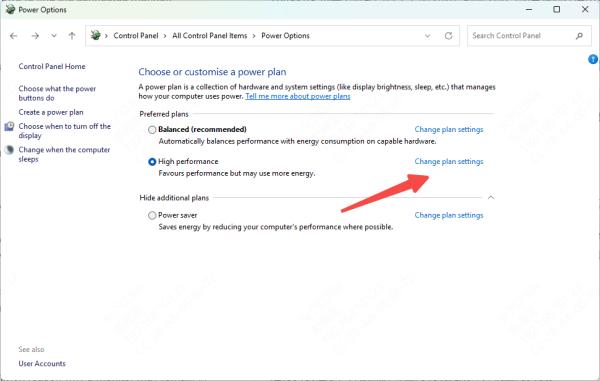
Power-saving settings can also cause display problems on older integrated graphics systems. On laptops, aggressive power settings may reduce display stability, cause flicker, or affect output to external monitors. Switching to a Balanced or High Performance plan can sometimes improve behavior immediately.
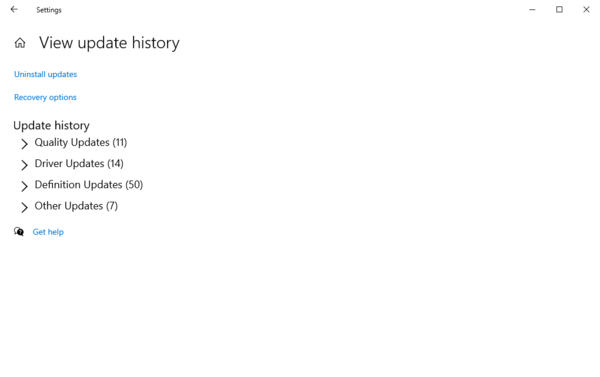
You should also check whether the issue started after a recent Windows update. If it did, the update may have replaced a stable Intel driver with a generic or less compatible version. In that case, rolling back the driver or uninstalling the recent update may be necessary.
Consider Overheating and Aging Hardware
Overheating can also cause flickering, random black screens, or graphics driver crashes
If the display issue appears only after the system has been running for a while, heat may be part of the problem. Check whether the machine is unusually hot, noisy, or slow. If so, internal cleaning and better airflow may help
Repair Windows System Files
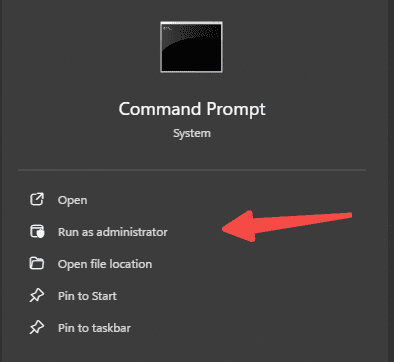
Repairing Windows system files is a useful step when driver reinstall alone does not fix the issue. This becomes even more important if you are seeing other Windows problems at the same time, such as crashes, missing settings, or unstable startup behavior
System corruption is not the most common cause of Intel HD Graphics 4600 display issues, but it does happen, especially on older systems that have gone through years of updates
Frequently Asked Questions
Why does the screen flicker after a graphics driver update?
The new driver may be incompatible with the computer, monitor, or Windows build. Roll back to the previous driver or install the model-specific version from the PC manufacturer.
Why does Intel HD Graphics 4600 detect a monitor but show no signal?
Common causes include an unsupported refresh rate, incorrect display mode, faulty cable, or incompatible adapter. Press Win + P, choose Duplicate or Extend, and test a supported resolution.
What if the display problem appears only after the computer gets hot?
Overheating may be destabilizing the processor's integrated graphics. Clean the cooling vents, confirm the fan works, restore overclocked settings to default, and inspect the thermal system.
Conclusion
Most display problems on Intel HD Graphics 4600 come down to a few common causes: unstable graphics drivers, incorrect display settings, monitor or cable faults, Windows update conflicts, or aging hardware. The best troubleshooting order is simple. Start with a restart and a cable check, then verify the resolution and refresh rate, test another monitor, repair or roll back the graphics driver, and check the chipset drivers too.
If you want a faster way to handle the driver side of the problem, Driver Talent X can help by scanning and repairing Intel graphics and related chipset drivers more efficiently. If the display issue still continues after these software fixes, the remaining cause is more likely to be a monitor problem, internal display hardware issue, or general aging of the system.
