Trying to open your favorite game or software only to be stopped by an error message saying "The code execution cannot proceed because MSVCP140.dll was not found"? This issue is particularly frustrating when an application previously worked without problems. MSVCP140.dll is part of Microsoft's Visual C++ runtime libraries, which many Windows programs need to function correctly. When this file becomes unavailable or damaged, affected applications may refuse to start. Fortunately, fixing the MSVCP140.dll missing error doesn't have to be complicated. In this article, you'll learn what causes the problem and how to restore the required components on Windows 10 and Windows 11. From reinstalling Visual C++ Redistributable packages and using Driver Talent X to check DLL-related issues to repairing system files and checking for malware, these solutions can help you get your software running again.
1. Common Causes of msvcp140.dll Not Found
Missing or corrupted Microsoft Visual C++ runtime
Driver conflicts or system incompatibility
System files accidentally deleted or infected by malware
Incomplete or incorrect software installation
Errors or corruption in the system registry
2. to Fix msvcp140.dll Not Found
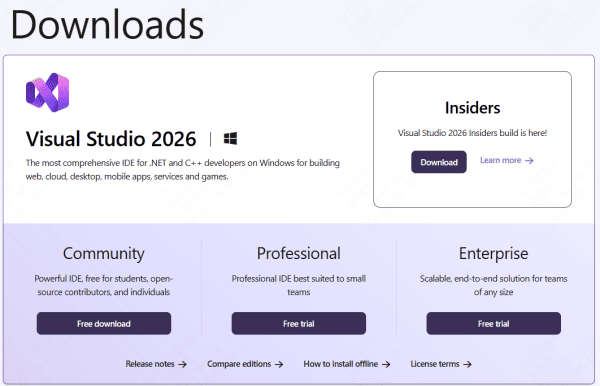
Method 1: Reinstall Microsoft Visual C++ 2015/2017/2019 Redistributable
Since msvcp140.dll belongs to the Visual C++ Redistributable runtime, reinstalling it is the most direct and effective solution when the file is missing.
Download the latest Visual C++ Redistributable installer from the official Microsoft website.
Choose the x86 or x64 version according to your system.
Install and then restart your computer.
Relaunch the program that showed the error.
Method 2: Use Professional Repair Software
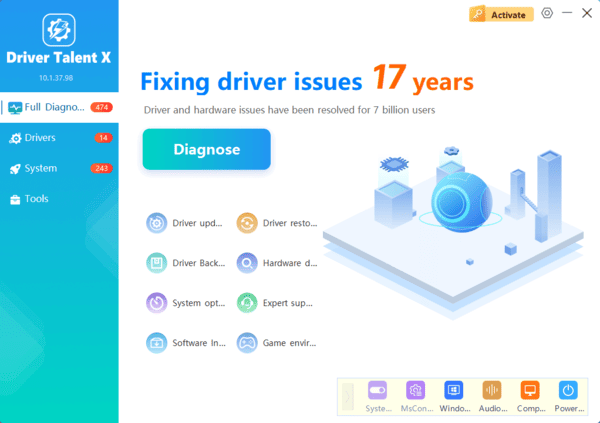
Driver Talent X not only manages drivers but also includes a DLL repair feature, avoiding the risk of manual searching and incorrect installation.
Click the download button in the article to get the latest Driver Talent X and launch the software.
On first use, click "Try Now" for the program to automatically scan your system drivers and DLL files.
Choose "Full Checkup", find missing DLL files under "Core DLL Files Abnormal", and click "Fix" to repair.
Restart your computer to ensure the DLL files are properly loaded.
Method 3: Run System File Checker (SFC)
Open Command Prompt as administrator.
Enter the command: sfc /scannow and press Enter.
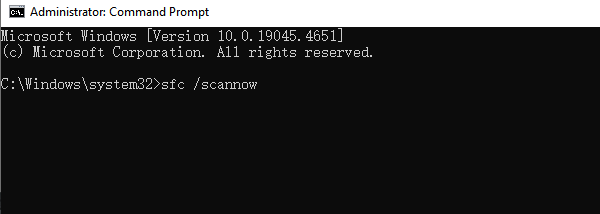
Wait for the system to scan and repair files.
Restart your computer and check if the error is resolved.
Method 4: Update Windows System
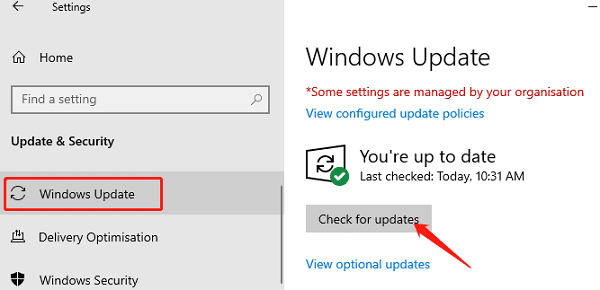
Open "Settings" > "Update & Security" > "Windows Update".
Click "Check for updates" and install all important patches.
Restart the computer to apply changes.
Method 5: Reinstall the Problematic Software
Uninstall the problematic software via "Control Panel".
Download and install the latest version from the official website.
Test if it runs correctly.
Method 6: Scan for Viruses and Malware
Use Windows Defender or third-party antivirus software to perform a full system scan.
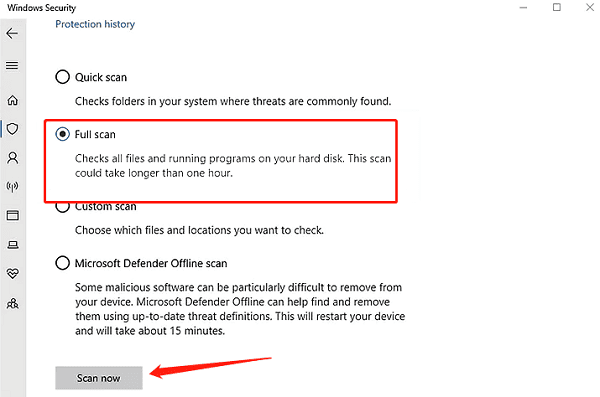
Remove detected viruses or threats.
Restart the computer.
3. Prevention Tips
Regularly update Windows and drivers to keep the system stable.
Install software from official sources to avoid pirated or incomplete installers.
Use antivirus software with real-time protection to prevent DLL files from being maliciously altered.
Use professional tools like Driver Talent X to automatically detect and repair driver and system issues.
Though the "msvcp140.dll not found" error is common, most problems can be quickly fixed by following the steps in this article. It is recommended to start by reinstalling the Microsoft Visual C++ Redistributable, combined with system scans and updates.
Most users can easily solve the issue this way. If you're still troubled by this error, try the methods above now to restore your system and software to normal operation!