

A Steam game that worked normally yesterday may suddenly refuse to open and report that steam_api64.dll is missing, not found, or unable to load. In most cases, manually downloading the DLL is neither necessary nor the safest solution. The file may have been removed by security software, damaged during a game update, or lost because the installation itself is incomplete. Problems with Steam, required runtime components, or Windows system files can also prevent the DLL from loading correctly even when it still exists. The fixes below focus on restoring the original game files and repairing the components they depend on so you can launch the game normally again.
Fix 1: Verify the Game Files Through Steam
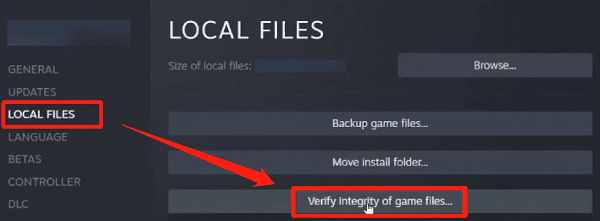
Open Steam and go to the Library. Right-click the affected game and select Properties. Go to the Local Files tab and click "Verify integrity of game files." Steam scans all files and downloads replacements for any that are missing or don't match
This takes a few minutes depending on the game's size
After the scan completes, launch the game and test. If steam_api64.dll was deleted by antivirus or lost during a failed update, this step restores it cleanly
Fix 2: Restore the DLL Deleted by Antivirus
Antivirus software frequently flags steam_api64.dll as suspicious and quarantines or deletes it. This is a known false positive issue with Windows Defender, Avast, AVG, Bitdefender, and others
If verifying game files restores the DLL but the error returns after a short time, antivirus is almost certainly removing it again
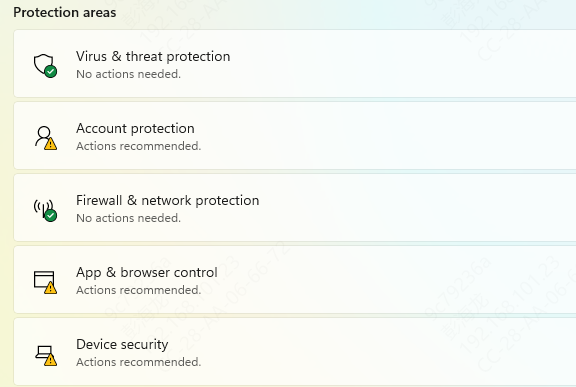
For Windows Defender, open Windows Security, go to Virus and threat protection, then Protection history. Look for a quarantined item related to steam_api64.dll. Select it and click Restore
Fix 3: Run the Game Through Steam Instead of a Shortcut
steam_api64.dll requires an active Steam session to function. Launching a game executable directly — by double-clicking the .exe file in the game folder or using a shortcut that points to the executable rather than through Steam — will always produce a DLL missing or initialization error even when the file is present and intact
Open Steam first and let it fully load before launching any game. If a desktop shortcut is causing the problem, delete it and create a proper one through Steam. Right-click the game in the Steam Library, select Manage, and click Add Desktop Shortcut. This creates a shortcut that routes through the Steam client rather than launching the executable directly
Fix 4: Reinstall the Affected Game
If file verification doesn't restore steam_api64.dll or the error returns after verification, a full reinstall provides a clean copy of all required files
In Steam, right-click the game in the Library, select Manage, then Uninstall, and confirm. After the uninstall completes, right-click the game again and select Install. Follow the download process. Launch the game after installation and test
Fix 5: Reinstall the Steam Client
Before uninstalling, back up the steamapps folder located at C:\Program Files (x86)\Steam\steamapps. This folder contains all downloaded games and saves the need to re-download everything after reinstalling
Uninstall Steam by going to Settings, then Apps, finding Steam in the list, and uninstalling it. Download the latest Steam installer from store.steampowered.com and run it. After installation, move the backed-up steamapps folder back into the new Steam directory. Launch Steam, allow it to update, and test the affected game
Fix 6: Install Visual C++ Redistributable Packages
steam_api64.dll depends on Microsoft Visual C++ Redistributable runtime libraries. If these packages are missing or corrupted, the DLL cannot load even when the file itself is present and intact. This produces the same missing or failed to initialize error message
Go to Microsoft's official website and search for "Visual C++ Redistributable downloads." Download and install both the x64 and x86 versions of the latest package (2015-2022). Some older games also require earlier runtime versions — install 2013 and 2012 packages if the error persists on an older title

Fix 7: Run System File Checker
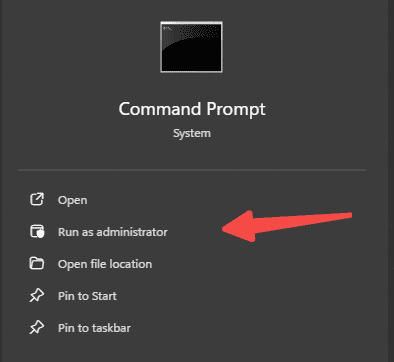
Open Command Prompt as administrator. Press the Windows key, type cmd, right-click Command Prompt, and select Run as administrator. Run the following command and wait for it to complete:
sfc /scannow
If SFC reports that it found corrupted files it could not repair, run the following command next:
DISM /Online /Cleanup-Image /RestoreHealth
Fix 8: Update the Graphics Driver
In some cases, steam_api64.dll initialization failures on graphically intensive games are triggered by an outdated or corrupted GPU driver causing conflicts between DirectX and the Steam API at launch. If the error appears specifically with demanding games and the fixes above have not resolved it, the GPU driver may be a contributing factor.
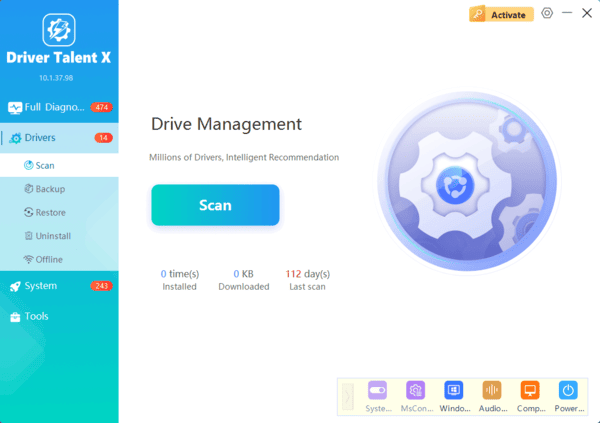
Open Driver Talent X and go to the Drivers tab. Click Diagnose to scan all hardware drivers
Find the graphics adapter entry in the scan results. Click Full Repair to install the correct driver version
Restart the PC and test the game
Frequently Asked Questions
Where should steam_api64.dll be located?
It is usually in the affected game's installation folder. Its location depends on the game. Use Steam's file verification feature to restore it to the correct place instead of copying a DLL into a Windows system folder.
What if antivirus removes the file again after verification?
Check the detection details in your antivirus protection history and confirm the game was installed through a legitimate source. If you are confident the detection is incorrect, restore the file and add a narrow exception for that game's folder. Avoid excluding the entire Steam library without a specific reason.
Will reinstalling Steam delete my game saves?
It depends on where the game stores them. Back up your saves before reinstalling Steam; copying steamapps preserves downloaded game files but does not necessarily preserve saves stored elsewhere on your PC.
Conclusion
steam_api64.dll missing errors are most commonly caused by antivirus quarantine, corrupted game files, or launching the game executable directly without an active Steam session. Verifying game files through Steam resolves the majority of cases within a few minutes. Restoring the file from antivirus quarantine and adding the Steam folder to the exclusion list handles cases where the error keeps returning. For persistent issues, installing Visual C++ Redistributable packages and running System File Checker cover the remaining common causes. Never source steam_api64.dll from third-party DLL sites — the only reliable fix is restoring the file through Steam's own verification process or a clean game reinstall.
