

If Steam won't launch, does not respond after double-clicking, or closes immediately on Windows, the problem may be caused by corrupted Steam files, permission issues, outdated drivers, download cache problems, security software interference, or background process conflicts. In many cases, the Steam client itself is still recoverable without reinstalling all your games. This guide covers several practical ways to fix Steam not opening, including updating drivers, running Steam as administrator, repairing client files, clearing cache, adjusting permissions, and reinstalling Steam while keeping your installed games.
Common Causes of Steam Failing to Launch
Faulty or outdated drivers causing system instability
Corrupted or missing Steam files
Insufficient system permissions or antivirus interference
Windows update or compatibility issues
Network problems or proxy interference
Background processes blocking new ones from starting
How to Fix Steam Not Launching
1. Run Steam as Administrator
Close Steam completely.
Right-click the Steam shortcut on your desktop and select "Properties".
Go to the "Compatibility" tab and check "Run this program as an administrator".
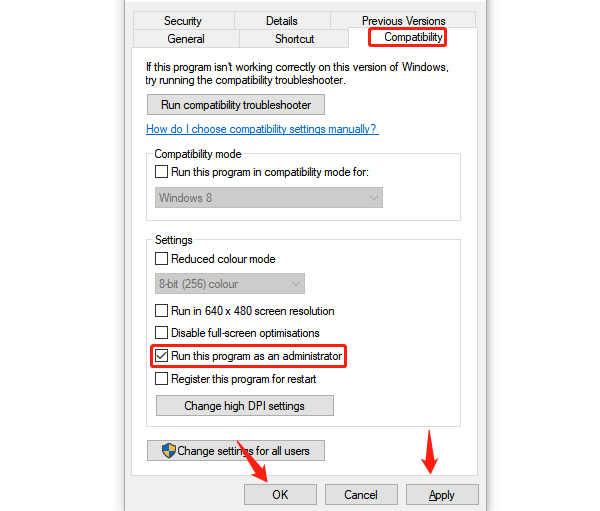
Click "Apply" > "OK", then relaunch Steam.
2. Delete the ClientRegistry.blob File
This file may be corrupted, preventing Steam from launching:
Go to the Steam installation directory (default: C:\Program Files (x86)\Steam).
Locate and delete the "ClientRegistry.blob" file.
Restart Steam; the file will be regenerated automatically.
3. Verify Game File Integrity
Open Steam and go to your Library.
Right-click the game with issues and select "Properties".
On the left, go to "Installed Files", then click "Verify integrity of game files".
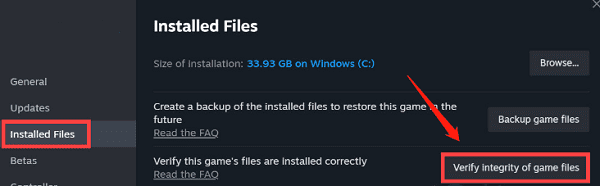
Wait for Steam to detect and fix any issues, then restart Steam and try launching the game again.
4. Run the Steam Repair Command
Press Win + R to open the Run dialog.
Enter the following command and press Enter: "C:\Program Files (x86)\Steam\bin\SteamService.exe" /repair
(Note: Adjust the path if Steam is installed in a different directory.)
5. Manually Adjust File Permissions
Open File Explorer and go to the Steam installation directory (default: C:\Program Files (x86)\Steam\steamapps\common\).
Find the game folder with issues, right-click it and select "Properties".
Go to the "Security" tab and click "Edit".
Select "Users", check "Full Control", then click "Apply" and "OK".
Relaunch Steam and try downloading or updating the game again.
6. Clear Download Cache
Corrupted download cache can also prevent Steam from launching:
Open Steam (if accessible).
Go to "Settings > Downloads > Clear Download Cache".
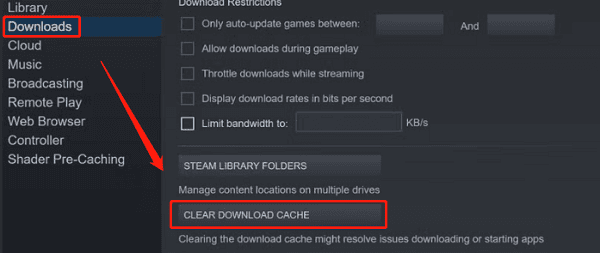
If Steam won't open at all, delete the appcache folder in the Steam directory manually.
7. Uninstall and Reinstall Steam (Keep Game Files)
If all else fails, consider reinstalling Steam:
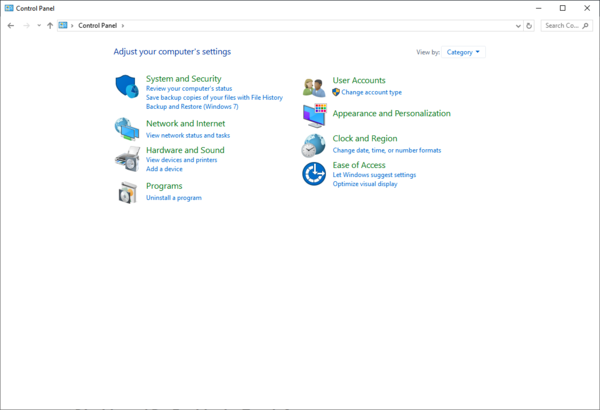
Uninstall Steam via Control Panel.
Before uninstalling, back up the steamapps folder to retain your installed games.
Download and install the latest Steam client from the official website.
8. Check Device Drivers
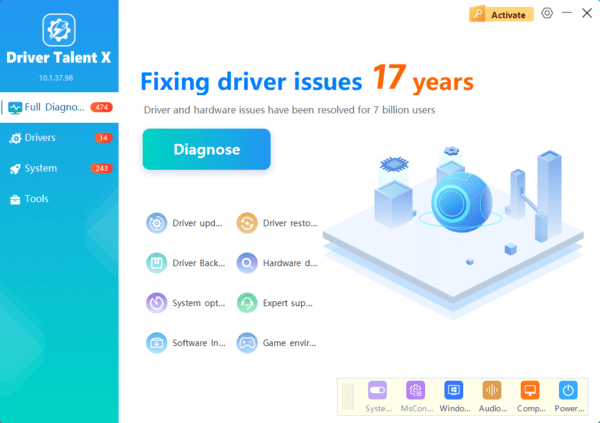
Outdated or corrupted drivers may affect Windows stability, leading to Steam failing to launch. It's recommended to use Driver Talent X, a tool that saves time and prevents downloading or installing incorrect drivers.
Frequently Asked Questions
Why does nothing happen when I double-click Steam?
Steam may already be stuck in the background, lack the necessary permissions, or have corrupted client files. End all Steam processes in Task Manager, then run Steam as administrator.
Will reinstalling Steam delete my installed games?
It can if the Steam folder is removed. Before uninstalling, back up the steamapps folder and userdata folder. Restore them after reinstalling the Steam client.
What should I do if Steam opens and immediately closes?
Delete the appcache folder, run the Steam repair command, and check whether antivirus software is blocking Steam. You should also update Windows and relevant device drivers.
Conclusion
Steam may fail to launch because of corrupted client files, insufficient permissions, cache problems, software conflicts, or outdated drivers. Start by closing stuck Steam processes and running the client as administrator, then repair its files or clear the cache. If the problem continues, reinstall Steam after backing up the steamapps and userdata folders. Driver Talent X can also help identify problematic graphics and system drivers that may affect Steam's stability.
