

Wireless mouse problems can occur for many reasons, including dead batteries, lost pairing, USB receiver failures, outdated drivers, or Windows power settings. Symptoms such as freezing, random disconnections, or the mouse not being detected require different solutions. This guide explains the most common causes of wireless mouse issues and provides practical fixes to restore smooth and reliable operation on Windows.
Physical Causes: Start Here
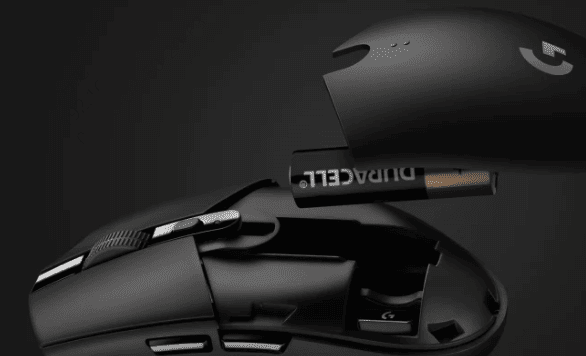
Dead or low battery is responsible for more wireless mouse failures than any other cause, and it's the one people check last instead of first. A battery that reads as low doesn't fail gradually — it often causes intermittent freezing followed by a sudden complete cutoff. Pull the batteries out and put in a fresh pair before doing anything else. If the mouse comes back to life, you're done
Lost pairing is the second most common cause, especially after a battery swap. When you remove the batteries from most wireless mice, the pairing data can reset. The mouse and its dongle need to be re-paired before they'll communicate again
When Windows Doesn't Detect the Mouse at All
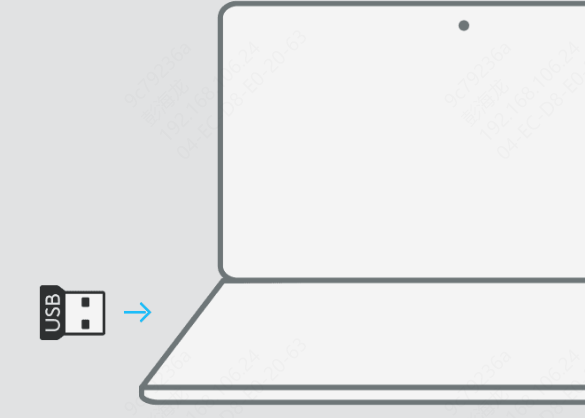
Test the port first. Remove the dongle and plug a different USB device into the same port. If that device is also not recognized, the port is the problem, not the mouse
Try every other available USB port on the machine. On desktops, use a port directly on the back of the case — these connect to the motherboard and are more reliable than front panel ports. Avoid USB hubs entirely; they sometimes fail to deliver consistent power to wireless receivers
If other devices work in the same port but the dongle still isn't recognized, the issue is the driver
Open Device Manager by pressing Win + X and selecting it from the menu. Look under Universal Serial Bus controllers for any entry labeled Unknown Device. Right-click it and select Update driver, then Search automatically for drivers
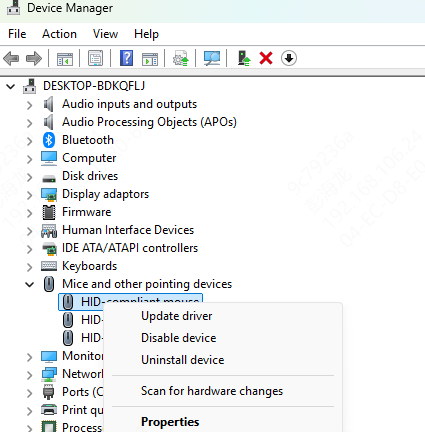
If Windows finds nothing, or if the dongle doesn't show up anywhere in Device Manager even as an unknown device, the driver is completely absent and Windows has no record of the hardware
This is where Driver Talent X is the most effective solution. It identifies hardware by system ID rather than relying on Windows to recognize it first. Open Driver Talent X, run a scan, and it will find the correct HID or vendor-specific driver for your mouse receiver and install it directly

When the Mouse Keeps Dropping or Cutting Out
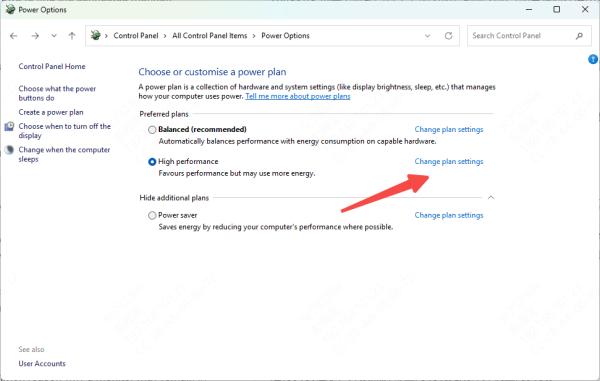
To disable it, open the Control Panel and go to Power Options. Click Change plan settings next to your current plan, then Change advanced power settings. Find USB settings in the list, expand it, expand USB selective suspend setting, and change it to Disabled
Apply the change and restart. If you're on a laptop, set it to Disabled for both battery and plugged-in modes
When Nothing Above Has Worked
Install the manufacturer's full software package. Applications like Logitech Options, Razer Synapse, or Microsoft Mouse and Keyboard Center include driver components and firmware management tools that go beyond what Windows installs
Visit your mouse manufacturer's support page, search for your exact model, and download the complete software package for Windows. Before installing it, remove any existing mouse software through Settings and then Apps

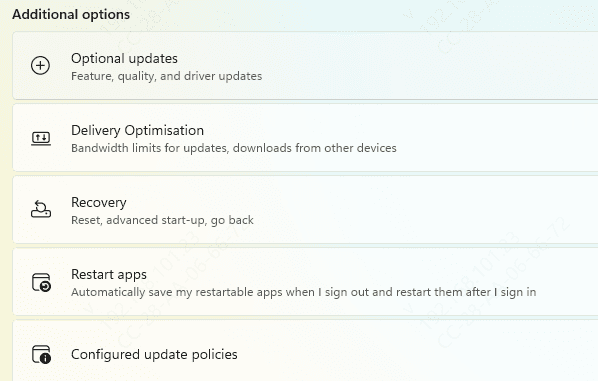
Check for a conflicting Windows update. Open Settings, go to Windows Update, and click View update history. Look for updates installed around the time the mouse stopped working
If a specific update coincides with the failure, you can go to Uninstall updates and remove it to test whether that resolves the problem. Also click Check for Updates — Microsoft frequently releases patches that fix hardware compatibility issues introduced by earlier updates
Keeping the Mouse Reliable Long-Term
Don't let batteries fully drain. Low battery causes exactly the kind of intermittent, hard-to-diagnose behavior that wastes time troubleshooting. If the mouse starts skipping or lagging, check battery level before investigating anything else. Keep a spare pair nearby
Plug the dongle into the same port every time. Windows creates a driver profile for each physical USB port. Moving the dongle to a different port prompts Windows to reinstall the device driver, which occasionally introduces a brief error. Consistent port usage avoids this entirely
Conclusion
Wireless mouse problems look complicated but almost always come from three places: no power or lost pairing in the hardware, a missing or broken driver in Windows, or a power management setting cutting the USB connection. Work through the section that matches your specific failure type and you'll resolve it without touching anything unrelated.
