

NVIDIA GeForce RTX graphics cards deliver powerful performance for gaming, streaming, creative workloads, and AI applications, but their capabilities rely heavily on having the right drivers installed. When RTX drivers become outdated, corrupted, or incompatible, you may experience problems such as FPS drops, game crashes, screen flickering, black screens, poor GPU performance, or missing features like DLSS and ray tracing. Even a high-end RTX GPU can perform below expectations if the driver is not properly maintained. This guide explains how to update NVIDIA GeForce RTX drivers on Windows using different methods.
Common Signs Your RTX Driver Needs an Update
A bad or outdated driver does not always produce the same symptoms. On one PC, the issue may look like low FPS. On another, the system may crash only when gaming. Some users only notice a problem after a Windows update or after installing a new game
Common signs include random black screens, flickering during gameplay, screen tearing, frequent game crashes, poor performance in titles that should run well, missing resolution or refresh rate options, and apps failing to detect NVIDIA GPU features. In some cases, Device Manager may show a warning, but often the problem appears long before Windows reports anything obvious
How to Update RTX Drivers on Windows
There is no single method that fits every user. Some people want the simplest update path, while others prefer full manual control. The best choice depends on how comfortable you are with driver management and how much troubleshooting you want to do yourself.
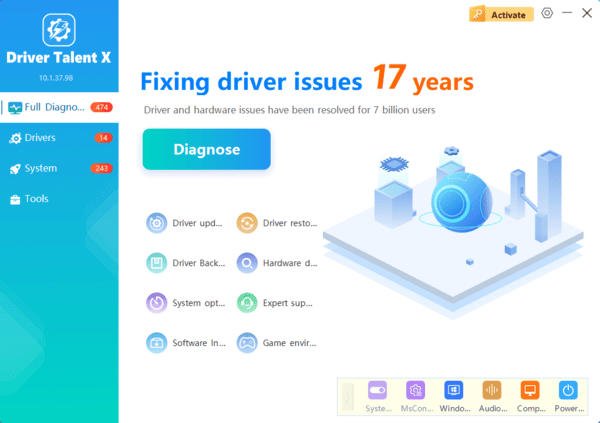
Use Driver Talent X
If you want a simpler update process, Driver Talent X is one of the easiest ways to scan for outdated or damaged GPU drivers and related motherboard components. This can be useful not only when your NVIDIA driver is old, but also when the real issue involves chipset or system-level drivers that affect graphics stability.
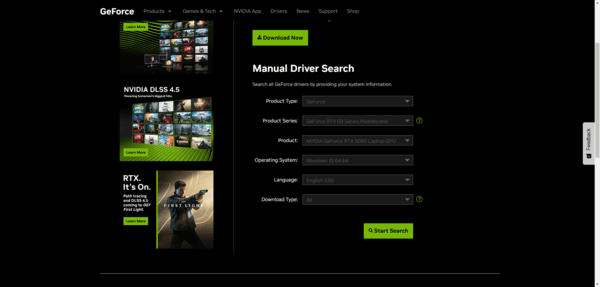
Download Drivers from NVIDIA's Official Website
To use this method, go to NVIDIA's official driver download page, choose your exact GeForce RTX model and Windows version, select the appropriate driver type, and download the installer. During installation, you can usually choose between a standard install and a custom install.
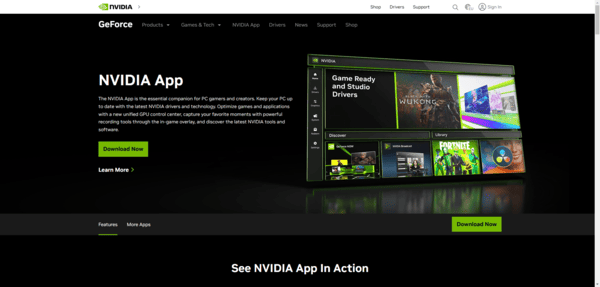
NVIDIA GeForce Experience
GeForce Experience is NVIDIA's own utility for automatic driver updates and game optimization. If you already use it, updating your RTX driver is relatively easy. Open the app, go to the Drivers section, check for updates, and install the latest available release.
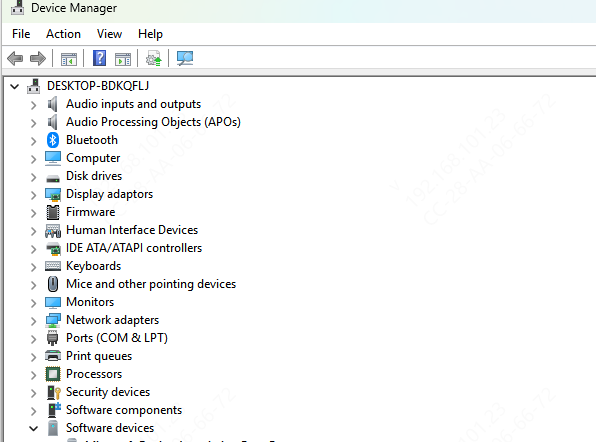
Use Device Manager
Windows Device Manager can sometimes find a driver update, but it is usually the least reliable option for getting the newest RTX driver. Right-click the Start button, open Device Manager, expand Display adapters, right-click the NVIDIA GeForce RTX card, and choose Update driver.
What to Do If a Driver Update Causes Problems
The first step is to try a clean driver installation. This removes remnants of the previous driver and replaces them with a fresh version. If the problem started only after the latest update, rolling back to a previous stable driver may be more effective
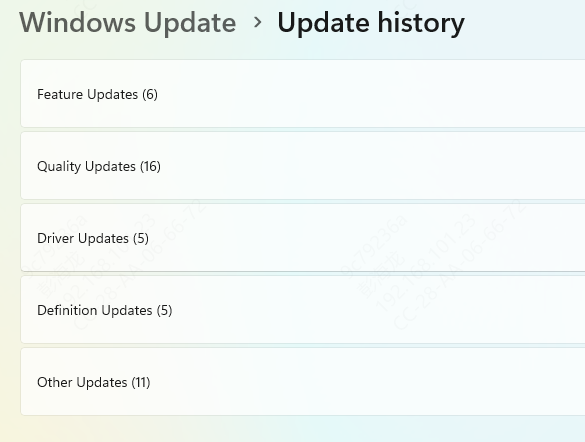
It is also worth checking Windows updates, motherboard chipset drivers, and system temperatures. Sometimes the graphics driver gets blamed for a broader system issue that only becomes obvious during heavy GPU use
Final Thoughts
NVIDIA GeForce RTX graphics cards can deliver excellent performance, but driver quality plays a major role in whether that performance feels smooth and reliable. A good driver update can improve FPS stability, reduce crashes, fix flickering, and restore features that stopped working after a system change.
For most users, the best approach is to choose a trusted update method and stay consistent. Driver Talent X is a practical option for people who want a quicker scan-and-repair process across both GPU and related system drivers. NVIDIA's official website is best for users who want direct control, while GeForce Experience remains a convenient middle ground for many gamers.
