

The HP DeskJet 2700 is a wireless-only printer — it has no Ethernet port, so WiFi is the only way to connect it to a PC for printing. Connection is needed in three situations: first-time setup out of the box, reconnecting after a router change or WiFi password update, and restoring the connection after a network reset. This guide covers three connection methods, how to add the printer to Windows after the WiFi connection is established, and fixes for common connection failures.
Method 1: Connect Using the HP Smart App
Download and install the HP Smart app from the Microsoft Store on the PC. Open HP Smart and click the plus icon or the option to set up a new printer. The app will search for nearby HP printers
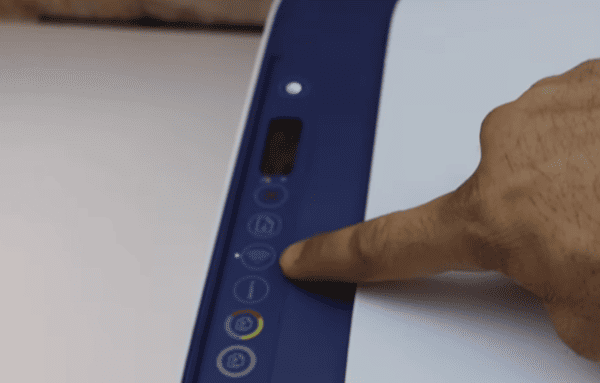
When prompted, put the printer into wireless setup mode. On the printer's control panel, press and hold the Wireless button and the Information button simultaneously for three seconds. The wireless light on the printer will begin flashing, indicating it is ready to receive network credentials
Method 2: Connect Using the WPS Button
On the printer, press and hold the Wireless button until the wireless light begins flashing. This puts the printer into WPS pairing mode
Within two minutes of the wireless light starting to flash, press and hold the WPS button on the router for three to five seconds
The printer and router communicate automatically. When the connection is established, the wireless light on the printer becomes solid rather than flashing
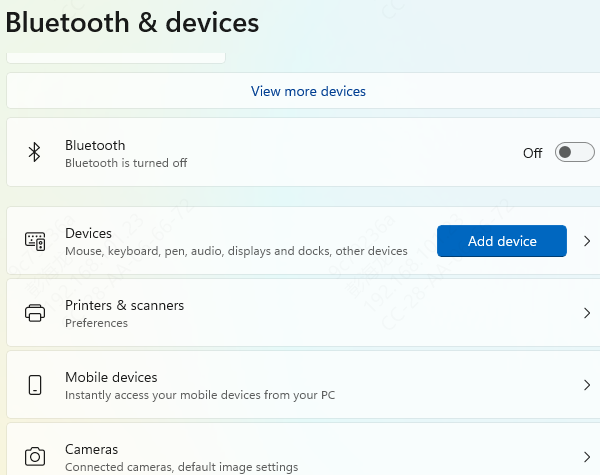
After the printer connects, add it to Windows. Go to Settings, then Devices, then Printers and scanners, and click Add a printer or scanner. Windows scans the network and should detect the HP DeskJet 2700. Click it and select Add device
Reset Network Settings and Reconnect
Use this method when the printer was previously connected but lost the WiFi connection after a router replacement, password change, or network reset. The printer's saved network credentials need to be cleared before it can connect to a different network
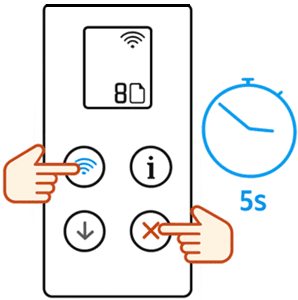
On the printer, press and hold the Wireless button and the Cancel button simultaneously for three seconds. The wireless light flashes to confirm the network settings have been reset. The printer is now in wireless setup mode and ready to connect to a new network
After the reset, use Method 1 or Method 2 to connect to the current network. After reconnecting, the printer receives a new IP address from the router. Remove the existing HP DeskJet 2700 entry from Windows Printers and scanners and add it again so Windows picks up the updated address
Install the HP DeskJet 2700 Driver on Windows
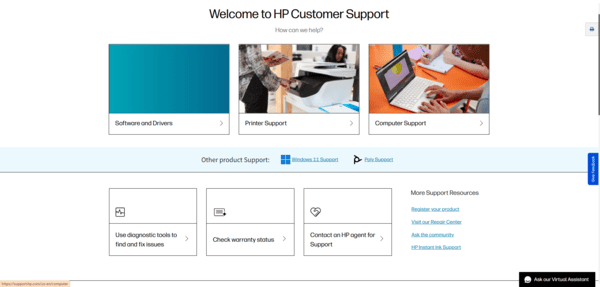
Go to HP's official support site, search for HP DeskJet 2700 driver, select the correct Windows version, and download the full driver and software package. Run the installer as administrator and follow the setup wizard
The wizard includes a network connection step — confirm the printer is powered on and connected to WiFi when this step runs. Restart after installation
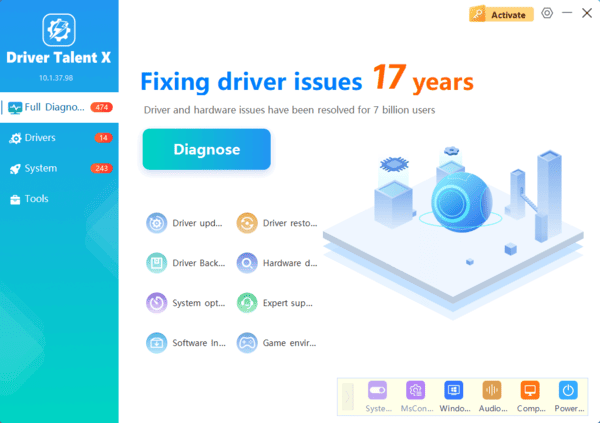
For an automated alternative, Driver Talent X detects the HP DeskJet 2700 by hardware ID and installs the correct driver without requiring manual navigation of HP's support site
Open Driver Talent X and go to the Drivers tab. Click Diagnose. Find the HP DeskJet 2700 in the scan results. Click Full Repair to install the correct driver. Restart the PC and test printing
Fix Common WiFi Connection Problems
If the printer connects to WiFi but shows as offline in Windows, open the print queue by going to Settings, then Devices, then Printers and scanners, clicking the printer, and selecting Open queue. Click the Printer menu at the top of the queue window and uncheck "Use Printer Offline" if it is checked. If the issue persists, remove the printer entry and add it again.
If the printer loses its WiFi connection repeatedly after the router restarts, assign a static IP address to the printer through the router's DHCP reservation settings. This binds the printer's MAC address to a fixed IP so it does not change after restarts. The printer's MAC address is printed on the network configuration page produced by pressing the Information button.
The HP Smart app guided setup is the most reliable first-time connection method for the HP DeskJet 2700 — it handles both the WiFi connection and driver installation in one process. WPS is the fastest option for users whose router supports it. For reconnecting after a router change, resetting the printer's network settings first ensures the old credentials are cleared before the new connection attempt. After connecting, confirm the printer appears in Windows Printers and scanners and print a test page to verify everything is working.
