

HP devices rely on properly managed drivers to communicate with Windows and deliver stable performance. When drivers become outdated, corrupted, or incompatible, common problems can appear, including HP printers going offline, touchpads losing features, audio disappearing, WiFi disconnecting, Bluetooth failures, webcam issues, and docking station detection errors. While these problems may look like hardware failures, many are actually caused by driver conflicts or incorrect driver installations. This guide explains how to manage HP drivers effectively and prevent common device problems. You will learn how to identify the correct HP model, choose reliable driver sources, recognize signs of driver-related issues, and use the right tools to maintain system stability.
Common HP Devices Affected by Bad Driver Management
HP printers are among the most common examples. Incorrect or outdated drivers can cause offline errors, missing scanning features, poor print behavior, or complete failure to detect the printer
HP laptop touchpads can also fail after driver conflicts. The touchpad may still move the pointer but lose gestures, scrolling, or tap behavior. Audio devices often break after Windows installs a generic driver that removes HP-specific tuning
Signs That Driver Management Needs Attention
If HP devices keep failing after Windows updates, if Device Manager shows warning icons, if the same problem keeps returning after temporary fixes, or if multiple devices become unstable at the same time, driver management needs attention
Another warning sign is when Windows installs drivers automatically but the device still works poorly. This often means the device is using a generic or incomplete driver rather than the correct HP-specific version
Start With the Exact HP Model
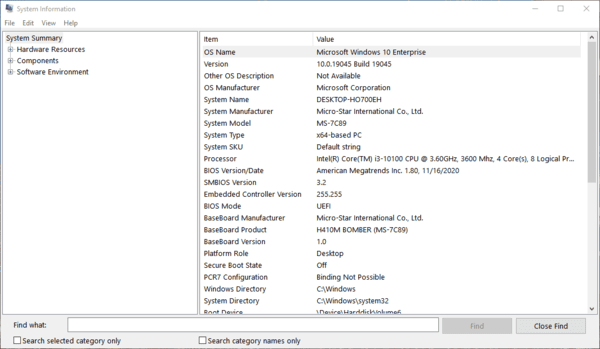
One of the most important rules is to identify the exact HP model before making driver changes. Similar HP model names can use different hardware inside. That means a driver package that looks close enough may still be wrong
Installing the wrong driver can cause incomplete functionality, conflicts, or a device that works worse than before. This is especially important for HP laptops, printers, docking stations, and business devices that may have several hardware variations under similar product names
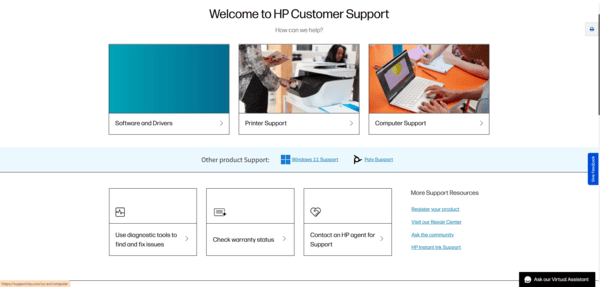
Use Trusted Driver Sources
Unofficial driver websites are one of the biggest causes of long-term system instability. They often provide outdated, mismatched, or bundled driver packages that create more problems than they solve
Proper driver management means avoiding these sources completely
If the source is unclear, the risk is unnecessary. Stable driver management depends on trusted packages and model-specific accuracy
Use Driver Talent X
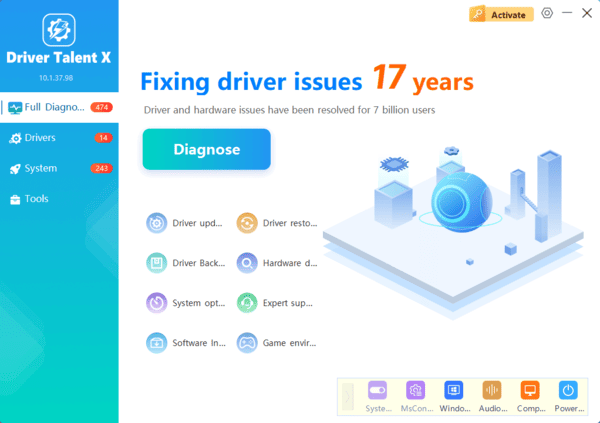
When HP device problems involve more than one driver, Driver Talent X can make the repair process much easier. This is especially useful when several HP devices are unstable at once, Driver Talent X helps identify the wider driver picture.
When It Is Not Really a Driver Problem
Driver management is powerful, but it cannot fix true hardware failure. A broken USB port, failed webcam, damaged touchpad, dead audio jack, worn printer mechanism, or failing motherboard will not be repaired by software alone
That is why testing matters. If the same HP device fails on multiple systems, if it is physically damaged, or if it disappears entirely regardless of driver repairs, hardware should be considered. Proper driver management helps when software communication is part of the issue, but it cannot replace a failed physical part
Conclusion
Proper driver management is one of the most effective ways to prevent recurring HP device errors. It works because most device failures on Windows are not random. They are caused by damaged, outdated, mismatched, or poorly managed drivers. The key is to identify the exact HP model, update only the drivers that matter, use trusted sources, and maintain the supporting chipset and system drivers that keep everything stable.
