

Keeping your laptop drivers up to date can help prevent hardware detection problems, unstable Wi-Fi, missing audio, display glitches, Bluetooth failures, and other performance issues after Windows changes. Important components such as graphics, chipset, network, audio, touchpad, and Bluetooth hardware all rely on compatible drivers to work correctly. This guide explains three practical ways to update laptop drivers.
Method 1: Update Drivers via Windows Update
Go to Settings, then Windows Update, and click Check for Updates. Install all available updates
After the main updates complete, go to Advanced options, then Optional updates, and expand the Driver updates section
Any driver updates that Microsoft has made available for the specific hardware will appear here. Check them and install
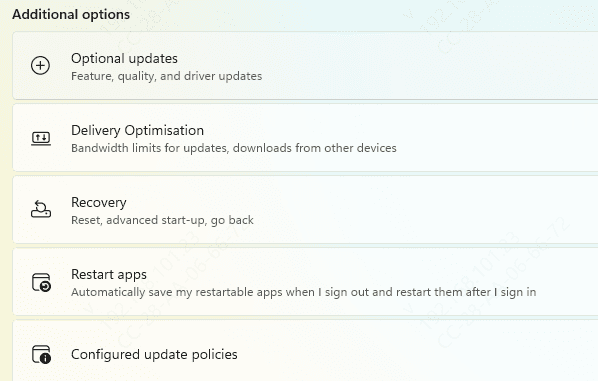
The limitation is significant: Windows Update installs generic Microsoft-provided drivers rather than the full manufacturer versions. Generic drivers cover basic functionality but often lack features specific to the laptop model, and they occasionally cause compatibility issues on hardware that requires OEM-tuned drivers.
Method 2: Download Drivers from Manufacturer's Support Site
Find the laptop model number before visiting the support site
The model number is on the sticker on the bottom of the laptop. It is also available under Settings, then System, then About
Alternatively, press Win + R, type msinfo32, and press Enter — the System Information window shows the exact model name
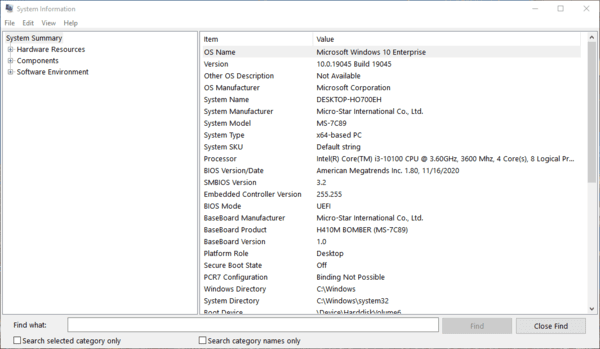
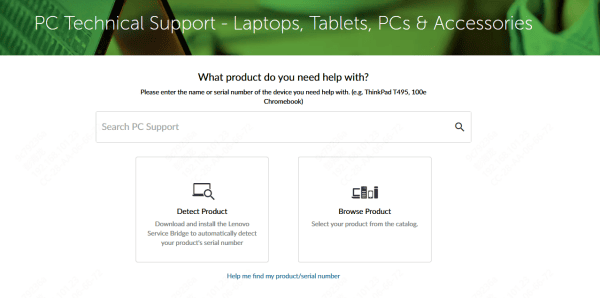
Go to the laptop manufacturer's support site, enter the model number, and select the correct Windows version. Download and install them in the following priority order: GPU driver first, then chipset, then network and WiFi, then audio, then remaining drivers
Run each installer as administrator and restart when the installer requests it. Do not install multiple drivers before the first restart — incomplete driver registrations from skipping restarts cause errors that are difficult to trace afterward
Method 3: Update Drivers with Driver Talent X
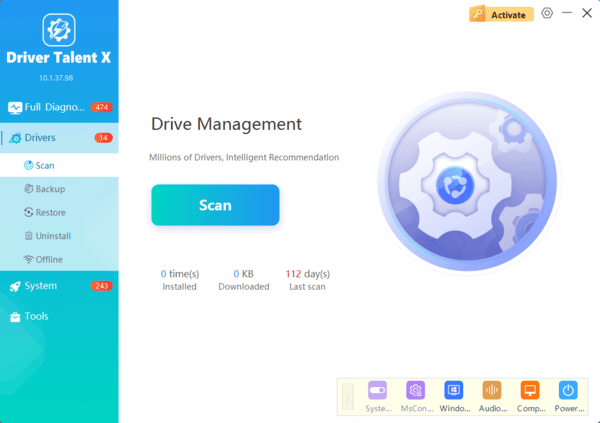
When multiple drivers need updating at once, or when tracking down each category on the manufacturer's site is too time-consuming, Driver Talent X scans all hardware components and identifies outdated, missing, or incompatible drivers in a single pass.
Driver Talent X matches drivers by hardware ID, which means it installs the correct version for the specific laptop hardware rather than a generic package
This makes it effective for laptops where the manufacturer's site is difficult to navigate or the driver categories are spread across multiple pages
Best Practices Before and After Updating
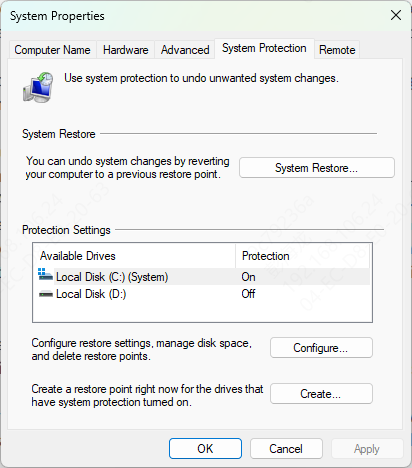
Create a system restore point before updating multiple drivers. Press the Windows key, search for "Create a restore point," open System Properties, click Create, name it, and confirm
If a driver update causes a device to stop working, this restore point allows reverting the system to its pre-update state quickly
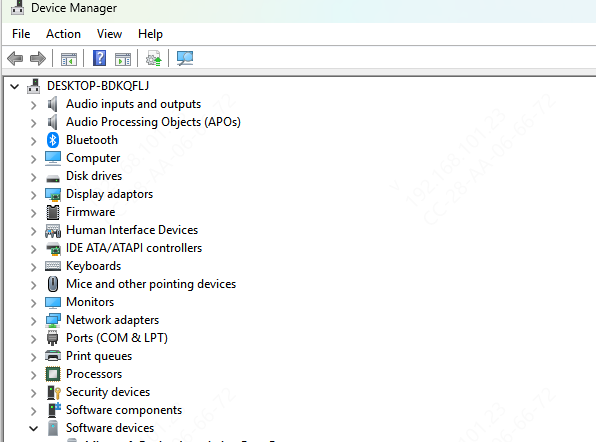
Note the current driver versions in Device Manager before updating
This provides a reference if rollback is needed for a specific driver. Rollback is available under Properties, then the Driver tab, for each device in Device Manager
Restart after each driver category rather than batching all installs before the first restart
Each restart completes the registration of the just-installed driver and ensures the next driver installs into a clean state
Frequently Asked Questions
How often should laptop drivers be updated?
Check every few months or when troubleshooting a hardware problem. Avoid replacing stable drivers merely because a newer version exists.
Are laptop-manufacturer drivers better than generic drivers?
OEM drivers are generally preferable for chipset, power management, touchpad, hotkey, and firmware-related components. Graphics manufacturers may provide newer GPU drivers, but OEM versions can be better optimized for certain laptops.
What should I do if a driver update causes problems?
Open Device Manager, select the affected device, and use Properties > Driver > Roll Back Driver when available. Otherwise, uninstall the new driver or restore the system using the restore point created before updating.
Conclusion
Windows Update covers basic driver maintenance but installs generic versions that may lack full hardware support. The laptop manufacturer's support site provides OEM-validated drivers for the specific model and is the most reliable source for critical drivers including the GPU, WiFi adapter, and chipset. Driver Talent X automates the scan and update process across all hardware categories simultaneously, identifying drivers by hardware ID and installing the correct matched versions. For comprehensive laptop driver management, using the manufacturer's site for critical drivers and Driver Talent X for full coverage is the most practical combination.
