

An HP BIOS update can help resolve certain security, hardware compatibility, power management, thermal, and system stability issues, but the process should be handled carefully because a failed firmware update can prevent the computer from booting. Before starting, it is important to confirm the exact HP model, maintain stable power, and make sure Windows and essential system drivers are functioning properly. This guide explains how to update the BIOS on an HP laptop or desktop using HP Support Assistant or a USB recovery drive, how Driver Talent X can help check chipset and ACPI drivers beforehand, and which BIOS settings to review after the update.
HP BIOS Update – What It Fixes
Security Patches: Crucial fixes for vulnerabilities like Meltdown, Spectre, or recently discovered BIOS exploits.
Hardware Compatibility: Adds support for newly released CPUs, faster RAM modules, or certain PCIe devices.
Thermal/Fan Management: Improves fan curves and thermal throttling profiles to prevent overheating.
System Stability: Resolves random system crashes, blue screens, or boot-up issues that cannot be fixed within Windows.
Battery Management: Fixes issues related to charging cycles, battery health reporting, and power efficiency on laptops.
Official HP BIOS Installation Methods
HP offers two primary methods for updating the BIOS: through Windows or using their BIOS Update tool from a USB drive.
Method 1: Using the HP Support Assistant
This is the easiest and safest method, as the software ensures you download the correct file for your exact model.
Launch Utility: Search for and open the HP Support Assistant application (usually pre-installed).
Check for Updates: Navigate to the "Updates and messages" or "Check for updates" section.
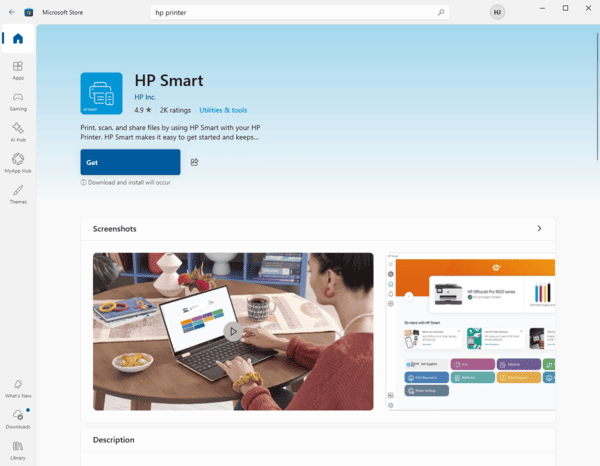
Install BIOS Update: If a BIOS or Firmware update is listed under Critical Updates, select it.
Follow Prompts: The utility will automatically download the file, close necessary applications, and initiate the flash. DO NOT touch the PC, interrupt the power, or use the system during this process. The PC will reboot several times.
Method 2: Updating via USB Drive
This method is used when Windows is unstable or cannot boot.
Identify Model: Find your exact HP model number (usually on a sticker).
Download BIOS File: Visit the official HP Software and Driver Downloads page, search your model, and download the latest BIOS file.
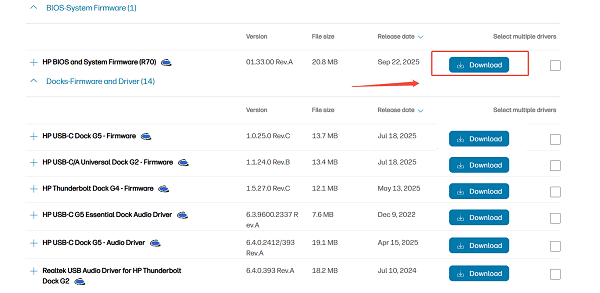
Create Recovery Drive: Run the downloaded EXE file on a working PC. Select the option to "Create Recovery USB Flash Drive".
Flash BIOS: Insert the USB drive into the faulty HP machine. Press and hold the Windows Key + B (or Windows Key + V) while pressing the Power button for two to three seconds. The BIOS update process should initiate automatically from the USB drive.
System Stability and Driver Preparation
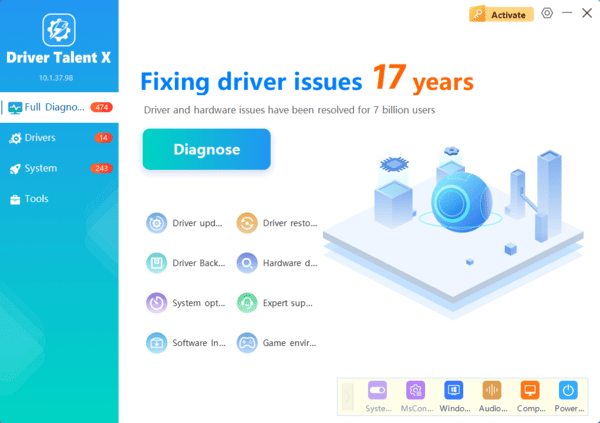
Manually verifying and updating the intricate drivers for your HP motherboard's chipset, ACPI (power management), and Intel/AMD system devices can be complex. Driver Talent X streamlines this by identifying and installing the correct, stable driver versions crucial for maintaining system integrity during the BIOS flash.
Post-Update Configuration
After the BIOS update is complete and the PC has rebooted, you must verify the system settings.
Load Default Settings
The BIOS update resets all custom settings (like boot order and memory profiles).
Enter BIOS: Restart your PC and repeatedly press the required key (usually F10, F2, or DEL) to enter the BIOS/UEFI interface.
Load Defaults: Navigate to the "Exit" tab and select "Load Setup Defaults" or "Load Optimized Defaults".
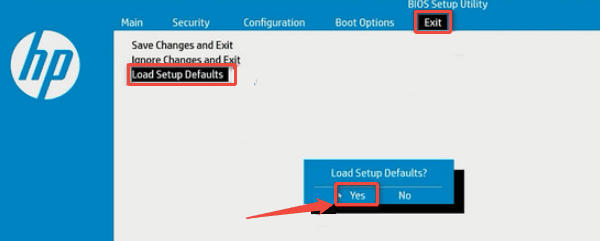
Reconfigure: Re-enable critical settings like your XMP/DOCP profile for RAM speed and verify the Boot Order (to ensure the correct drive boots first).
Save and Exit: Save the changes and exit the BIOS.
Frequently Asked Questions
Will an HP BIOS update delete personal files?
No. A normal BIOS update does not erase Windows or personal files. However, back up important data because an interrupted or failed update can prevent the computer from starting.
What should I do if the HP BIOS update fails?
Keep the computer connected to power and avoid repeatedly forcing it off. If it cannot start, try HP BIOS recovery using Windows + B or Windows + V with the correct recovery USB.
Does an HP BIOS update reset BIOS settings?
It may reset customized settings such as boot order, virtualization, Secure Boot, fan behavior, or memory profiles. Review these settings after the update, but enable XMP only after confirming system stability.
Conclusion
Updating the BIOS on your HP PC is a vital step for security and stability, but it demands careful preparation. The most reliable path to a safe update is to first ensure system-wide driver integrity and a stable foundation with Driver Talent X.
By combining this crucial preparation with the official HP Support Assistant method, and ensuring you re-load optimized defaults afterward, you guarantee a smooth, successful, and stable firmware upgrade.
