

An Intel-based computer may require a BIOS update to support new hardware, resolve firmware-related problems, improve security, or maintain compatibility with Windows. Because an interrupted or incorrect update can prevent the computer from starting, preparation and the correct update package are essential. This guide explains how to identify and safely install the appropriate BIOS update using official support tools, manufacturer downloads, or a USB flash drive.
Method 1: Using Intel Driver & Support Assistant (Intel DSA)
Intel's official utility can automatically detect BIOS updates for supported systems.
Go to the Intel Driver & Support Assistant page.
Download and install the Intel DSA tool.
Launch the tool and allow it to scan your system.
If a BIOS update is available, select it from the list.
Click "Download" and follow the on-screen instructions.
Restart your computer when prompted to complete the update.
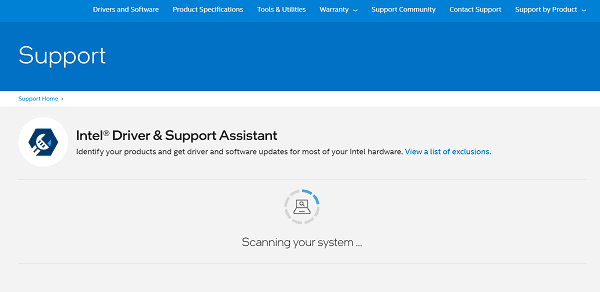
This method is simple and recommended for most users with Intel-based desktop boards.
Method 2: Update BIOS Through Manufacturer Support Website
For laptops and branded desktops (Dell, HP, Lenovo, ASUS, Acer, MSI), BIOS updates are available on each vendor's support website.
1. Identify your system model number using
Windows System Information, or
the label on your laptop or desktop.
2. Visit your manufacturer's support site.
3. Search for your model and open the BIOS or Firmware section.
4. Download the latest BIOS installer (usually an executable file ending in .exe).
5. Close all programs and make sure your laptop is plugged into AC power.
6. Run the BIOS installer and follow the instructions on the screen.
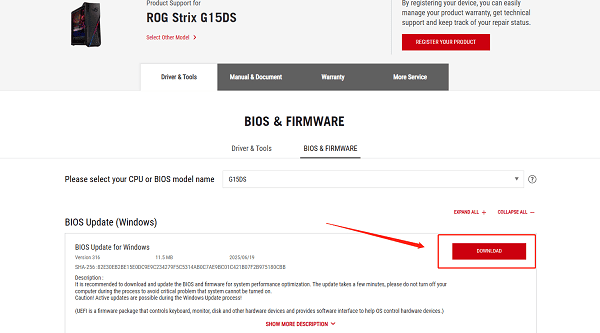
Interrupting the update can cause serious system damage, so always maintain stable power.
Method 3: Update BIOS Using USB Flash Drive
If your manufacturer supports BIOS flashing within the BIOS interface itself, you can update the firmware manually.
1. Format a USB flash drive to FAT32.
2. Download the BIOS update file from your manufacturer's website.
3. Extract the file and copy the BIOS image to your USB drive.
4. Restart your computer and press the correct key (F2, F10, F12, Delete, or Esc) to enter BIOS setup.
5. Look for a menu such as
BIOS Flash Update
EZ Flash
Q-Flash
M-Flash
, depending on your brand.
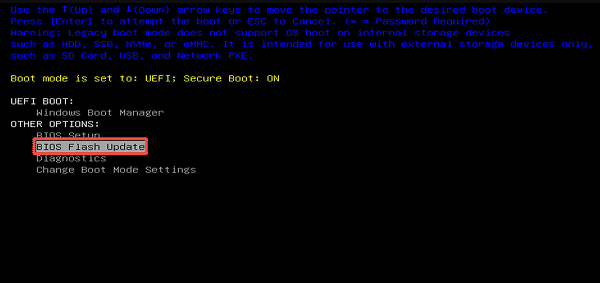
6. Select the BIOS file from your USB drive.
7. Start the update and wait for the process to complete.
8. The computer will reboot automatically.
This method is used when Windows is unstable or unable to run BIOS update applications.
Method 4: Reset BIOS to Default Settings After Update
Sometimes systems behave abnormally after a BIOS update. A simple reset can restore stability.
Reboot your computer and enter BIOS setup.
Look for "Load Setup Defaults", "Restore Defaults", or "Optimized Defaults".
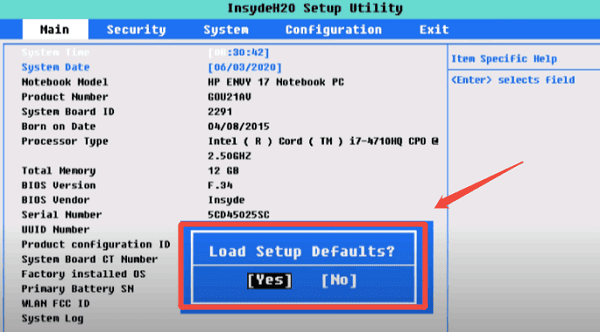
Apply the reset and save changes.
Restart your system.
This helps resolve boot problems, hardware conflicts, and system instability.
Update System Drivers
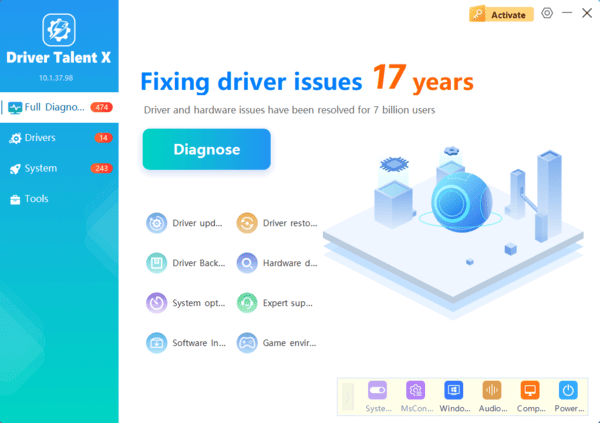
After performing a BIOS update, you should always ensure that all system drivers are updated, especially chipset, MEI (Management Engine Interface), and storage controllers. Updated drivers help prevent conflicts during and after BIOS installation.
Additional Tips for Safe BIOS Updating
Keep your laptop connected to AC power throughout the update.
Disable sleep mode and automatic shutdown temporarily.
Avoid performing a BIOS update during storms or unstable power conditions.
Back up important data before the update.
Never turn off your system during the update process.
Conclusion
Updating the Intel BIOS on Windows can enhance system compatibility, security, and performance when done correctly. Start by updating system drivers using Driver Talent X to avoid conflicts.
Then choose one of the official update methods, whether through Intel's support tools, your manufacturer's website, or BIOS-based USB flashing. By following the detailed steps above, you can complete a BIOS update safely and resolve firmware-related issues effectively.
