

Intel chipset drivers are responsible for enabling smooth communication between Windows and your motherboard components. When these drivers are outdated or missing, you may experience hardware detection issues, system instability, or reduced performance. This guide explains how to install and update Intel chipset drivers on Windows 11 using reliable methods to keep your system running efficiently.
Method 1: Download Drivers Manually from Intel
If you prefer manual installation, follow the steps below:
Step 1: Identify Your Motherboard or Laptop Model
You need the exact hardware model to download the right chipset package.
Check this by:
Press Windows + R, type "msinfo32" and press Enter.
Note the BaseBoard Manufacturer, BaseBoard Product, and System Model.
Step 2: Visit the Official Intel Download Center
Go to the Intel Download Center.
Search for Intel Chipset Device Software or your chipset series (for example, Intel 600 Series, 700 Series).
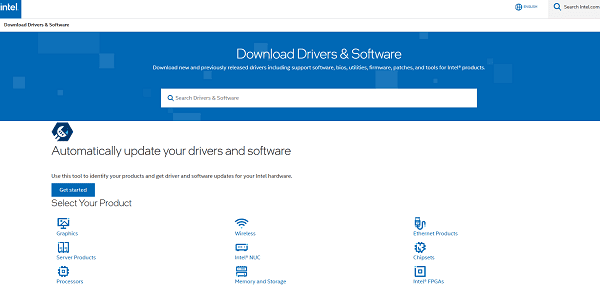
Step 3: Download and Install
Select the Windows 11 version.
Download the EXE installer.
Run the file and follow the installation wizard.
Restart your system.
Method 2: Install Chipset Drivers Through Windows Update
Windows Update sometimes includes chipset updates.
Open Settings.
Go to "Update & Security" > "Windows Update".
Click "Check for updates".
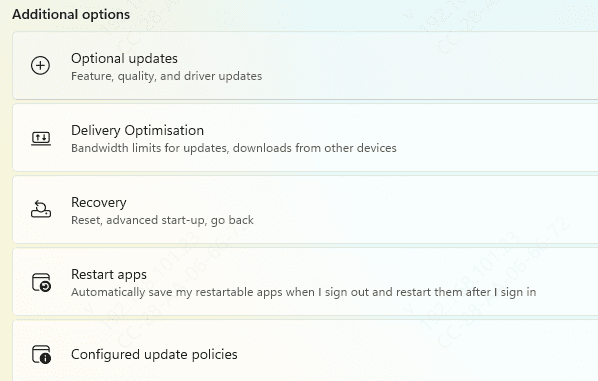
Install any items under "Optional updates", especially those labeled System, Intel, or Chipset.
This method is simple but may not always provide the newest drivers.
Method 3: Use Device Manager
Device Manager can detect and install chipset drivers when some components show warnings.
1. Press Windows + X and select Device Manager.
2. Expand the categories:
System Devices
IDE ATA/ATAPI Controllers
PCI Express Root Ports
Intel Management Engine Interface
3. Right-click any problematic or outdated component, choose "Update driver".
4. Select "Search automatically for drivers".
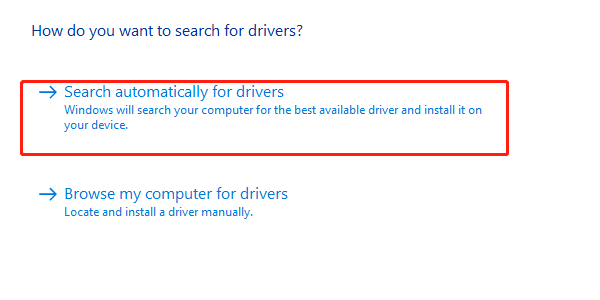
Method 4: Update Intel Chipset Drivers Using Driver Talent X
Driver Talent X can automatically detect outdated, missing, or corrupted chipset drivers and install the correct version for your hardware. Follow these detailed steps:

Step 1: Download and Install
Click the "Download" button to download the software package.
Double-click the installer file. Follow the on-screen prompts to complete the installation.
Step 2: Scan for Chipset Driver Issues
Launch Driver Talent X and go to "Drivers" > "Scan", click "Scan".
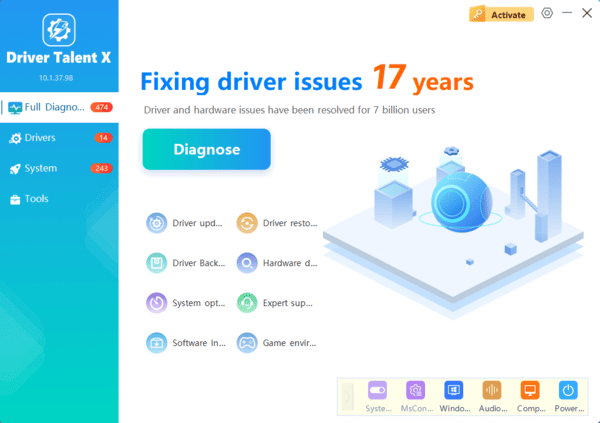
Wait for the program to analyze your motherboard chipset, system devices, and related Intel drivers.
Step 3: Update the Chipset Drivers
After the scan is complete, the software will display a list of all drivers that need attention. Select the necessary drivers and click the "Upgrade" or "Repair Now" button.
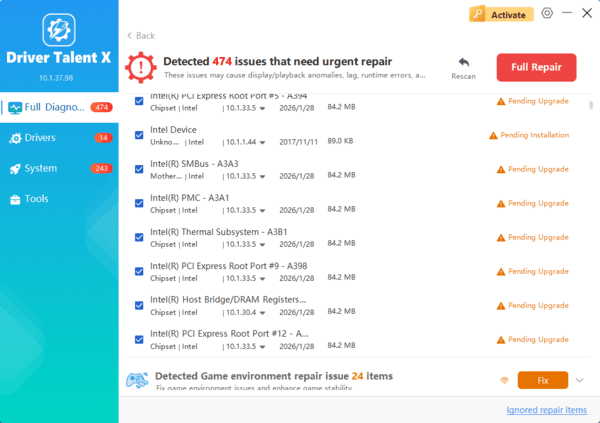
Driver Talent X will download the correct WHQL-certified driver files.
Step 4: Restart your computer
Once downloaded, the tool will install the chipset drivers automatically.
Restart your computer when prompted.
Using Driver Talent X ensures you install the proper, matching Intel chipset drivers without manual searching or compatibility issues.
Final Thoughts
Installing Intel chipset drivers on Windows 11 is essential for stable system performance. The most efficient method is using Driver Talent X, which ensures you get the correct drivers with minimal risk. If needed, you can also manually download drivers from Intel, apply updates through Windows Update, or use OEM-specific installations.
