

If your HP laptop camera is not working in Windows 11, shows a black screen, disappears from Device Manager, or fails in apps such as Zoom and Teams, the problem may be related to a missing or corrupted camera driver, privacy settings, chipset components, BIOS configuration, or a physical camera shutter. This guide explains several reliable ways to download, install, and repair HP camera drivers, including using the official HP Support website, HP Support Assistant, Device Manager, and Driver Talent X. It also covers additional checks for camera permissions, BIOS settings, and hardware controls when reinstalling the driver alone does not solve the issue.
Why You Need the Latest HP Webcam Driver on Windows 11
Windows 11 updates frequently cause camera driver conflicts. Without the correct driver, your HP TrueVision or integrated camera may fail to appear in apps or show errors. Installing the proper driver restores full HD video quality, privacy features, and compatibility
Important Note: HP often bundles the camera driver with chipset, system event utility, or imaging packages rather than listing it separately. Always use your exact model for the best results
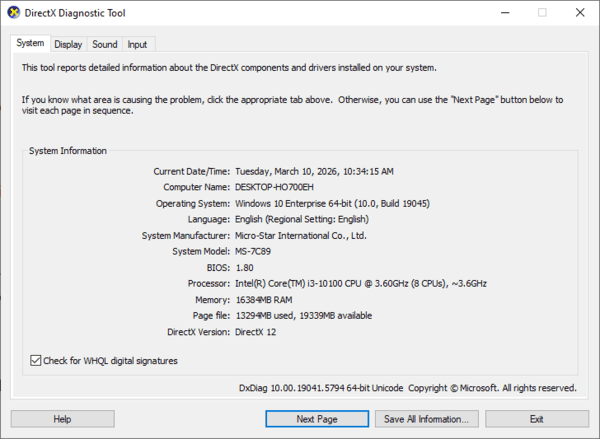
Step 1: Identify Your Exact HP Laptop Model
Press Windows + R, type msinfo32, and press Enter
Look for System Model (e.g., HP Envy x360 15-es, HP Pavilion 15-eg, HP EliteBook 840 G10, etc.)
Also note your Windows 11 version and build (Settings → System → About)
Alternatively, check the sticker on the bottom of your laptop or use HP Support Assistant for automatic model detection
Step 2: Download HP Camera Driver from Official Sources
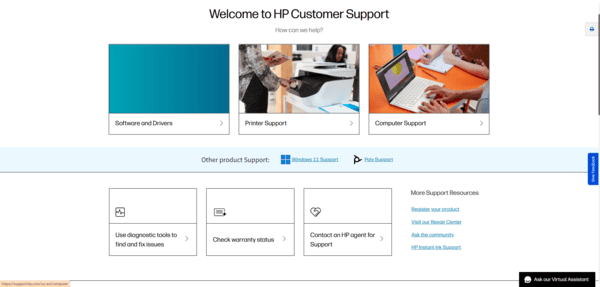
Go to the HP Support Drivers page
Enter your exact laptop model number or serial number
Select Windows 11 (64-bit) as your operating system
Scroll to categories like Driver - Camera, Imaging Devices, Chipset, or Driver - Keyboard, Mouse and Input Devices
Download the latest HP Camera Driver, HP Universal Camera Driver, or related imaging package
Use HP Support Assistant
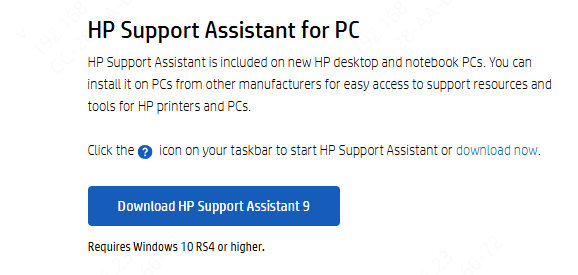
Download and install HP Support Assistant from the official HP site if you don't have it
Open the app, go to My Devices → Updates, and let it scan and install recommended camera and system drivers automatically
This is the simplest method for most users
Step 3: Install the HP Camera Driver
Close all applications, especially video call programs
Locate the downloaded .exe file and right-click it → Run as administrator
Follow the on-screen installation wizard (accept terms, choose default options)
Restart your laptop when prompted — this is critical for the driver to load properly
After reboot, open the built-in Camera app to test. If it works, try Zoom or Teams
Step 4: Update or Reinstall via Device Manager
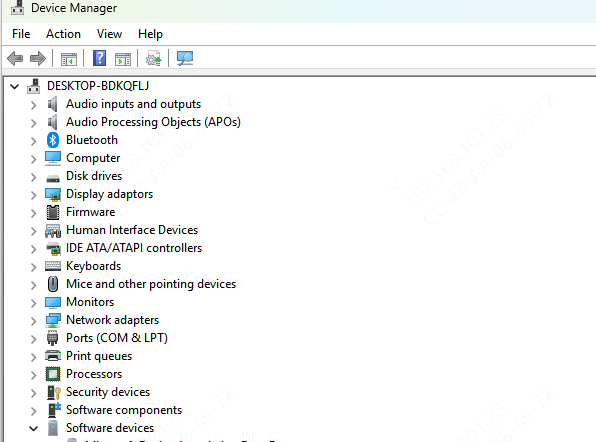
Right-click the Start button → Device Manager
Expand Cameras or Imaging devices
Right-click your HP TrueVision or Integrated Camera:
Choose Update driver → Search automatically for drivers
Or Uninstall device (check "Delete the driver software"), restart your laptop, and let Windows reinstall it
Step 5: Use Automatic Driver Updater
For a hassle-free experience, especially if you have multiple outdated drivers.
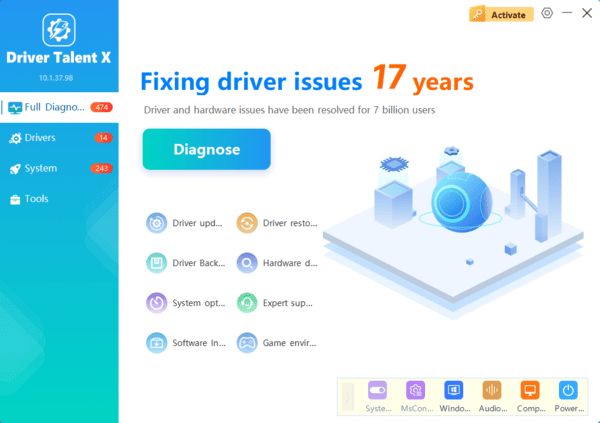
Steps to use Driver Talent X
Download and install Driver Talent X from its official website
Launch the program and click Scan — it will quickly detect outdated, missing, or corrupted drivers, including your HP camera driver
Select the HP camera/webcam driver and click Repair
Restart your laptop
Step 6: Troubleshoot Camera Issues
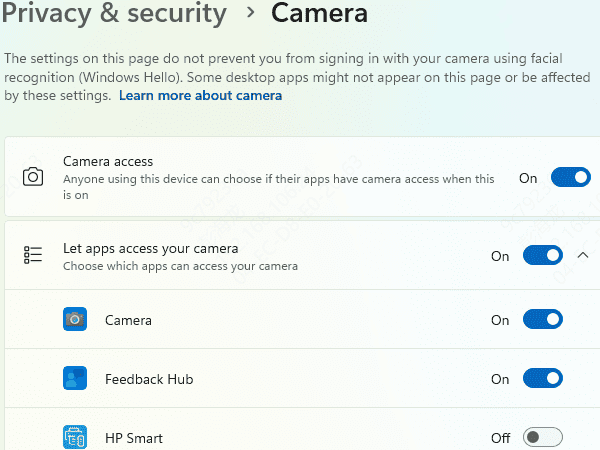
Privacy Settings: Go to Settings → Privacy & Security → Camera → Turn on camera access for your device and apps
Physical Privacy Shutter: Slide the shutter open (many HP models have one) or press Fn + Camera key (often F8/F10)
BIOS Check: Restart and enter BIOS (usually F10), ensure Integrated Camera is Enabled under Advanced/Device Options
Windows Troubleshooter: Settings → System → Troubleshoot → Other troubleshooters → Run the Camera troubleshooter
Test in Safe Mode or try a clean boot to rule out software conflicts
Frequently Asked Questions
Why does the HP camera work in one application but not another?
The affected application may lack camera permission, have the wrong camera selected, or conflict with another program using the webcam. Check its video settings and close other camera applications.
What does camera error 0xA00F4244 mean?
This error means Windows cannot detect an available camera. Check the privacy shutter, camera access settings, Device Manager, BIOS camera settings, and related chipset or imaging drivers.
Why is the camera light on but the screen remains black?
A closed privacy shutter, another application using the camera, incorrect exposure settings, or a corrupted driver may cause this behavior. Close video applications, restart Windows, open the shutter, and reinstall the camera driver.
By following this guide, you should successfully download and install the HP camera driver for Windows 11 and restore full webcam functionality.
