

A functioning webcam is crucial for modern work, learning, and communication. From video calls and online classes to streaming and security features like Windows Hello, a non-working camera can be frustrating and disruptive. HP Envy laptops, while reliable, sometimes face webcam issues due to driver conflicts, privacy settings, or software updates. This guide will walk you through every step to identify, troubleshoot, and fix camera problems on HP Envy laptops running Windows 11.
Quick Checks Before Troubleshooting
Before jumping into software or driver solutions, perform these quick checks:
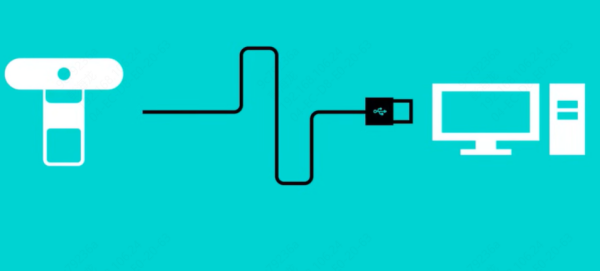
Physical Obstructions: Ensure the camera lens is clear. Many HP Envy models come with a physical privacy shutter or sliding cover—check that it is fully open
Close Other Applications: Programs like Zoom, Microsoft Teams, Skype, or OBS may occupy the camera. Close all unnecessary apps completely through Task Manager
Restart Your Laptop: A simple restart can clear minor software glitches or temporary driver conflicts
Try a Different User Account: Sometimes, a corrupted user profile can cause camera errors. Testing the camera under a different Windows account can help identify this
Check Camera Privacy Settings
Windows 11 has strict privacy settings that control app access to the webcam. To make sure your camera is not blocked:
Go to Settings → Privacy & Security → Camera
Ensure Camera access is turned On
Turn on Let apps access your camera
Scroll down and make sure individual apps like Zoom, Teams, or Skype have permission
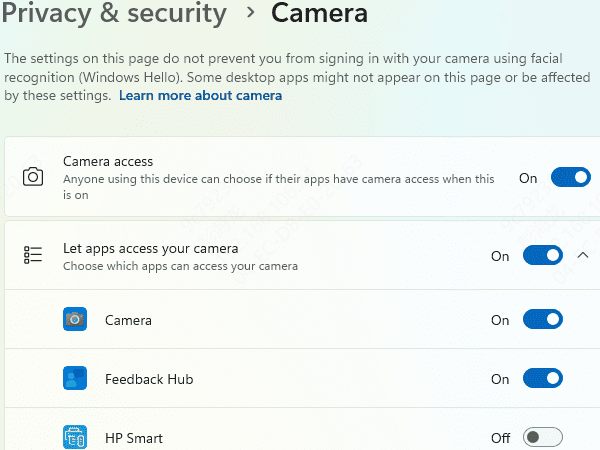
Tip: Sometimes Windows updates reset privacy settings. Always double-check these after an update.
Update or Reinstall Camera Drivers
Outdated, corrupted, or incompatible drivers are one of the main causes of a non-functional camera.
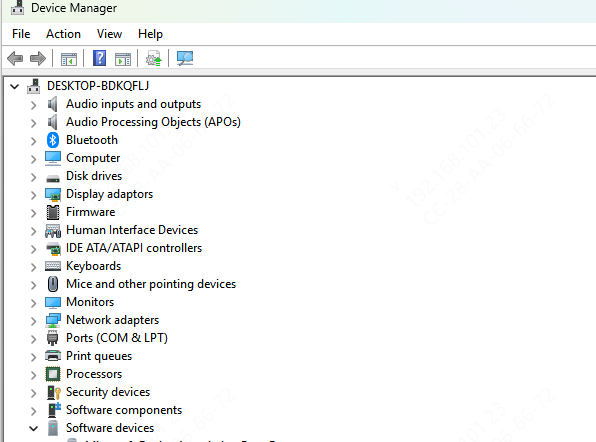
Step 1: Open Device Manager → Cameras → HP Camera
Step 2: Right-click and select Update driver → Search automatically for drivers
Step 3: If updating doesn't work, uninstall the driver, restart your laptop, and let Windows reinstall it
Pro Tip
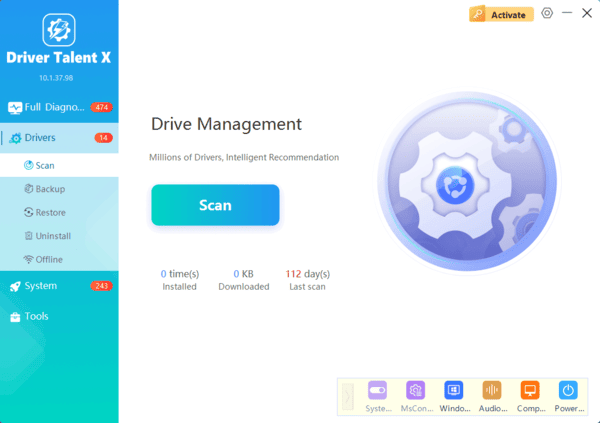
For a faster and safer solution, use Driver Talent X
This tool scans your system, identifies outdated or corrupted drivers—including your webcam, USB controllers, and chipset drivers—and updates them automatically
It also creates a restore point, so you can revert changes if something goes wrong. Keeping drivers up-to-date with Driver Talent X helps prevent recurring camera issues and ensures smooth video call performance
Test Camera in Different Applications
After updating drivers, it's important to test your camera in multiple applications:
Use the built-in Camera app in Windows 11 for a quick test
Check apps like Microsoft Teams, Zoom, and Skype to see if they detect the camera
If the camera works in some apps but not others, the issue may be software-specific. Reinstalling or updating the problematic app often resolves the conflict
Tip: Close background processes that may use the camera and ensure your app has the latest version.
Reset Camera App and Settings
Windows Camera app misconfigurations can prevent proper functioning. To reset:
Go to Settings → Apps → Apps & Features → Camera → Advanced Options → Reset
Adjust image settings like brightness, contrast, and resolution to correct poor image quality
Note: Resetting the app clears temporary files and fixes minor bugs without affecting system settings
Check for Windows Updates
Outdated system files can cause webcam errors
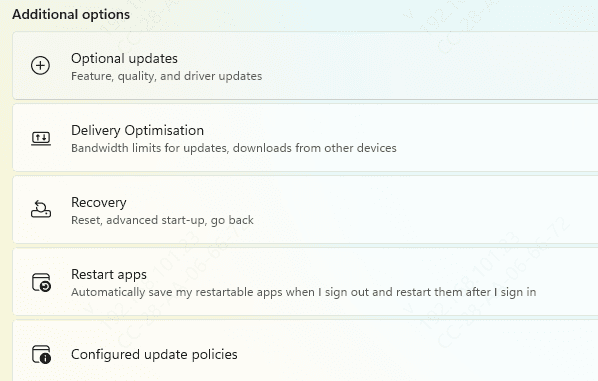
Navigate to Settings → Windows Update → Check for Updates
Install all available updates and restart your laptop
Many Windows updates include security and driver patches that directly improve peripheral functionality
Advanced Troubleshooting
If the problem persists:
BIOS Settings: Restart your laptop and enter BIOS/UEFI. Ensure the integrated webcam is enabled
Driver Rollback: If the camera stopped working after a recent update, roll back to a previous driver version through Device Manager
HP Support Assistant: Use this tool to run hardware diagnostics. It can detect physical or firmware-related camera issues
Safe Mode Testing: Boot Windows in Safe Mode to check if a third-party app or driver is blocking camera access
Hardware Inspection
When software fixes fail, consider potential hardware issues:
Check the camera module connection, especially if the laptop has a removable back panel
Inspect for physical damage or loose connections
If under warranty, contact HP support for professional repair
Tip: Never attempt to open a sealed laptop unless confident in handling sensitive components. Improper handling can void your warranty.
Conclusion
Fixing your HP Envy camera involves systematic checks—from quick physical and software fixes to advanced troubleshooting. Most problems can be resolved by checking privacy settings, updating drivers, and resetting apps. For consistent performance, using Driver Talent X ensures all your drivers are current and functioning correctly, minimizing camera problems in the future. Following these steps will restore your webcam, making your video calls, streaming, and security features reliable and hassle-free.
