

If your HP printer suddenly starts producing blank pages, the problem may come from ink cartridges, a clogged printhead, incorrect print settings, outdated firmware, connection issues, or an incompatible printer driver. In many cases, the printer hardware is still functional and the issue can be resolved through a few targeted checks. This guide explains several practical ways to restore normal printing.
Check Ink Cartridges Carefully
Open the printer cover, remove the cartridges, and check whether they are seated properly. If the cartridges are new, make sure the protective plastic tape has been removed completely. This small oversight is surprisingly common and can prevent all ink flow
It is also worth checking ink levels through HP Smart, the printer control panel, or the printer software on your computer. If one cartridge is empty or nearly empty, the printer may fail to print correctly even if the other cartridge still has ink. Reinstall the cartridges firmly, close the printer cover, and run a test print
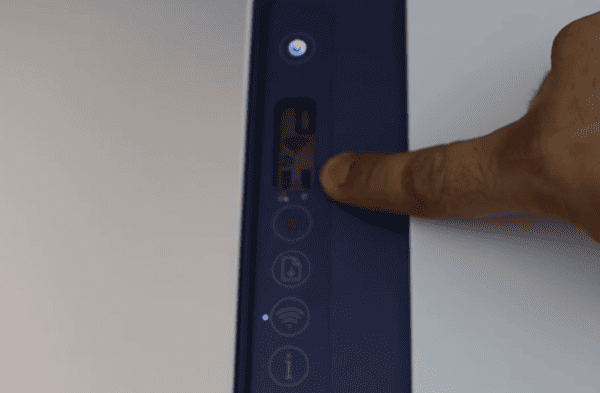
Clean the Printhead
To fix this, open the printer maintenance or tools section through HP software or Windows printing preferences and run the printhead cleaning function. The printer will attempt to clear dried ink and restore normal flow
After the cleaning process, print a nozzle check or test page. If the output improves, the issue was likely a clogged printhead
Review Print Settings
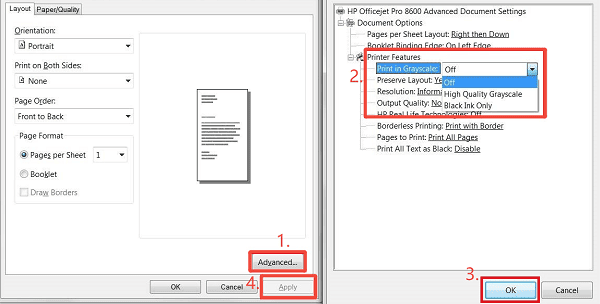
Open the printer preferences and check whether the selected paper size and paper type match what is actually loaded in the tray. Also review whether grayscale, draft mode, or unusual custom settings are active. Sometimes a low-quality or incompatible setting can interfere with normal ink output
It is also smart to switch the print quality to Normal or High and test again. If you are printing a color document, make sure color printing is enabled. If only one file prints blank pages while others print normally, the issue may be with the file format or document settings rather than the printer itself
Check with the Printer Driver
One of the most efficient places to begin is the printer driver. Driver problems are one of the most common reasons HP printers print blank pages, especially after a Windows update, system reset, or printer reinstall. If the driver is outdated, corrupted, or replaced with a generic version, printing problems can appear even when the hardware is still fine.
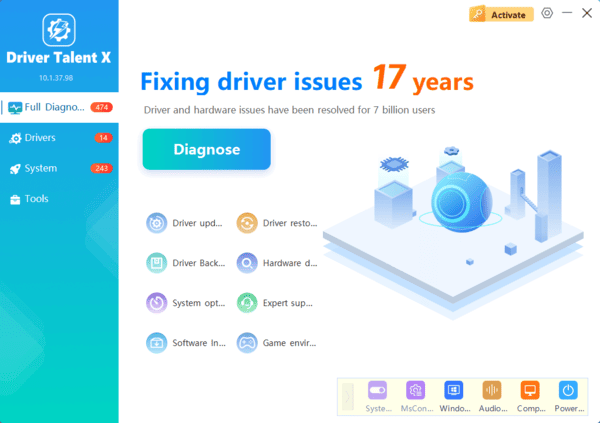
You can update the HP printer driver manually through HP support, but if you want a quicker option, Driver Talent X can scan the system, identify outdated or incompatible printer drivers, and install a more suitable version automatically
This is useful when you want to rule out driver-related issues early instead of spending time on more complicated fixes first. After updating the driver, restart the PC, reconnect the printer, and print a test page
Update the Printer Firmware
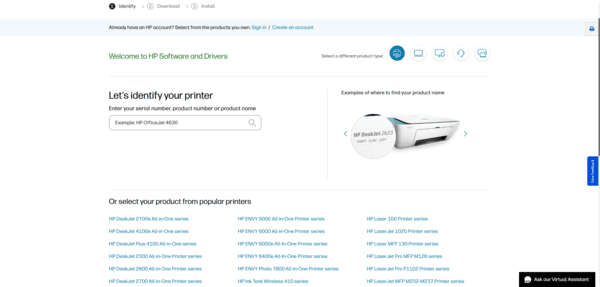
HP printer firmware controls internal functions such as ink handling, printing logic, and communication behavior. If the firmware is outdated or buggy, the printer may behave unexpectedly, including printing blank pages. Open HP Smart or visit HP support for your exact model and check whether a firmware update is available
Installing the latest firmware can fix known bugs and improve compatibility with Windows and newer drivers. After the update, restart the printer and try another test print
Check the Connection and Test Another File
Sometimes the problem is not the printer itself, but the way the print job is being sent. A bad USB cable, unstable Wi-Fi connection, or file-specific issue can cause incomplete print data
Try replacing the USB cable or using another USB port. If the printer is wireless, make sure it is connected to a stable network and that the computer is on the same network
Check Hardware
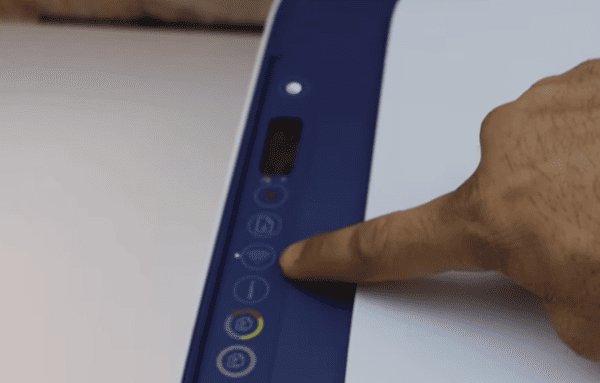
If you have updated the driver, checked the cartridges, cleaned the printhead, reinstalled the printer, updated firmware, and tested different files, but the printer still produces blank pages, hardware wear becomes more likely. The printhead assembly may be damaged, the ink delivery system may be failing, or an internal component may no longer be functioning correctly
Before assuming the printer is defective, test with a fresh cartridge if possible. If the blank-page issue continues after that, the printer may need professional repair or replacement, especially if it is an older inkjet model
Conclusion
An HP printer printing blank pages is usually caused by a driver problem, a clogged printhead, an ink cartridge issue, incorrect print settings, or outdated firmware. In most cases, the fastest place to start is the driver, because updating it can quickly rule out communication and compatibility problems. Using Driver Talent X can simplify that step by helping detect and install a more suitable HP printer driver automatically.
