

The HP Wireless Setup Wizard may fail to connect your printer to Wi-Fi because of outdated drivers, incorrect network settings, router compatibility issues, firewall interference, or a weak wireless signal. Common symptoms include the printer failing to detect the network, rejecting the Wi-Fi password, repeatedly disconnecting, or remaining offline in Windows. This guide explains how to restore the connection by running the Wireless Setup Wizard again, adjusting router settings, temporarily checking security software, updating HP printer drivers with Driver Talent X, and using the HP Smart app as an alternative setup method.
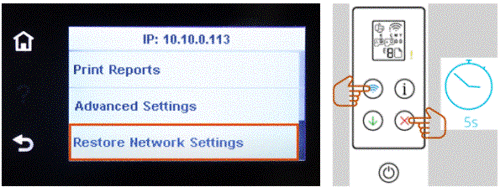
Fix 1: Run the Network Setting Again
Open the Wireless or Network menu
Select Wireless Setup Wizard
Choose your Wi-Fi network from the list
Enter your Wi-Fi password carefully
If your network does not appear, restart the router, ensure the SSID is visible, and check that 2.4 GHz is active.
Fix 2: Adjust Your Router Settings
Enable 2.4 GHz Wi-Fi
Disable MAC filtering
Change Wi-Fi channel to 1, 6, or 11 for better stability
Restart the router to clear DHCP conflicts
Fix 3: Disable Firewall or Antivirus Temporarily
Firewalls can block HP setup tools and printer discovery. Disable Windows Defender Firewall or third-party antivirus temporarily, run the setup again, and re-enable protections afterward.

Fix 4: Update or Reinstall HP Drivers
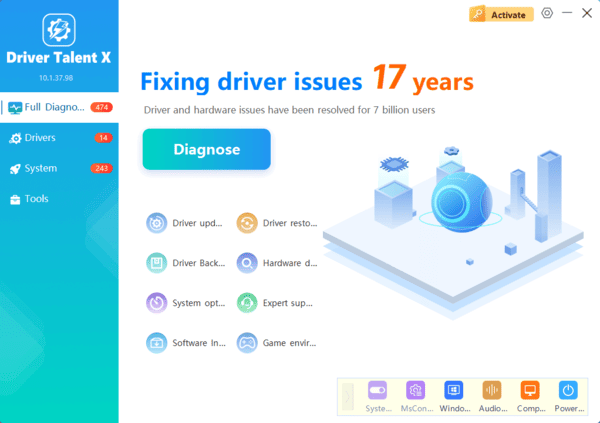
If you want a quick and straightforward way to resolve driver-related problems, using an automated driver update tool like Driver Talent X is the most convenient option for managing the entire installation process.
Fix 5: Use the HP Smart App as an Alternative Setup Method
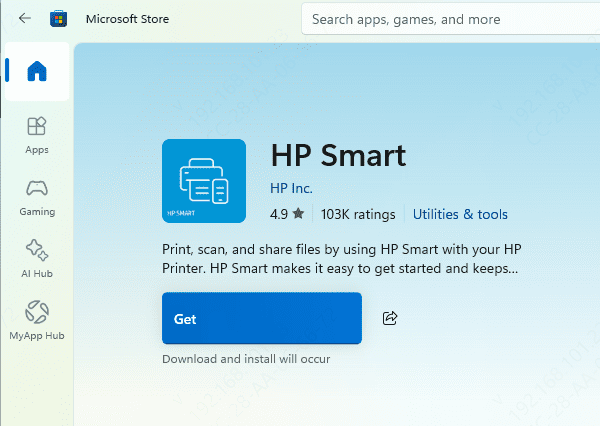
If your printer still fails to connect to the network, set up your printer through the HP Smart app. Install HP Smart, select Set Up a New Printer, and follow the on-screen Wi-Fi instructions.
Tips to Avoid Wireless Setup Issues
You should also update your HP drivers on a regular basis, especially after major Windows updates, to prevent communication errors between your computer and the printer
Avoid connecting your printer to guest networks, public Wi-Fi, or networks with strict security restrictions, as these often block device-to-device communication required for wireless printing
Finally, maintain a strong Wi-Fi signal by placing your printer within a reasonable distance from the router and minimizing obstacles such as walls or interference from other electronic devices
