

Bluetooth problems on Windows 10 are not always caused by the device you are trying to connect. If Intel Wireless Bluetooth disappears from Device Manager, repeatedly disconnects, or refuses to pair with headphones, keyboards, and other accessories, the installed Bluetooth driver may be missing, damaged, or incompatible. Fortunately, Windows provides several ways to restore the driver. This guide explains how to install or update Intel Bluetooth drivers.
Method 1: Install Intel Driver Manually
If you prefer to install the driver yourself, you can download it directly from Intel.
Open your browser and go to the Intel Download Center.
Search for "Intel Wireless Bluetooth for Windows 10".
Download the latest driver package that matches your Intel wireless adapter.
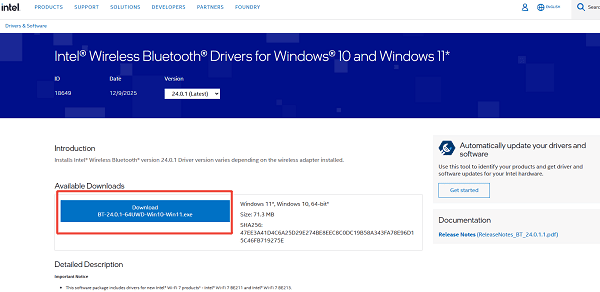
Open the downloaded executable file.
Follow the on-screen installer instructions.
Restart your computer.
This method works when Windows cannot identify your Bluetooth device.
Method 2: Install Intel Driver via Device Manager
You can also reinstall the driver using Windows Device Manager.
Right-click the Start button and select Device Manager.
Expand the Bluetooth category.
Right-click your Intel Wireless Bluetooth device, select "Update driver".
Choose "Search automatically for drivers".
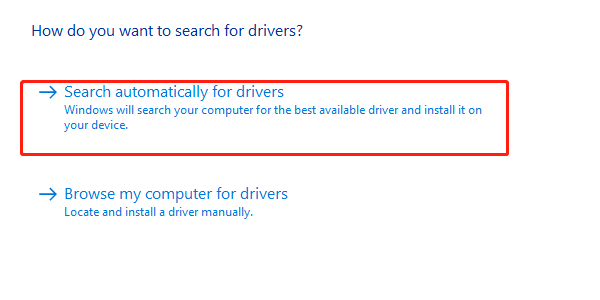
If no driver is found, choose Uninstall device, then restart your PC.
Windows will reinstall the driver automatically.
This approach resolves driver corruption issues.
Method 3: Install Intel Drivers via Windows Update
Windows Update occasionally includes updated Intel wireless driver packages.
Open Settings, go to "Update & Security".
Click "Windows Update" > "Check for updates".
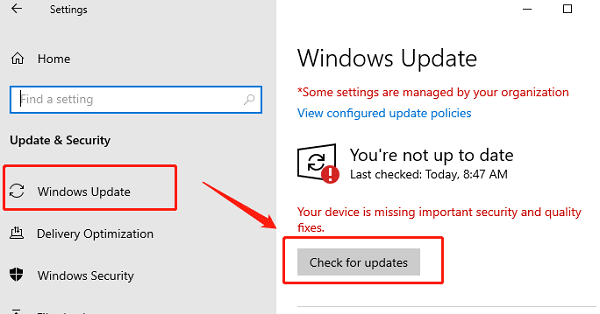
Install any available driver or system updates.
Restart your PC.
This method ensures overall compatibility.
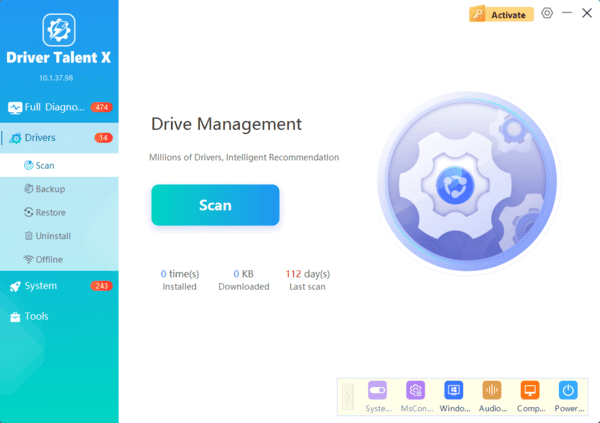
Method 4: Update Drivers Using Driver Talent X
Driver Talent X prevents incorrect driver installation and resolves missing or corrupted Bluetooth driver issues.
Enable or Reset Bluetooth Services
1. Press Win + R, type "services.msc", and press Enter.
2. Locate these services:
Bluetooth Audio Gateway Service
Bluetooth Support Service
Bluetooth User Support Service
3. Right-click each service and select "Restart".
4. Set Startup Type to Automatic.
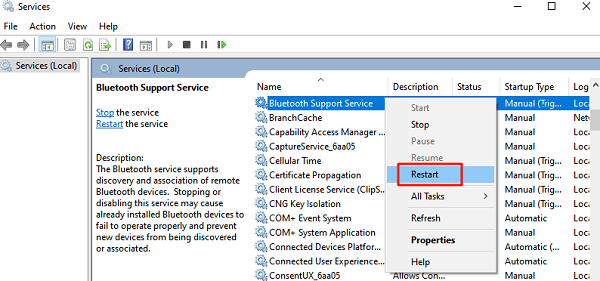
Restart your computer and check Bluetooth functionality.
Reset Network Settings
Corrupted network configurations can interfere with Bluetooth drivers.
Open Settings.
Select "Network & Internet".
Scroll down and click "Network reset".
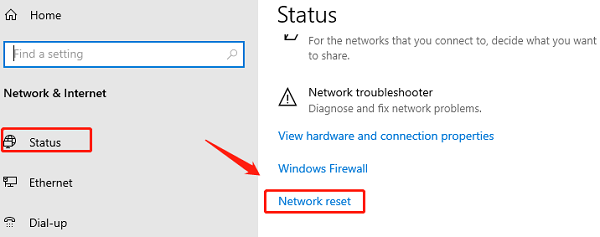
Select "Reset now".
Restart your PC.
Bluetooth drivers will reinstall automatically during reboot.
Conclusion
Installing or updating the Intel Bluetooth driver on Windows 10 is essential when facing pairing problems, missing Bluetooth options, or unstable wireless performance.
The most reliable method is to update your drivers with Driver Talent X, which automatically detects the correct Intel Bluetooth package and installs it safely. If needed, you can also install the driver manually via Intel's website, Device Manager, Windows Update, or by resetting Bluetooth services.
