

The Intel Rapid Storage Technology (RST) Virtual Management Device (VMD) is an important storage controller component used in modern systems, especially those with NVMe SSDs or RAID configurations. It helps improve storage performance, reliability, and system responsiveness. However, when the Intel RST VMD driver becomes outdated, corrupted, or incompatible, users may experience issues such as missing drives, boot failures, slow performance, or system instability. This guide explains the common symptoms of Intel RST VMD driver problems and provides practical solutions to help you fix them and restore optimal system performance.
Step 1: Check Intel RST VMD Driver Version
How to Check the Current Driver Version
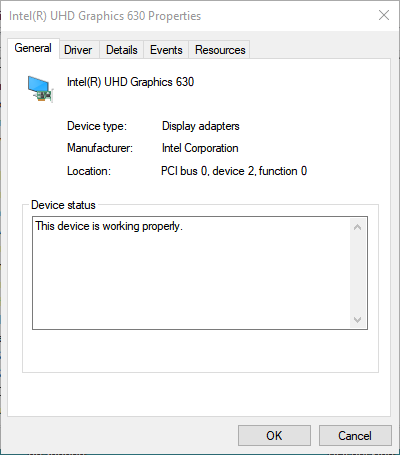
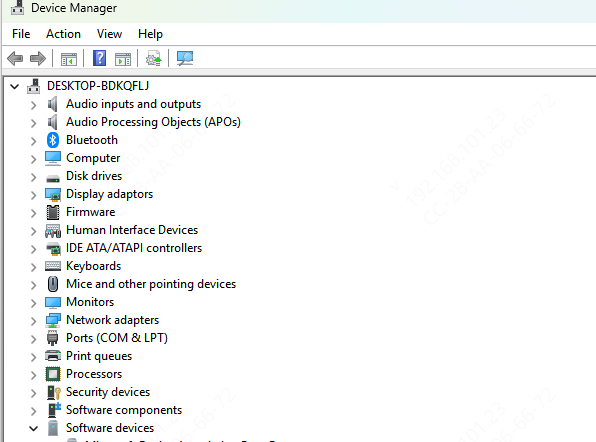
Device Manager: Open evice Manager by right-clicking the Start button and selecting Device Manager
Locate Intel RST VMD: Expand the Storage controllers section and find your Intel RST VMD driver
Driver Version: Right-click the Intel RST VMD entry and select Properties. Go to the Driver tab to check the Driver Version and Driver Date
Why It Matters
Knowing the current version will help you determine if the driver is outdated or incompatible with your system, allowing you to take the right action
Step 2: Update Intel RST VMD Driver
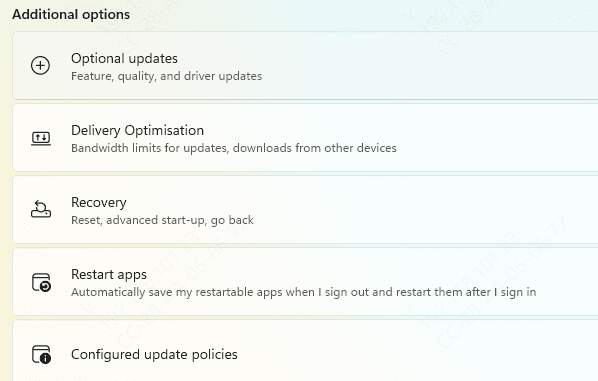
Method 1: Use Windows Update
Open Settings > Update & Security > Windows Update
Click Check for Updates to allow Windows to search for the latest driver and install it automatically
Method 2: Update Intel RST VMD Driver Using Driver Talent X
Download & Install Driver Talent X
Get the Installer: Visit the official Driver Talent website to download the installer for your system
Install the Software: Run the installer and follow the on-screen instructions to complete the installation of Driver Talent X on your Windows PC
Diagnose for Outdated or Missing Drivers
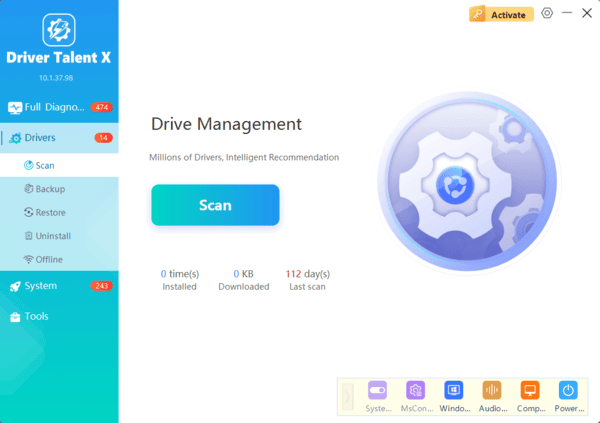
Launch the Software: After installation, open Driver Talent X from your desktop or Start menu
Perform a Diagnose : Go to the Drivers tab and click Diagnose to check your system for outdated, missing, or corrupted drivers, including the Intel RST VMD driver
Update Intel RST VMD Driver
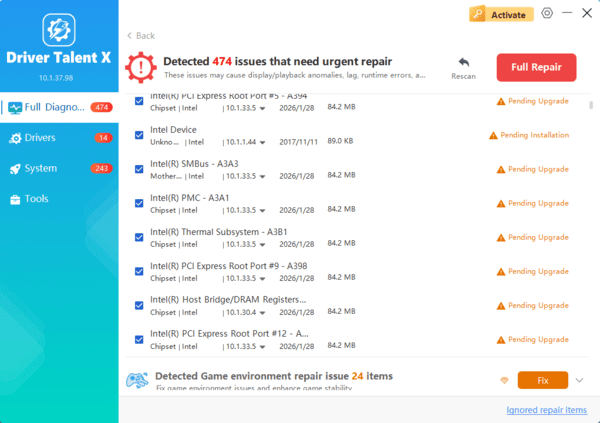
Locate the Intel RST VMD Driver: In the scan results, find the Storage Controllers section where Intel RST VMD will be listed
Click Full Repair: Click the Full Repair button to automatically update your Intel RST VMD driver to the latest version
Restart Your Computer
Apply the Updates: Once the update is complete, restart your system to ensure the new Intel driver is applied correctly
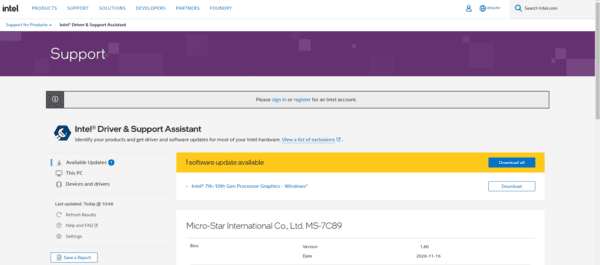
Method 3: Use Intel Driver & Support Assistant (DSA)
Download Intel DSA from the Intel website
Run the tool, and it will automatically scan your system for outdated drivers, including Intel RST VMD
Follow the prompts to download and install the latest driver version
Method 4: Manually Download from Intel's Website
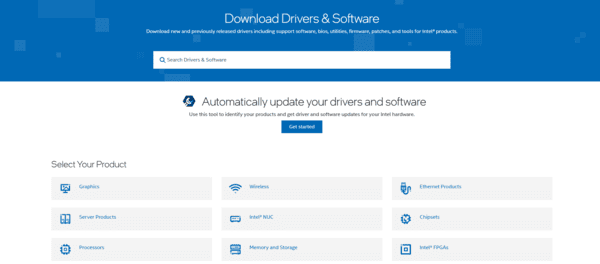
Visit the Intel Download Center and search for Intel RST VMD driver
Select the driver that is compatible with your system and Windows version
Download the driver and run the installer to manually update it
Method 5: Use Device Manager
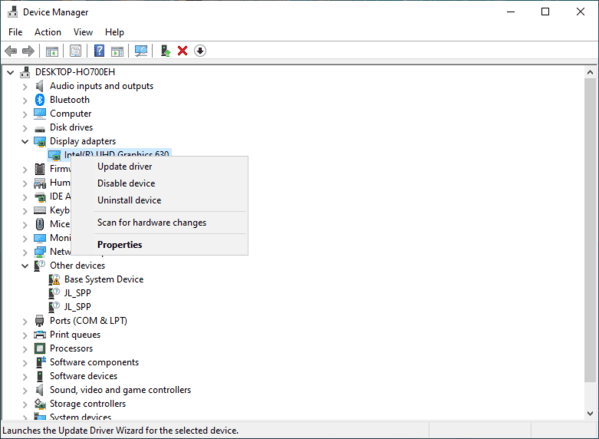
Open Device Manager, right-click on Intel RST VMD under Storage controllers
Choose Update Driver and select Search automatically for updated driver software. Windows will find and install the latest driver
Step 3: Fixing Driver Installation Failures
Common Installation Problems
Driver not installing: The installation might fail due to compatibility issues or incorrect settings
Missing driver files: Essential driver files may be corrupted or missing
Security or antivirus interference: Antivirus software can block the installation of drivers
How to Resolve Installation Failures
Uninstall the previous Intel RST VMD driver through Device Manager and restart the system
Try installing the driver again using one of the methods above
Temporarily disable antivirus software before attempting the installation
Ensure that your system's architecture (x64 vs. x32) matches the driver you're installing
Conclusion
Keeping your Intel RST VMD driver up to date is essential for maintaining optimal storage performance, system stability, and overall system health. By following the steps outlined in this guide, you can easily troubleshoot and fix common issues, ensuring your system runs at its best.
