

Keeping Lenovo drivers up to date is essential for maintaining system stability, ensuring hardware compatibility, and achieving optimal overall performance. When drivers are outdated, missing, or incorrect, users may experience issues such as boot failures, blue screens, WiFi connectivity problems, touchpad malfunctions, or reduced graphics performance. This guide explains the safest and most effective methods to perform a Lenovo driver update on Windows, starting with a reliable automated solution and followed by manual alternatives to help ensure your system runs smoothly and efficiently.
Update Lenovo Drivers via Lenovo Vantage
Lenovo Vantage is the official tool provided by Lenovo for system updates.
Steps to Use Lenovo Vantage:
Open Lenovo Vantage from the Start menu.
Navigate to System Update.
Click "Check for Updates".
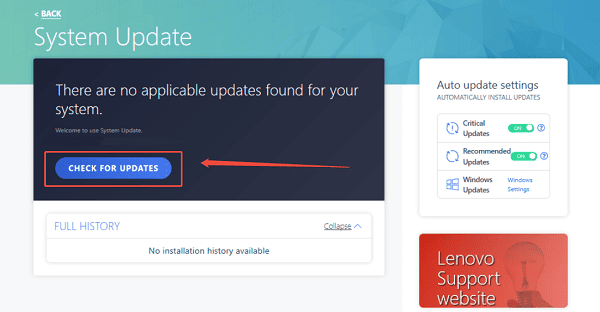
Select the available driver updates and install them.
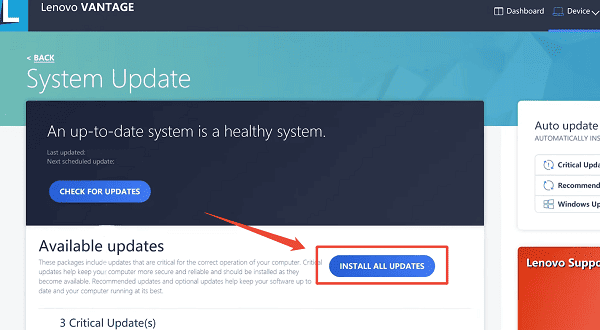
Restart your system after installation.
While Lenovo Vantage is safe, it may not always provide the latest driver versions for all hardware components.
Update Lenovo Drivers Using Device Manager
Device Manager allows manual driver updates but requires careful handling.
Steps to Update Drivers via Device Manager:
Press Windows + X and select Device Manager.
Expand the category of the device you want to update.
Right-click the device and select "Update driver".
Choose "Search automatically for drivers".
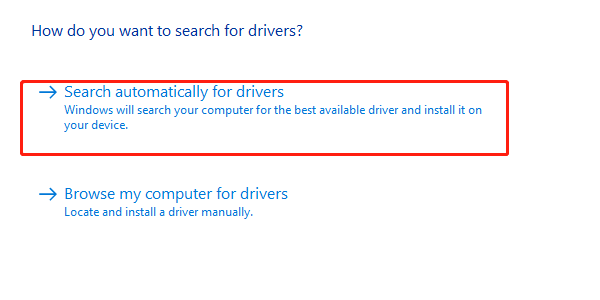
Follow the on-screen instructions and restart if prompted.
This method is suitable for individual driver updates but may not detect the newest versions.
Update Lenovo Drivers Using Driver Talent X
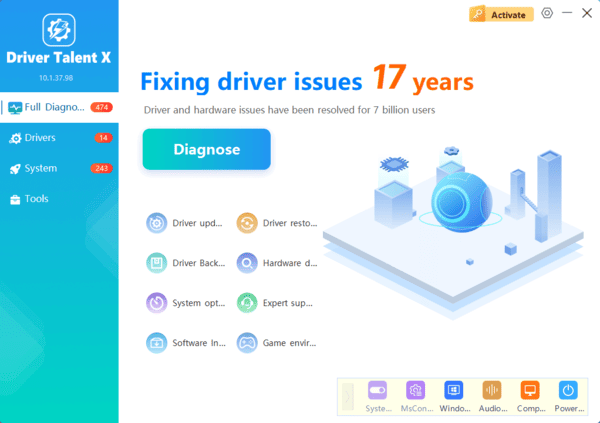
Using a professional driver management tool is the safest and most efficient method, especially for users who want to avoid downloading incompatible drivers or making system mistakes. Driver Talent X automatically detects your Lenovo hardware and installs the most compatible drivers.

Download Drivers from Lenovo Official Support Website
For advanced users, downloading drivers directly from Lenovo's website is another option.
Steps to Download Drivers Manually:
Visit Lenovo Support website.
Enter your Lenovo model or serial number.
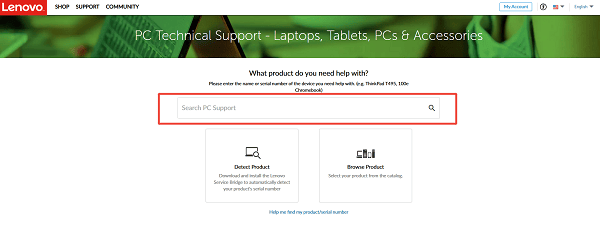
Select your operating system version.
Download the required drivers.
Install each driver one by one and restart your computer.
Ensure you select the correct model and OS version to avoid compatibility issues.
Important Safety Tips When Updating Lenovo Drivers
Always back up important data before updating drivers.
Avoid installing drivers from unknown third-party websites.
Do not interrupt the update process or shut down your computer during installation.
Restart your system after updates to ensure changes take effect.
Use automated tools like Driver Talent X to reduce human error.
Common Problems Caused by Incorrect Lenovo Drivers
WiFi or Bluetooth not working
Black screen or display flickering
Touchpad or keyboard unresponsive
Audio devices missing
Slow system performance or crashes
Keeping drivers properly updated helps prevent these issues.
Conclusion
Performing a Lenovo driver update safely is crucial for maintaining system reliability and performance. The most secure and efficient approach is using Driver Talent X, which automatically detects and installs the correct drivers for your device.
For users who prefer manual methods, Lenovo Vantage, Device Manager, and the official Lenovo support website are also viable options. By following the steps in this guide, you can update Lenovo drivers confidently and avoid unnecessary system problems.
