

Lenovo monitors are widely used for work, gaming, and daily computing, but display issues can happen unexpectedly. Problems such as a black screen, flickering display, blurry images, incorrect colors, or a monitor that is not detected by Windows can interrupt your workflow and reduce your overall experience. Fortunately, most Lenovo monitor display problems are not caused by hardware failure. In this guide, we will walk you through the most effective ways to fix Lenovo monitor not displaying correctly issues.
Check the Input Source
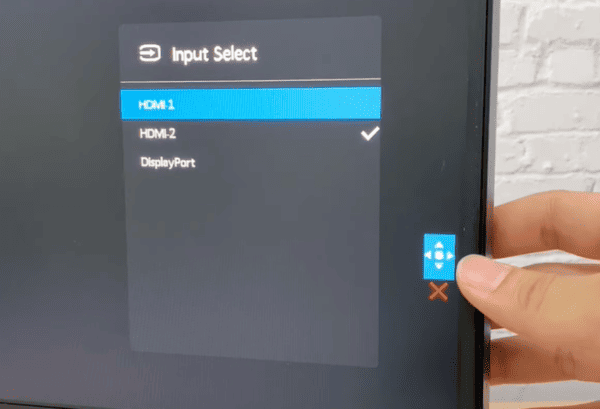
Open the monitor's on-screen menu and confirm that the selected source matches the cable you are using. This is a very common cause of "no display" problems, especially after switching between devices or changing cables
If the monitor has multiple input ports and you recently moved the cable, source selection should always be one of the first things you check
Test Another Port or Another Device
It is also useful to connect the Lenovo monitor to another computer if possible. If it works normally there, the monitor is likely fine and the issue is on the original PC side
You can also reverse the test by connecting another monitor to the original computer. This helps isolate whether the issue follows the monitor or stays with the PC
Check Resolution and Refresh Rate
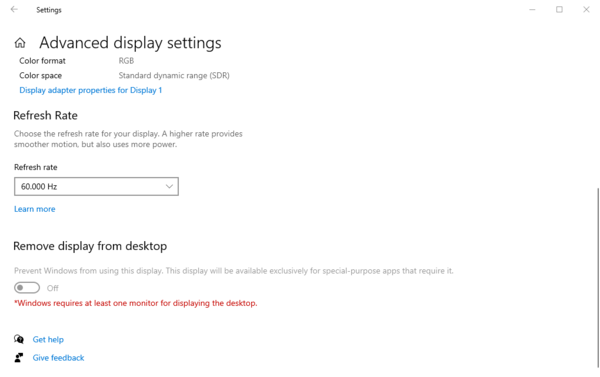
Check the refresh rate in advanced display settings. A mismatched or unsupported refresh rate can cause flickering, unstable output, or even a blank screen on some monitors
Using the correct resolution and refresh rate is one of the most important steps for fixing image-quality issues without touching drivers or hardware
Detect the Monitor in Windows
Open the display settings and try manually detecting another display. If the monitor is listed but inactive, Windows may simply not be using it in the correct display mode
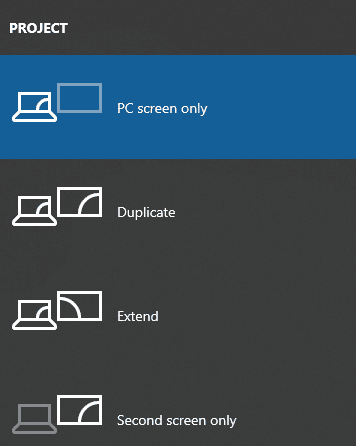
Use the Windows display mode shortcut to switch between screen options. The system may be sending output to the wrong mode, especially on laptops or systems that switch often between internal and external displays
A monitor that is physically connected but not active in Windows can easily look like a hardware failure when it is really just a display mode issue
Check the Graphics Driver
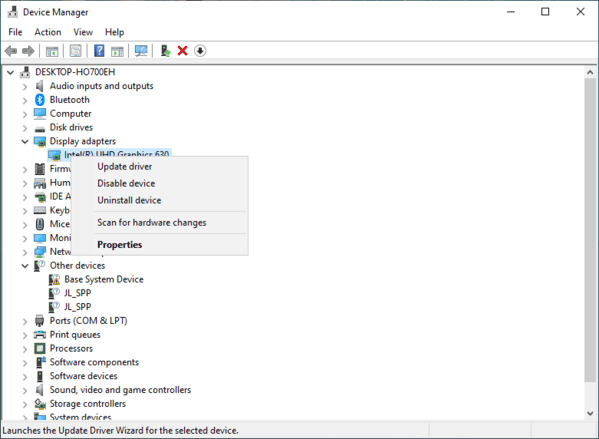
Rolling back the driver is often a strong option. If rollback is not available, reinstalling the graphics driver is usually the better fix
This is especially likely to help if the problem affects external monitor detection, refresh rate stability, or startup display behavior
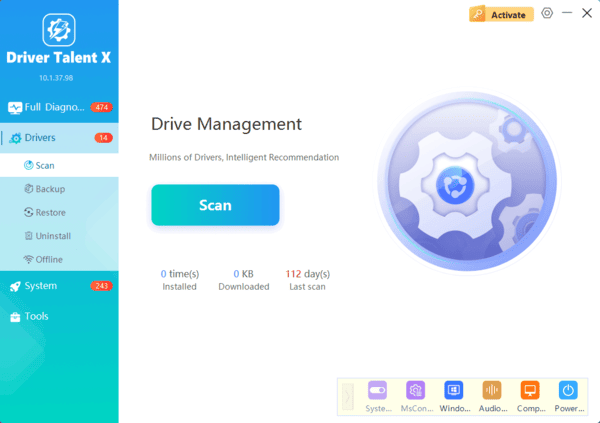
If you are not sure which driver is causing the display issue, Driver Talent X can help speed up the repair process. Just one click, Driver Talent X can repair all drivers issues related to monitors.
Reset the Lenovo Monitor Settings
Resetting the monitor to factory settings may help. Brightness, contrast, color mode, and other internal picture settings can be misconfigured and create image quality problems that look like PC-side issues
Use the monitor's menu to restore default settings and test again. This is especially helpful when the display is visible but colors look strange, the image is too dark, or the picture seems stretched even after fixing the Windows resolution
Check Sleep and Power Behavior
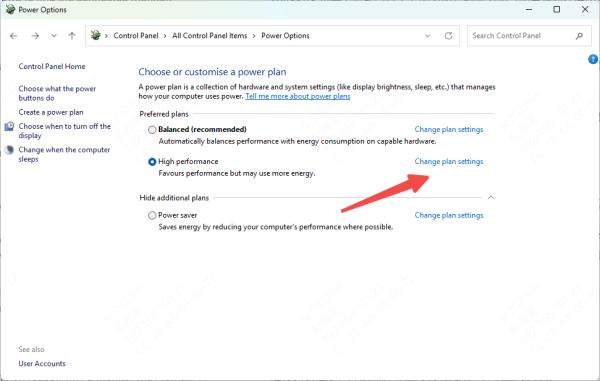
Some Lenovo monitors fail to wake correctly after sleep. If the problem happens mainly after standby rather than after a full boot, power-related behavior may be involved
In that case, the graphics driver, Windows power settings, or monitor wake behavior may be contributing to the problem. Restarting the monitor and computer may restore the image temporarily, but repeated sleep-related issues often point back to driver repair or display handshake instability
Most Lenovo monitor display problems are caused by a few common issues: loose or faulty cables, wrong input source, incorrect display settings, graphics driver conflicts, or system detection problems. The best troubleshooting order is simple. Start with power, cable, and source checks. Then confirm the resolution and refresh rate, detect the monitor in Windows, and repair the graphics and related chipset drivers.
