

If the Marvell Avastar Wireless-AC Network Controller is not recognized in Windows, shows a yellow warning icon, or causes Wi-Fi to disappear completely, the problem is often related to missing or corrupted drivers, Windows update conflicts, disabled wireless settings, or damaged network configuration.
This article provides a detailed analysis of the common causes behind the recognition failure and offers a series of practical solutions to help you quickly restore wireless connectivity.
1. Common Symptoms
Unable to connect to Wi-Fi; the network icon shows an "X" or appears grayed out
A yellow exclamation mark appears under "Network Adapters" in Device Manager
Error messages like "This device cannot start (Code 10)" or "Driver unavailable"
No wireless options appear in the "Network & Internet Settings"
On devices like Surface, Wi-Fi functionality may be completely missing
2. Common Causes of Recognition Failure
Missing, corrupted, or incompatible drivers
Windows updates overwriting OEM (original) drivers
System errors or registry conflicts
Wireless functionality disabled via BIOS or hardware switch
Interference from security software or third-party network management tools
3. Solutions to Fix Recognition Issues
Method 1: Enable Wireless Device
Some devices allow enabling wireless through hotkeys (e.g., Fn + F2).
Also check BIOS settings to ensure the "Wireless" option is set to Enabled.
Method 2: Reset Network Settings
Open Settings (Win + I) and go to "Network & Internet".
On the left pane, click "Status", then scroll down and click "Network Reset".
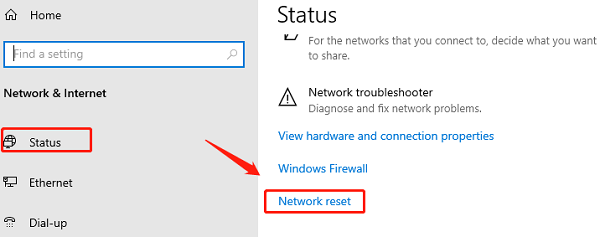
Click "Reset now" and confirm the operation.
The system will reboot automatically. After restarting, reconfigure your Wi-Fi connection.
Method 3: Run Network Troubleshooter
Go to Settings > Update & Security > Troubleshoot.
Click "Additional troubleshooters".
Find "Network Adapter" and click "Run the troubleshooter".
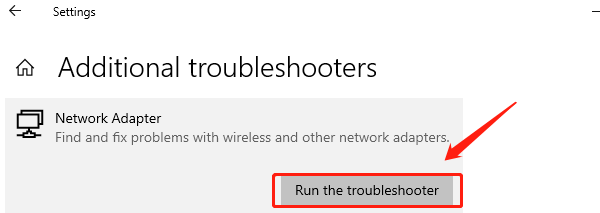
Follow the on-screen instructions to complete the repair.
Method 4: Update the Device Driver
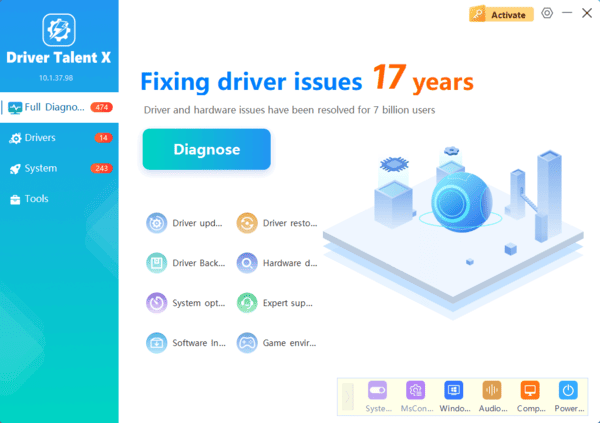
For users unfamiliar with manual driver installation, it's recommended to use Driver Talent X, a driver management tool that identifies and installs the latest drivers automatically—saving time and avoiding errors.
Method 5: Restore Default Network Stack
Open Command Prompt as Administrator.
Run the following commands to reset the TCP/IP stack:
netsh int ip reset
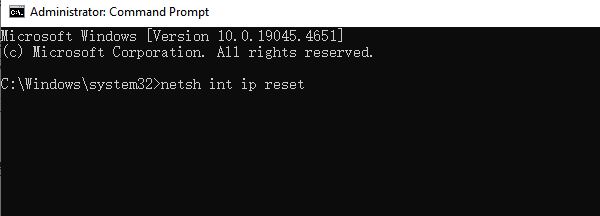
netsh winsock reset
ipconfig /release
ipconfig /renew
ipconfig /flushdns
Restart your computer and check if Wi-Fi functionality is restored.
4. Preventive Measures and Suggestions
Avoid using Windows automatic updates to overwrite original drivers—manual updates are recommended.
Regularly back up and update your network adapter driver to maintain compatibility with new systems.
Refrain from installing third-party network enhancement software that may cause conflicts.
If a hardware issue is suspected, contact your device manufacturer or consider replacing the wireless module.
By following the driver repair, network reset, and troubleshooting methods provided in this guide, most Marvell Avastar Wireless-AC Controller recognition issues can be quickly resolved.
Keeping your drivers updated and network settings properly configured is key to maintaining stable wireless connectivity. If the problem persists, contacting the manufacturer's technical support is recommended for further assistance.
