

An ntoskrnl.exe BSOD often points to a deeper stability problem rather than a fault with the Windows kernel file itself. Repeated crashes can be triggered by unstable drivers, faulty memory, damaged system files, storage errors, problematic updates, or connected hardware that conflicts during startup. This guide takes a systematic approach to diagnosing the issue, starting with Safe Mode and basic hardware checks before moving on to memory testing, Windows repair tools, update review, malware scans, and driver diagnostics with Driver Talent X.
Start With the Basic Checks
The first step is to restart the computer and disconnect unnecessary external devices. Remove USB accessories, printers, external drives, docking devices, and anything else that is not needed to boot Windows. A faulty peripheral or unstable external connection can sometimes trigger startup crashes or driver conflicts.

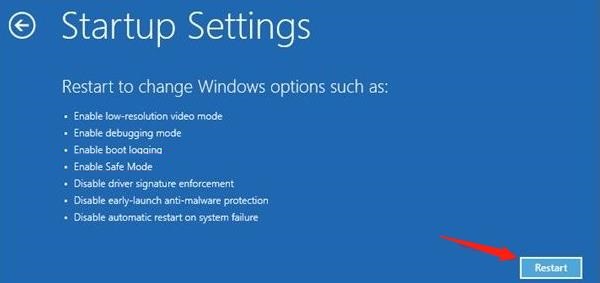
If Windows cannot stay stable long enough for normal troubleshooting, boot into Safe Mode. Safe Mode loads only essential drivers and services, which makes it easier to remove problematic software, uninstall updates, or stop unstable startup programs. If the PC works normally in Safe Mode but crashes in regular Windows mode, that strongly suggests a driver or software conflict.
Check RAM, System Files, and Disk Health
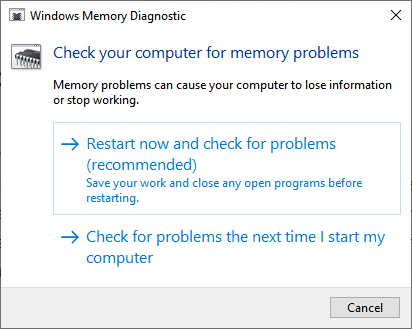
Use Windows Memory Diagnostic to test your system memory. If your PC has more than one RAM stick, testing them individually can help identify whether one module is unstable. Memory problems are often inconsistent, which is why they are so frustrating. A system may work for hours and then suddenly crash without warning.
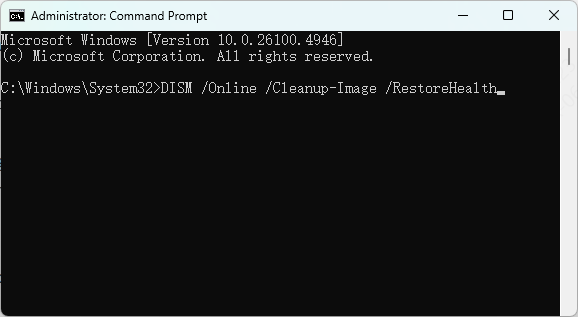
Next, repair Windows system files. Corrupted system files can trigger kernel-level crashes, especially if the corruption affects storage access, driver loading, or memory management. Running the built-in repair tools can help restore damaged Windows components and rule out operating system corruption as the cause.
Update Windows and Review Recent Patches
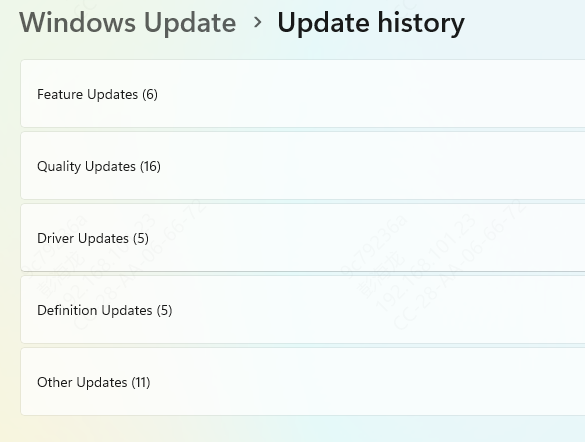
Check your recent update history and look for a clear timing pattern. If the system was stable before a particular update and unstable afterward, uninstalling that update temporarily can help confirm the cause.
Check Driver Problems
Driver issues are one of the biggest reasons this blue screen appears, especially when the crash happens during gaming, device use, startup, or after a Windows update. Core drivers such as graphics, chipset, storage, network, and audio drivers all affect system stability. Troubleshooting them one by one manually can take a lot of time.
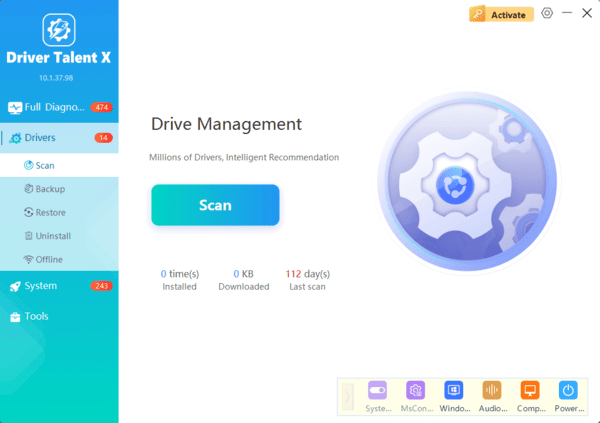
A faster option is to use Driver Talent X. Download and install. After installation, open the software, go to the Drivers tab, and click Diagnose to scan your system for outdated, missing, corrupted, or incompatible drivers.
Advanced Stability Checks
Malware can damage system files, interfere with drivers, and create system-level instability that produces unexpected blue screens. While malware is not the most common cause of ntoskrnl.exe errors, it is still worth ruling out if the system has shown other unusual behavior.

Frequently Asked Questions
Is ntoskrnl.exe itself causing the blue screen?
Usually not. Ntoskrnl.exe is the Windows kernel and often appears in crash reports because another component—such as a faulty driver, unstable RAM, or damaged storage—caused it to stop.
How can I find the actual cause of an ntoskrnl.exe BSOD?
Record the stop code, examine Reliability Monitor, and analyze minidump files in C:\Windows\Minidump. These details can reveal the driver or hardware component involved.
What if Windows Memory Diagnostic finds no errors?
A basic test can miss intermittent problems. Run an extended memory test, disable XMP or overclocking, reseat the RAM, and test each module separately if the crashes continue.
Conclusion
Start with basic checks, Safe Mode, and recent changes. Then test memory, repair system files, inspect disk health, review Windows updates, and repair system drivers. If driver-related instability is involved, Driver Talent X can save time by scanning the system and repairing outdated or damaged drivers more efficiently.
