

NVIDIA GPU driver update failures can prevent users from getting the latest graphics improvements and may cause problems such as game crashes, black screens, reduced performance, or missing NVIDIA features. These failures are often related to corrupted driver files, software conflicts, Windows compatibility issues, or incomplete installations. This guide explains the common causes of NVIDIA driver update errors and provides multiple solutions, including clean installation, Windows troubleshooting, NVIDIA tools, Device Manager, and automatic updates with Driver Talent X to help restore stable graphics performance.
Common Causes of NVIDIA Driver Update Failed Errors
Corrupted or Incomplete Driver Files: Previous failed installations can leave broken files that block new updates.
Incompatible Windows Version: Outdated or unstable Windows builds may not support the latest NVIDIA drivers.
Conflicts with Existing NVIDIA Components: Older driver remnants can interfere with new installations.
Antivirus or Firewall Interference: Security software may block driver installation processes.
Network or Download Issues: Unstable internet connections can result in incomplete driver packages.
Perform a Clean NVIDIA Driver Installation
A clean installation removes old driver components before installing a new one.
Download the correct driver from NVIDIA's official website.
Run the installer and select Custom installation.
Check the option Perform a clean installation.
Proceed with the installation and restart your PC.
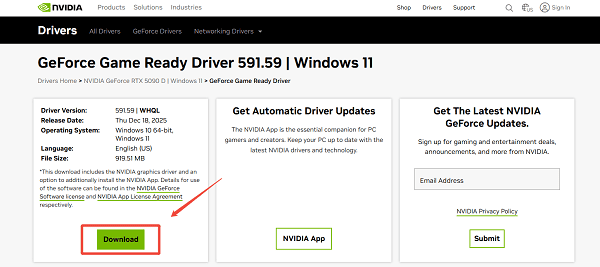
Uninstall NVIDIA Drivers Completely and Reinstall
If clean installation does not work, a full removal is recommended.
Press Windows + X and open Device Manager.
Expand Display adapters, right-click NVIDIA GPU and select "Uninstall device".
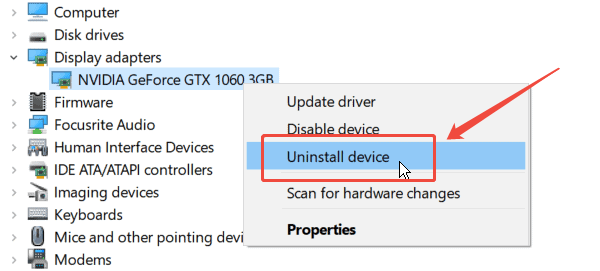
Check "Delete the driver software for this device".
Restart your PC.
Update Windows Before Installing NVIDIA Drivers
Windows updates often include critical system components required by NVIDIA drivers.
Open Settings.
Go to Update & Security.
Click Windows Update > Check for updates.
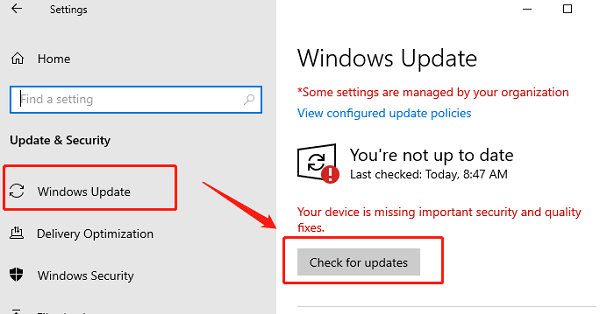
Install all available updates and restart.
Temporarily Disable Antivirus and Firewall
Security software can mistakenly block NVIDIA installer processes.
Temporarily disable antivirus and firewall protection.
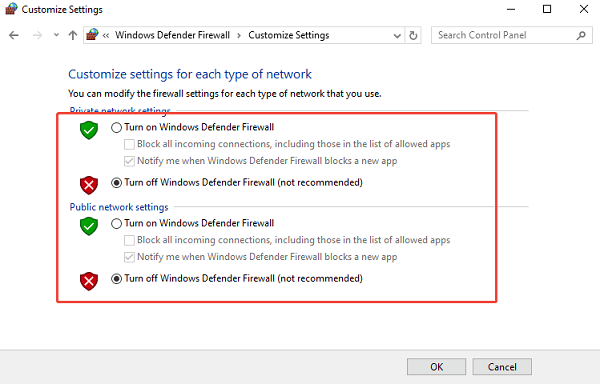
Install or update the NVIDIA driver.
Restart your PC.
Re-enable security software.
Only disable protection during the installation process.
Update NVIDIA Drivers Using GeForce Experience
NVIDIA GeForce Experience provides official driver updates and optimization features.
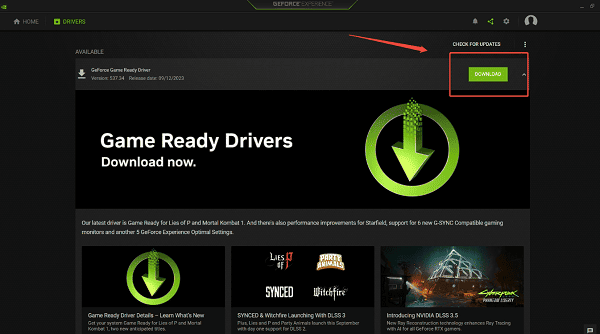
Open NVIDIA GeForce Experience.
Sign in with your NVIDIA account.
Go to the Drivers tab, click "Check for updates".
Download and install the latest driver.
Restart your system.
This method works best for standard consumer GPUs.
Install NVIDIA Drivers via Device Manager
This is a basic troubleshooting option when other methods are unavailable.
Right-click Start and open Device Manager.
Expand Display adapters, right-click NVIDIA GPU and select "Update driver".
Choose "Search automatically for drivers".
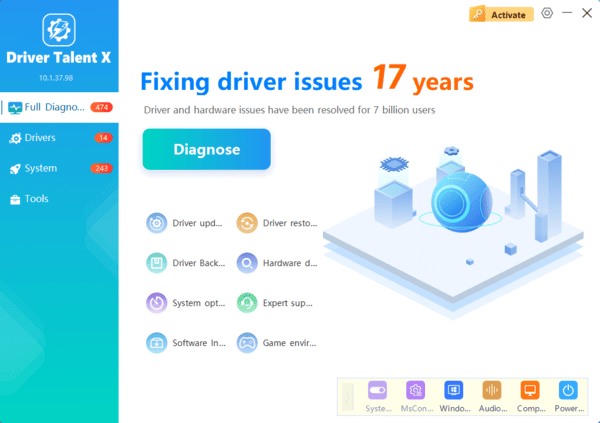
Update NVIDIA GPU Drivers with Driver Talent X
Using an automated driver management tool helps avoid version mismatches and installation errors. Driver Talent X detects your exact NVIDIA GPU model and installs the most compatible driver for your Windows version.

Additional Tips to Prevent NVIDIA Driver Update Failures
Always match the driver version to your exact GPU model
Avoid installing drivers from unofficial sources
Keep chipset and motherboard drivers updated
Ensure stable internet connection during downloads
Restart your system after every driver update
Conclusion
NVIDIA GPU driver update failures can stem from multiple causes, but they are usually fixable with the right approach. Starting with Driver Talent X is the most reliable way to update NVIDIA drivers safely and avoid compatibility issues.
If the problem persists, clean installation, complete driver removal, Windows updates, and official NVIDIA tools provide additional effective solutions. Keeping your drivers and system properly maintained ensures stable performance and a smoother experience on Windows.
