

Problems with an NVIDIA graphics driver can show up in many different ways, from sudden black screens and flickering to low FPS, failed installations, game crashes, or warning icons in Device Manager. These symptoms often point to a damaged or incompatible driver rather than a faulty graphics card. This guide explains how to troubleshoot NVIDIA driver issues on Windows 10 and Windows 11 by performing a clean reinstall, updating the driver manually or with Driver Talent X, installing Windows updates, repairing the NVIDIA Control Panel, adjusting GPU power settings, and checking Windows system files when the problem continues.
Perform a Clean NVIDIA Driver Reinstallation
Open Device Manager, expand Display adapters, right-click your NVIDIA graphics card, and choose to uninstall the device. If Windows gives you the option to delete the driver software, select it. Then restart the computer
This step is often effective when the driver appears installed but games still crash, the display flickers, or the system keeps showing GPU-related errors after every reboot
Update the NVIDIA Graphics Driver
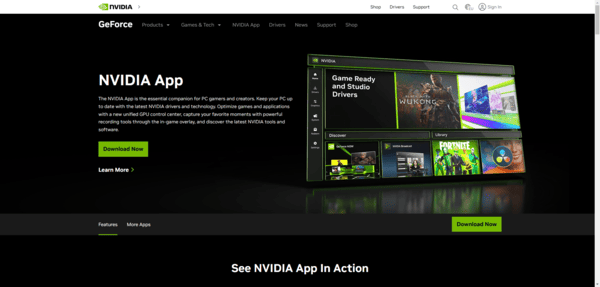
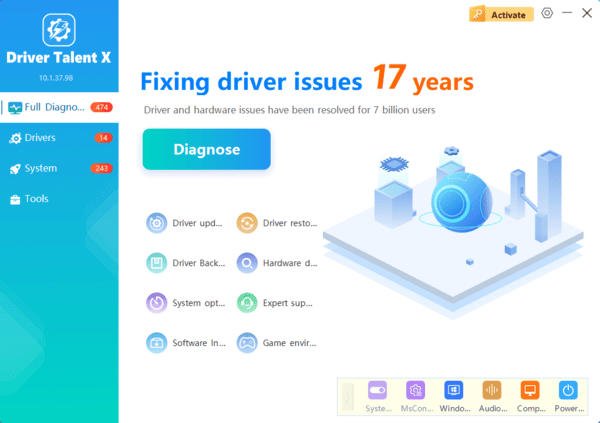
You can update the driver manually through NVIDIA website, but many users prefer an easier option that reduces the chance of installing the wrong version. Driver Talent X is one way to do this. It can scan your system, detect the NVIDIA GPU model automatically, and identify outdated, missing, or damaged drivers. It can also check motherboard and chipset drivers that may affect graphics stability.
To use this method, install Driver Talent X, run a driver scan, review the results, and update the recommended NVIDIA-related drivers. After the installation finishes, restart the computer so Windows can fully load the new driver environment.
Update Windows Completely
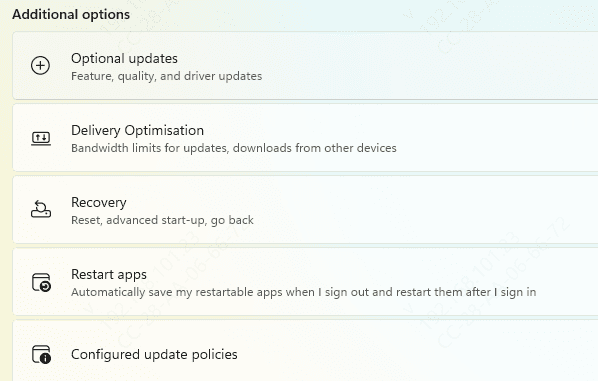
Go to Windows Update, check for updates, and install everything available, including optional system updates if they are relevant. Then restart the computer and test the system again.
Reinstall the NVIDIA Control Panel
If the Control Panel is not working correctly, reinstall it from the Microsoft Store and restart the system afterward. This can restore access to important settings such as display scaling, 3D settings, G-Sync controls, and power management options.
Adjust Power Management Settings
Power settings can also affect NVIDIA stability, especially during gaming or GPU-intensive work. If the graphics card is switching power states too aggressively, some systems may show stuttering, unexpected drops in performance, or even driver timeout issues
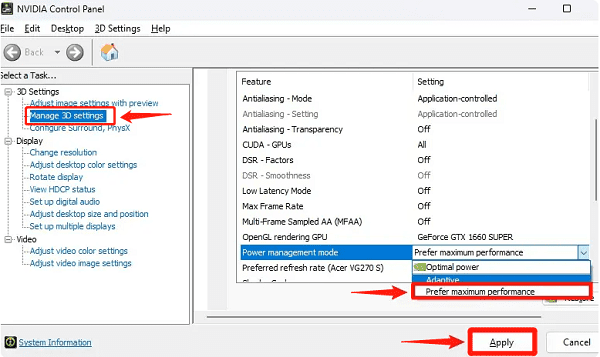
Open the NVIDIA Control Panel and check the power management mode under 3D settings. Setting it to prefer maximum performance can help stabilize performance in games and applications that place a steady load on the GPU
Run System File Checker
Open Command Prompt as administrator and run:
sfc /scannow
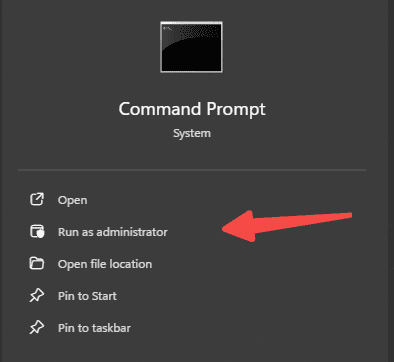
This tool checks important Windows files and repairs damaged versions where possible. It is useful when the driver installs correctly but Windows still behaves abnormally afterward.
Frequently Asked Questions
Should I use Device Manager for a clean NVIDIA driver reinstall?
Device Manager may leave driver files and settings behind. For a true clean installation, download the correct driver from NVIDIA and select Custom installation > Perform a clean installation. Use DDU only for persistent problems and preferably in Safe Mode.
Should NVIDIA power management always be set to maximum performance?
No. It can increase power consumption, temperatures, and fan noise. Apply Prefer maximum performance to a specific problematic game rather than using it globally.
What if the NVIDIA driver still crashes after a clean reinstall?
Restore GPU overclocking to default, check temperatures and power connections, run DISM and SFC, test an earlier stable driver, and review Windows Reliability Monitor for the exact crash pattern. Persistent artifacts or crashes across different operating systems may indicate hardware failure.
Final Thoughts
NVIDIA graphics card driver problems on Windows are common, but they are usually fixable without replacing the GPU. In most cases, the safest repair path is clear: update the driver properly, perform a clean reinstall if needed, update Windows, stop automatic driver replacement, repair the NVIDIA Control Panel if necessary, and run system file checks when the problem seems deeper.
