

When your network connection suddenly stops working, basic troubleshooting like restarting the router or running the Windows troubleshooter may not be enough. If your network adapter disappears from Device Manager, shows a yellow exclamation mark, or stops working after a Windows update, the problem is often caused by a corrupted or incompatible driver. In these cases, reinstalling the network adapter driver is one of the most effective solutions. This guide will show you how to reinstall Wi-Fi and Ethernet adapter drivers on Windows 10 and Windows 11, helping you restore a stable network connection and resolve common driver-related issues.
Step 1: Identify the Network Adapter in Device Manager
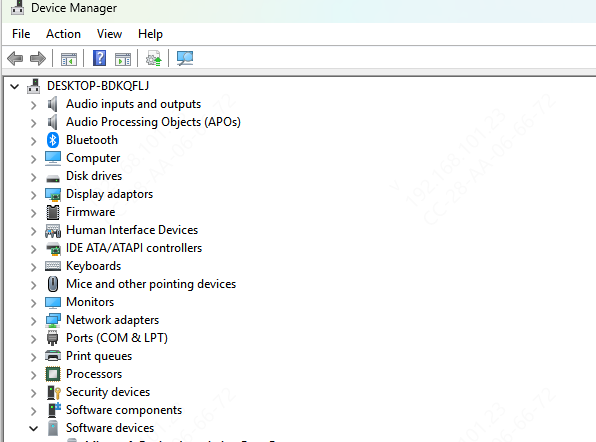
Press Win + X and open Device Manager. Expand Network Adapters. The wireless adapter will typically be listed as Intel Wireless, Realtek RTL, Qualcomm Atheros, or MediaTek depending on the laptop or motherboard
The wired Ethernet adapter is usually listed as Realtek PCIe GbE Family Controller or Intel Ethernet Connection
Step 2: Download the Replacement Driver Before Uninstalling
For laptops, go to the manufacturer's support site. Download the driver that matches the adapter name identified in Step 1 and your Windows version
For desktops, the network driver comes from the motherboard manufacturer's site if the adapter is built into the motherboard, or from the network card manufacturer's site for add-in cards
Step 3: Uninstall the Current Network Adapter Driver
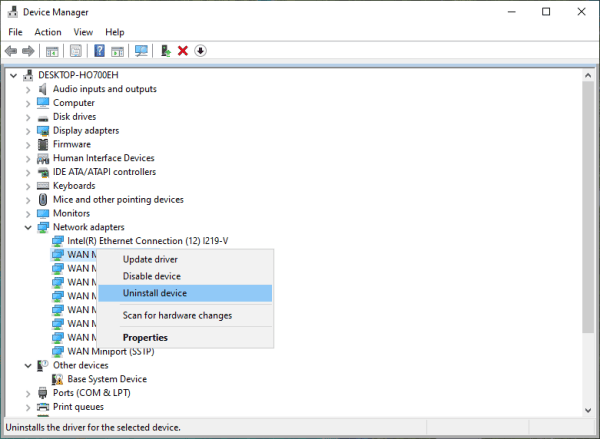
Open Device Manager. Expand Network Adapters. Right-click the adapter and select Uninstall device
In the confirmation dialog, check the option that reads "Delete the driver software for this device" if it appears
This removes the driver files from the system rather than just removing the device entry — which is the difference between a clean reinstall and a basic device removal. Click Uninstall
Step 4: Reinstall the Network Adapter Driver with Driver Talent X
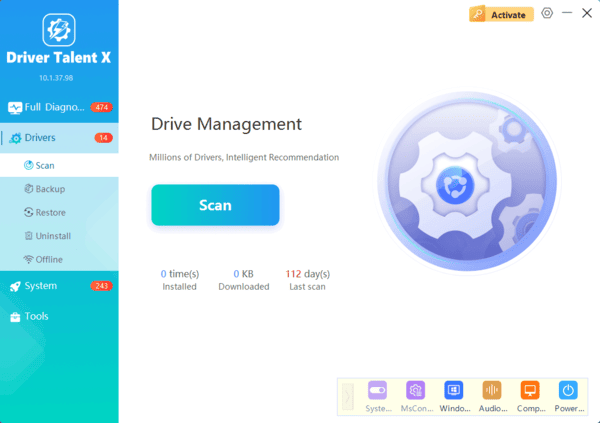
When the adapter model is unclear, the laptop manufacturer's support site is difficult to navigate, the downloaded installer fails, or both the WiFi and Ethernet adapters need attention at the same time, Driver Talent X handles the identification and reinstallation automatically
Driver Talent X detects the exact hardware ID of the adapter and installs the manufacturer-matched driver version rather than the generic driver that Windows Update typically substitutes. After the repair completes, restart the PC and test the network connection
What to Do If the Adapter Is Still Missing After Reinstall
If the adapter reappears in Device Manager after the driver reinstall but the internet still doesn't work, the problem has shifted from the driver to the network configuration.
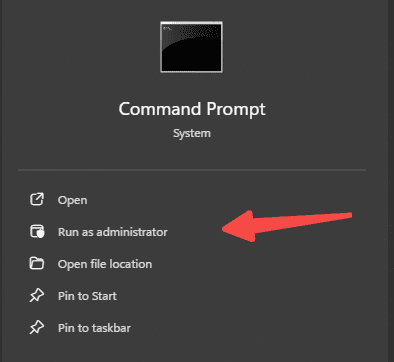
Open Command Prompt as administrator and run the following commands in sequence:
netsh winsock reset
netsh int ip reset
ipconfig /flushdns
Restart the PC after running all three commands. These reset the TCP/IP stack and DNS cache, which often remain misconfigured even after the driver is restored.
Conclusion
Reinstalling the network adapter driver resolves the majority of Windows network failures caused by corruption, post-update driver replacement, or missing driver files. The manual process requires identifying the adapter, downloading the correct driver before uninstalling, performing a clean removal, and installing fresh. The key step most guides omit is downloading the replacement driver first — uninstalling without a replacement ready leaves the PC with no way to get online.
