Launching GTA V or Red Dead Redemption 2 should take only a few moments. However, encountering Rockstar Error Code 4 can bring the entire process to a sudden stop.
The error may appear when opening Rockstar Games Launcher, signing into your account, or attempting to start a game. Restarting the launcher sometimes helps, but the problem may return if the underlying issue remains unresolved.
Depending on the complete error message, Rockstar Error Code 4 may involve damaged launcher files, connectivity problems, authentication failures, or Windows configuration issues.
If you are experiencing Rockstar Error Code 4 on Windows 11, the following troubleshooting methods can help you identify the cause and get back into your game.
What Causes Rockstar Error Code 4?
Temporary Rockstar server interruptions.
Corrupted Rockstar Games Launcher cache.
Damaged or missing launcher files.
Unstable internet connections.
Firewall or antivirus restrictions.
VPN or proxy configuration issues.
Incompatible system drivers.
Windows system component problems.
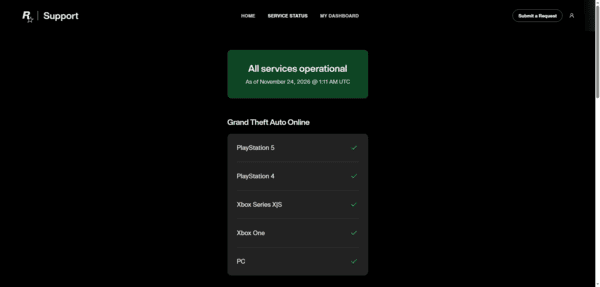
Solution 1: Check Rockstar Games Server Status
Open your web browser.
Visit https://support.rockstargames.com/servicestatus.
Review the status of Rockstar Games Launcher and relevant gaming services.
Check whether any service interruptions have been reported.
Solution 2: Close All Rockstar Background Processes
Exit Rockstar Games Launcher.
Press Ctrl + Shift + Esc to open Task Manager.
Navigate to the Processes tab.
Locate Rockstar Games Launcher and related Rockstar processes.
Select any stuck processes and click End task.
Restart your computer.
Open Rockstar Games Launcher again.
Solution 3: Clear Rockstar Games Launcher Cache
Press Windows + E to open File Explorer.
Open your Documents folder.
Navigate to:
Documents\Rockstar Games\Launcher
Locate the webcache folder, if present.
Rename it to webcache_backup.
Restart Rockstar Games Launcher.
Solution 4: Check Rockstar Games Launcher Permissions
Close Rockstar Games Launcher.
Locate its desktop shortcut.
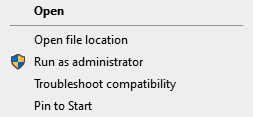
Right-click the shortcut.
Select Run as administrator.
Approve the User Account Control prompt.
Check whether the launcher opens successfully.
Solution 5: Refresh Your Network Connection
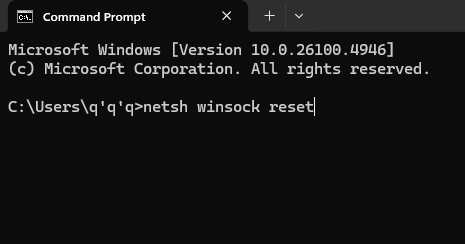
Type cmd in Windows Search.
Right-click Command Prompt.
Select Run as administrator.
Enter the following command:
ipconfig /flushdns
Press Enter.
Restart Rockstar Games Launcher.
Solution 6: Update Drivers
Damaged or incompatible drivers may contribute to unstable internet connections, graphics initialization failures, or unexpected game crashes.
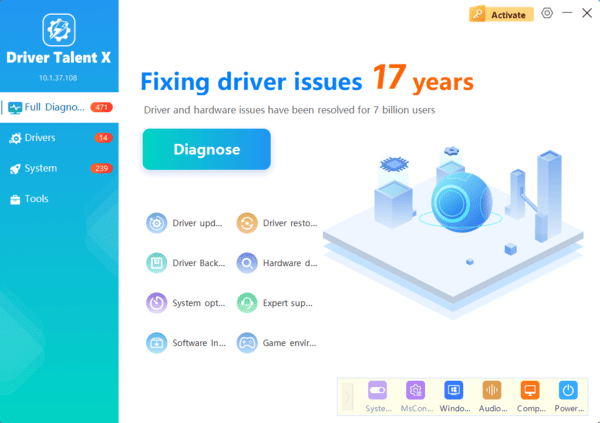
Driver Talent X is a Windows driver management utility designed to identify supported missing, outdated, or problematic drivers.
Download Driver Talent X.
Install and launch the software.
Click Scan to check your system drivers.
Review the detected driver issues.
Install appropriate updates for affected network, graphics, or chipset drivers when necessary.
Restart your computer.
Launch Rockstar Games Launcher again.
Solution 7: Check Firewall and Antivirus Settings
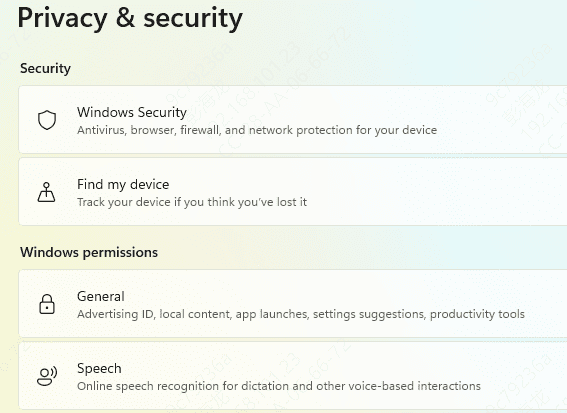
Open Windows Security.
Select Virus & threat protection.
Click Protection history.
Review recent security alerts.
Check whether legitimate Rockstar Games Launcher components have been blocked.
Review Firewall Restrictions
Open Windows Security.
Select Firewall & network protection.
Review the relevant firewall configuration.
Solution 8: Verify the Integrity of Your Game Files
For Rockstar Games Launcher Users
Open Rockstar Games Launcher.
Select Settings.
Choose the affected game under your installed games.
Locate Verify game file integrity.
Start the verification process.
For Steam Users
Open Steam and navigate to Library.
Right-click the affected Rockstar game.
Select Properties.
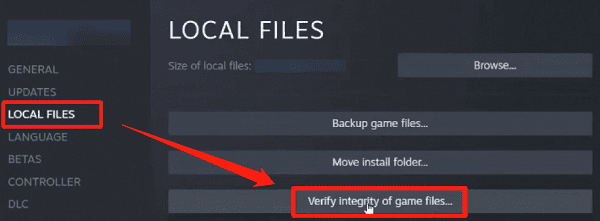
Open Installed Files.
Click Verify integrity of game files.
For Epic Games Launcher Users
Open Epic Games Launcher.
Navigate to your library.
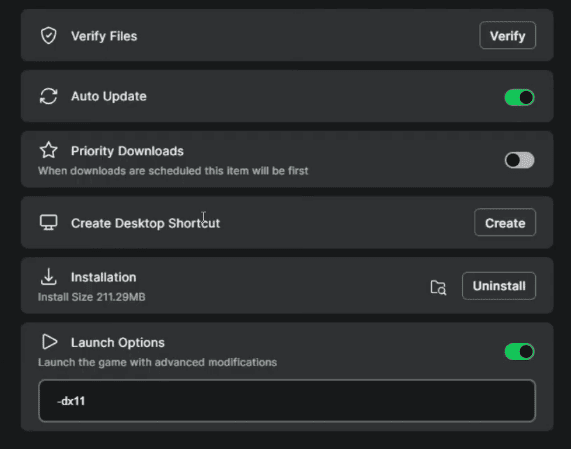
Click the three-dot menu next to the affected game.
Select Manage.
Click Verify.
Wait for the verification process to finish before launching the game again.
The platform should replace missing or damaged installation files when necessary. Back up any important modifications before verification, as modified game files may be replaced.
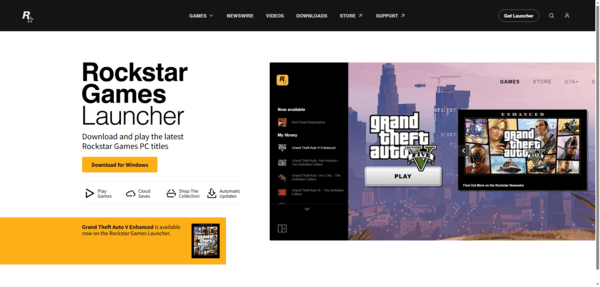
Solution 9: Reinstall Rockstar Games Launcher
Download the latest launcher.
Install the launcher and sign into your Rockstar account.
If necessary, use the launcher's supported game detection options to locate existing installations.
Conclusion
Rockstar Error Code 4 on Windows 11 may result from corrupted launcher files, network connectivity issues, security restrictions, or incorrect system settings. Start by checking Rockstar's server status, restarting the launcher, and clearing its cache. If the problem persists, verify game files, review firewall settings, or reinstall Rockstar Games Launcher. Driver Talent X can also help identify problematic network and graphics drivers when related issues occur. These troubleshooting methods can help resolve launcher errors and restore access to your favorite Rockstar games.