Steam Cloud makes it easier to continue your favorite games across different computers by synchronizing supported save files and game settings. However, when Steam Cloud stops syncing, your latest progress may not appear on another PC, or Steam may display an error before launching a game. This guide explains how to fix Steam Cloud not syncing on Windows 10 and Windows 11 while reducing the risk of losing important game progress.
Fix 1: Check Steam Server Status
Check Steam's service announcements or a reputable Steam status monitoring resource.
You can also review Steam's official support website.
If a service disruption is reported, wait until the problem is resolved.
Avoid repeatedly changing local save files during a suspected server outage
Once Steam services return to normal, restart Steam and check whether synchronization completes.
Fix 2: Restart Steam and Your Computer
Close the affected game.
Open the Steam menu.
Select Exit to close Steam completely
Wait for Steam to shut down.
Fix 3: Enable Steam Cloud Synchronization
Steam Cloud must be enabled for supported games to synchronize their data.
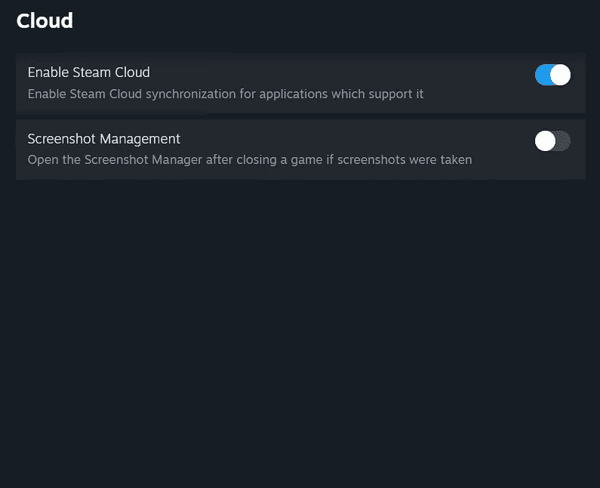
Enable Steam Cloud Globally
Open Steam.
Click Steam in the upper-left corner.
Select Settings.
Open the Cloud section.
Enable Steam Cloud synchronization for supported applications if the option is available.
Enable Steam Cloud for a Specific Game
Open your Steam Library.
Right-click the affected game.
Select Properties.
Open General.
Locate the Steam Cloud synchronization option.
Enable it if available.
Fix 4: Check Your Internet Connection
Steam Cloud requires a stable internet connection to upload and download supported game files.
Restart your router if the connection is unstable.
Reconnect your computer to Wi-Fi.
Switch to Ethernet if possible.
Pause bandwidth-intensive downloads.
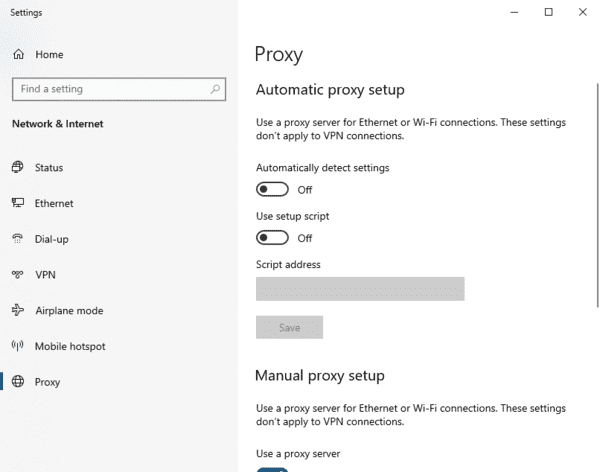
Temporarily disconnect a VPN or proxy for testing.
Restart Steam.
Fix 5: Resolve Steam Cloud Sync Conflicts
A Steam Cloud sync conflict occurs when Steam detects different versions of the same game data.
Stop launching the affected game on multiple computers.
Back up the local save files on each computer.
Review the available local and cloud save information.
Compare modification dates and known game progress.
Identify which version contains the progress you want to keep.
Select the appropriate version only after verifying it.
Fix 6: Verify Game File Integrity
Damaged or missing game files may contribute to game-specific problems that interfere with saving or synchronization.
Open Steam.
Go to Library.
Right-click the affected game.
Select Properties.
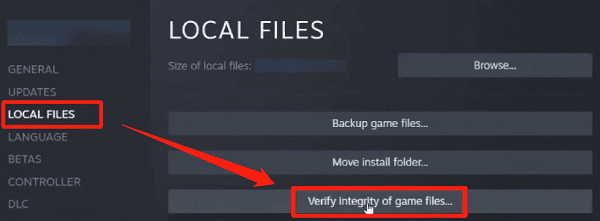
Open Installed Files.
Click Verify integrity of game files.
Wait for the process to finish.
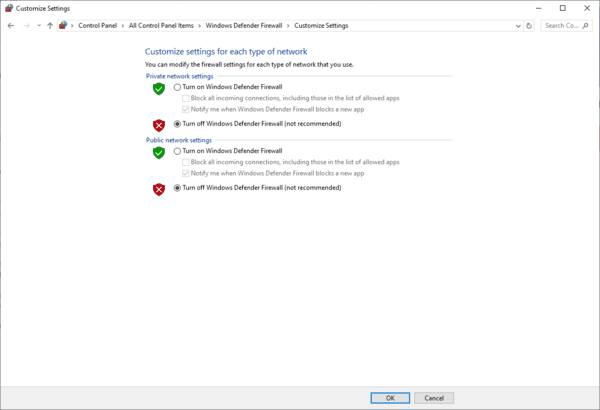
Fix 7: Check Firewall and Antivirus Settings
Windows Firewall and third-party security software can restrict applications from accessing online services.
Open Windows Security.Select Firewall & network protection.
Click Allow an app through firewall.
Locate Steam in the application list.
Confirm that Steam has appropriate network permissions.
Save any necessary changes.
Fix 8: Update or Repair the Steam Client
An outdated or malfunctioning Steam client may experience synchronization problems.
Steam normally updates itself, but you can check for available client updates through the Steam menu.
If an update is available, allow it to install.
Restart Steam afterward and check the affected game's cloud status.
If Steam also experiences download or connectivity problems, you can review its download settings.
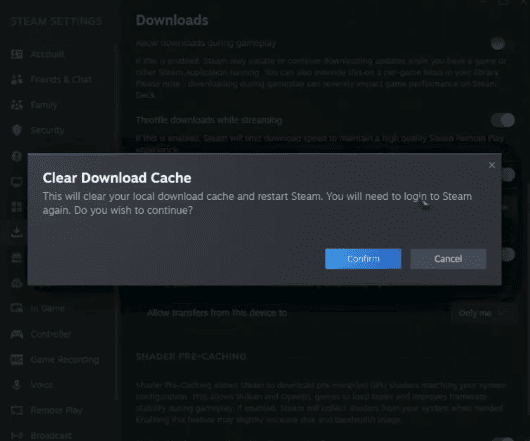
In some cases, clearing the download cache may help with broader client download issues.
To access this option:
Open Steam.
Select Steam > Settings.
Open Downloads.
Locate Clear Download Cache, if available.
Follow the on-screen instructions.
Fix 9: Check Windows Network Drivers
If Steam Cloud repeatedly fails to sync and other online applications also experience network interruptions, the problem may involve your network adapter. Windows relies on Wi-Fi and Ethernet drivers to maintain network communication. Corrupted or incompatible drivers can contribute to unstable connections and interrupted data transfers.
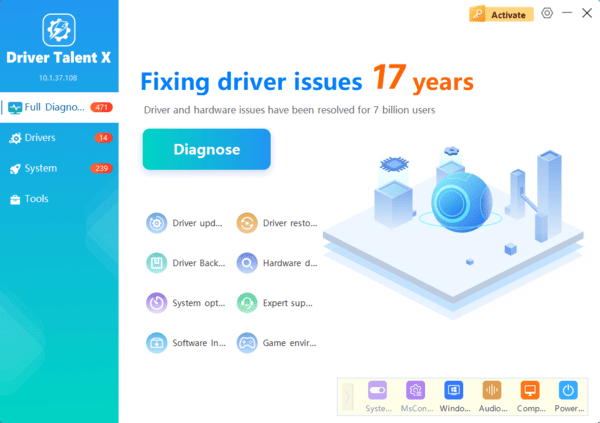
Driver Talent X is a Windows driver management utility that can identify supported missing, outdated, or problematic drivers.
It provides an additional way to investigate network driver issues on compatible Windows computers.
Download Driver Talent X.
Install and launch the application.
Click Scan to check your computer.
Review any detected Wi-Fi or Ethernet driver issues.
Install appropriate compatible updates if available.
Restart Windows.
After restarting, reconnect to the internet and check Steam Cloud synchronization.
Driver Talent X may help with supported driver-related problems, but it cannot repair corrupted game saves or resolve Steam server outages.
Conclusion
Steam Cloud not syncing can result from server outages, unstable internet connections, incorrect settings, or conflicting save files. Start by checking the Steam Cloud settings, restarting the client, and resolving synchronization conflicts carefully. If the issue persists, verify game files, review firewall permissions, and check your network connection. Driver Talent X can also help identify and update problematic network drivers. Following these steps can help restore Steam Cloud synchronization, protect your game progress, and ensure a smoother gaming experience on Windows 10/11.