

Steam is one of the most popular gaming platforms for PC users, but it does not always start smoothly. Sometimes, instead of opening your game library, Steam becomes stuck on the "Loading User Data" screen and refuses to continue. Fortunately, Steam stuck on Loading User Data does not necessarily mean your account or installed games are damaged. Temporary connection problems, corrupted cache files, and background process conflicts are among the possible causes.
This guide explains why Steam gets stuck and provides practical solutions to help you access your game library again.
1. Completely Close Steam and Restart It
Press Ctrl + Shift + Esc to open Task Manager.
Look for Steam, Steam Client WebHelper, and other Steam-related processes.
Select the relevant processes and click End task.
Wait a few seconds.
Launch Steam again.
2. Check Your Internet Connection and Steam Services
You can also visit the official Steam Support website to look for relevant service information.
If you suspect a broader Steam outage, independent status-monitoring websites may provide additional context, although their reports are not always definitive.
If other websites are also loading slowly, investigate your internet connection.
Try restarting your router, switching to a stable connection, or temporarily disconnecting a VPN.
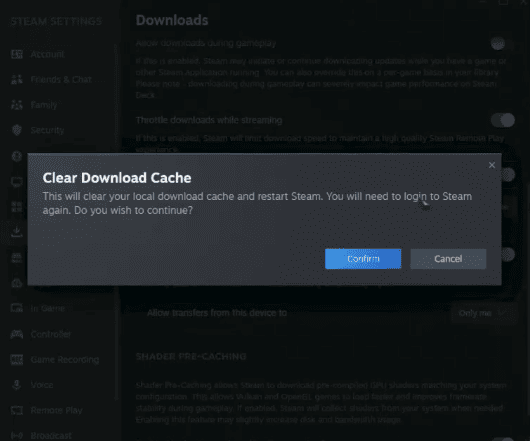
3. Clear the Steam Download Cache
Open Steam and navigate to:
Steam > Settings > Downloads > Clear Download Cache
Confirm the action and allow the client to restart.
Steam may ask you to sign in again afterward.
4. Reset Local Application Cache
Exit Steam completely through Task Manager.
Open File Explorer.
Navigate to your Steam installation folder.
Locate the folder named appcache.
Rename it to appcache.old.
Launch Steam again.
For a default installation, the Steam folder is commonly located at:
C:\Program Files (x86)\Steam
Steam may regenerate the application cache during startup.
5. Check Graphics and Network Drivers
Although Steam startup problems are often related to the client or network, driver compatibility issues can sometimes contribute to the symptoms.
If the problem started after a Windows update or hardware change, checking your drivers may be useful.
Option A: Update Drivers Manually
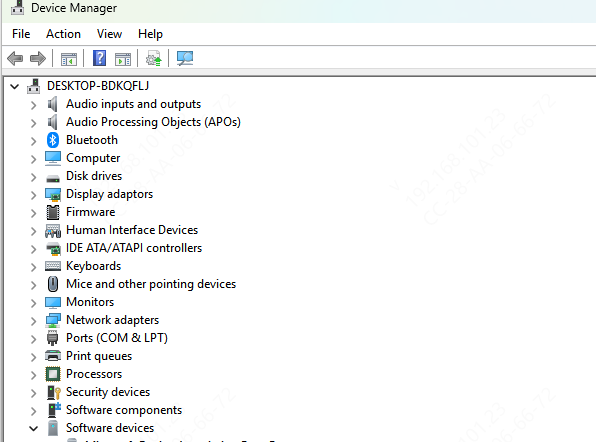
Right-click Start and select Device Manager.
Expand Display adapters or Network adapters.
Right-click the relevant device.
Choose Update driver.
Select Search automatically for drivers.
Follow the instructions and restart Windows if required.
Option B: Check Drivers with Driver Talent X
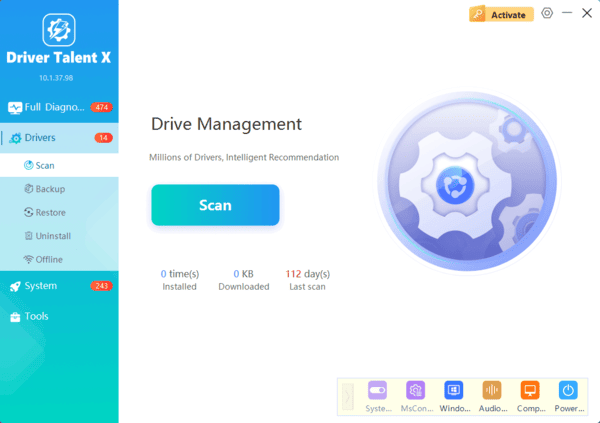
If you prefer a tool that scans for supported driver issues, Driver Talent X offers another option.
It can identify certain missing, outdated, or problematic drivers and display available update recommendations.
6. Check for VPN, Firewall, or Software Conflicts
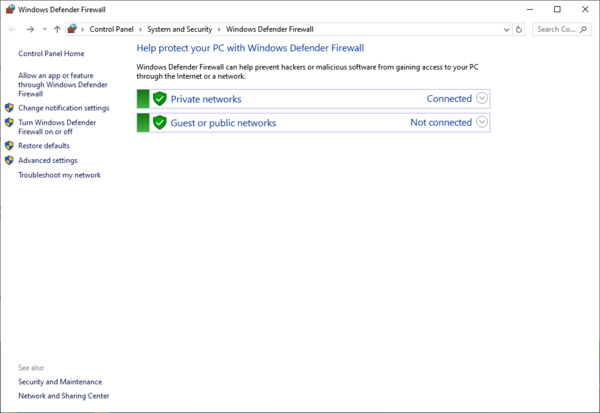
Open Windows Security, select Firewall & network protection, and choose Allow an app through firewall.
Check whether Steam is permitted to communicate through the appropriate networks.
If you use third-party security software, review its application-blocking or quarantine history.
Avoid permanently disabling antivirus protection. Instead, correct a confirmed false block using the security application's supported allowlist or exception controls.
7. Reset DNS and Windows Network Components
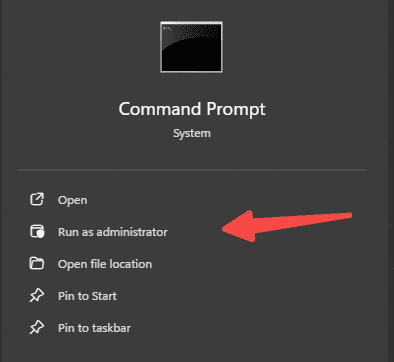
Open Terminal (Admin) or Command Prompt (Admin) and enter:
ipconfig /flushdns
Press Enter and wait for the confirmation message.
Restart Steam and test the connection.
If the problem continues and you suspect a deeper Windows networking issue, you can also run:
netsh winsock reset
Restart Windows after running the command.
Conclusion
If Steam is stuck on Loading User Data, restart the client, check your connection, and clear its cache. If the issue persists, check for software conflicts or driver problems, optionally using Driver Talent X. Reinstall Steam as a last resort, backing up important game files and local data first.
