

Keeping your HP drivers up to date on Windows 11 is important for maintaining smooth hardware performance, better compatibility, and fewer system errors. Outdated, missing, or incorrect drivers can cause a wide range of problems, including HP printer failures, WiFi connection issues, audio problems, Bluetooth errors, touchpad malfunctions, and unstable graphics performance. However, updating drivers incorrectly can sometimes create new compatibility issues, especially when installing drivers from unreliable sources or using the wrong model version. This guide explains the safest ways to update HP drivers on Windows 11.
Use Windows Update
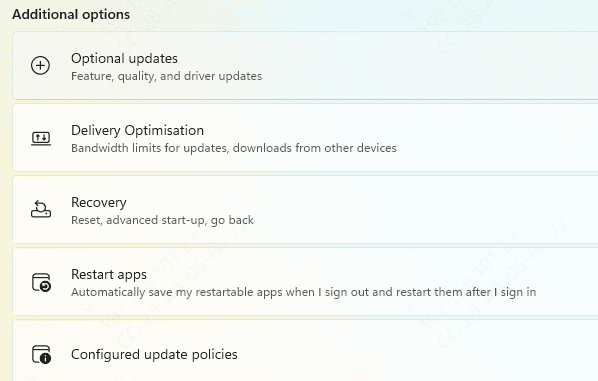
Windows 11 can install many HP-related drivers automatically. This is often the easiest starting point because important hardware support updates may already be available through normal or optional updates
However, optional driver updates should be reviewed carefully. Windows Update sometimes installs a generic driver instead of the best HP-specific one. Generic drivers can be fine for basic use, but they may remove extra features or create compatibility problems on some HP systems
Use the Official HP Support Source
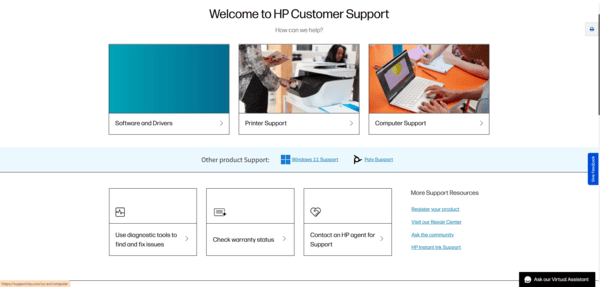
Download only the drivers related to the device you are fixing. If the touchpad is the issue, start with the touchpad driver. If the printer is failing, use the official HP printer package. If the wireless card is unstable, focus on the WiFi and Bluetooth drivers
This method is slower than blindly downloading driver packs, but it is much safer and more accurate
Use Device Manager
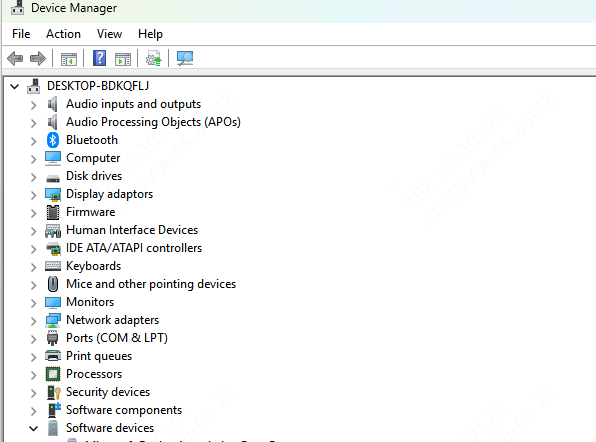
Device Manager can also be useful if you know exactly which HP device is causing the problem. It allows you to update, uninstall, or roll back a specific driver
This is helpful for quick troubleshooting, especially if a recent update caused the issue. But Device Manager does not always find the newest or best vendor-specific driver
Use Driver Talent X
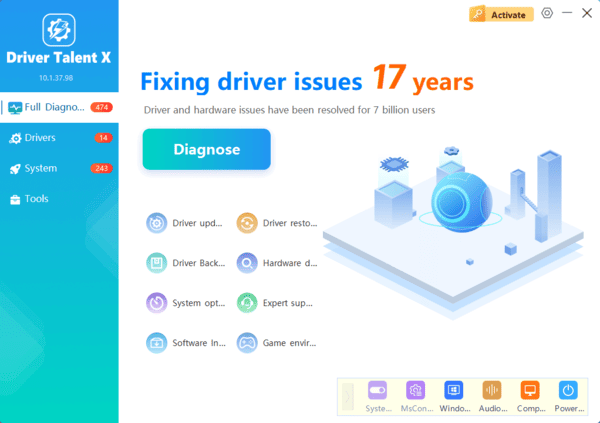
If several HP devices are acting up at once, or if you are not sure which driver is actually damaged, Driver Talent X can make the process faster. Just one click, Driver Talent X can update all drivers.
Reinstall Instead of Updating When Necessary
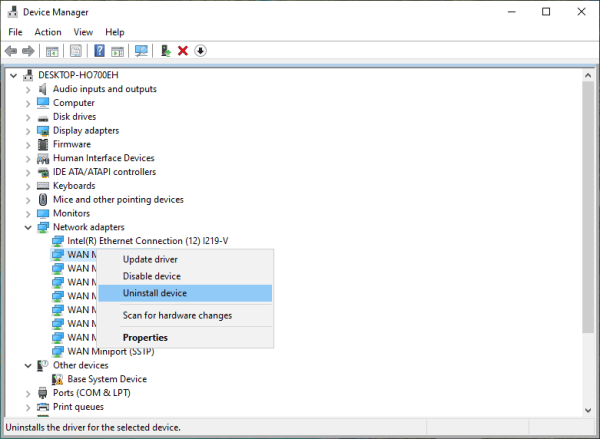
Sometimes a driver is too damaged for a simple update to help. In that case, a clean reinstall is the better option. Remove the affected HP device or uninstall the broken driver package, restart the PC, and then install the fresh correct driver again
This is often the best solution when Windows repeatedly installs the wrong driver, when the device shows warning icons after update attempts, or when the device fails in a way that looks corrupted rather than just outdated
Avoid Common Driver Update Mistakes
One of the biggest mistakes is downloading drivers from unofficial website
Another is installing drivers meant for a different HP model that only looks similar. These mistakes can create larger problems than the original device error
Another common mistake is updating many critical drivers at the same time
It is also important not to skip the restart after installation. Some drivers do not load properly until Windows has restarted fully.
Updating HP drivers on Windows 11 safely is not about installing everything blindly. It is about identifying the real problem device, using the correct source, and making careful changes in a controlled order. In many cases, the best path is to start with Windows Update or the official HP support page, then move to clean reinstall if the driver is already damaged.
If multiple related drivers may be involved, Driver Talent X can help scan and repair HP-related drivers more efficiently, especially for printers, audio, graphics, WiFi, Bluetooth, and chipset components.
