

The Lenovo IdeaPad 1 15ALC7 uses AMD Ryzen hardware that depends on OEM-specific drivers for stable performance. Key components—including the AMD chipset, Radeon graphics, Realtek audio, and wireless adapter—can develop problems when drivers are outdated, missing, or replaced by generic Windows versions after updates. Common symptoms include WiFi disconnects, missing audio, screen flickering, broken touchpad gestures, and USB or SD card reader failures. Updating all major drivers usually resolves these issues. This guide covers three update methods: Lenovo's support site, the Lenovo Vantage app, and automated scanning with Driver Talent X.
Method 1: Update Drivers from Lenovo's Official Support Site
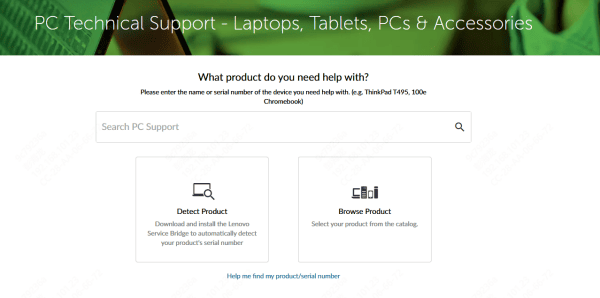
Go to Lenovo's official support site and search by product name or the product number 82R4. Select Windows 10 or Windows 11 depending on the installed version. Navigate the driver categories and download the following packages
Install the drivers in the correct order. Install the AMD Chipset driver first and restart before continuing. After the restart, install the AMD Radeon Graphics driver and restart again. Then install the remaining drivers — audio, WiFi, touchpad, and card reader — in any order. Run all installers as administrator. Restart once more after all installations are complete
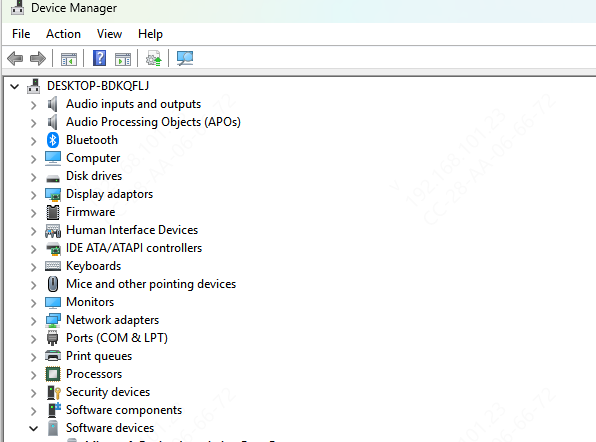
After the final restart, check Device Manager to confirm there are no yellow exclamation marks remaining in any hardware category
Method 2: Update Drivers via Lenovo Vantage
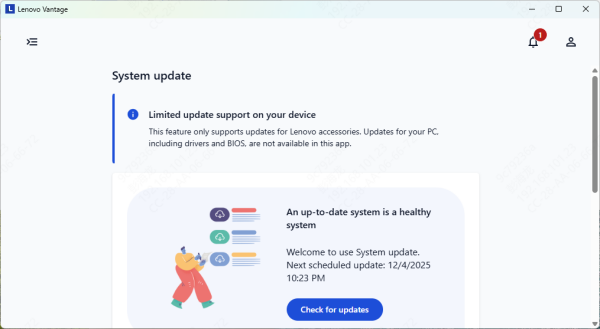
Open Lenovo Vantage and navigate to the Device section, then select System Update. Click Check for Updates. Vantage scans the system and displays a list of available driver updates validated for this specific model. Select all driver updates and click Install
Some drivers trigger a restart during installation — follow the prompts and allow Vantage to complete the process. After all drivers are installed, perform one final restart
Method 3: Update All Drivers Automatically with Driver Talent X
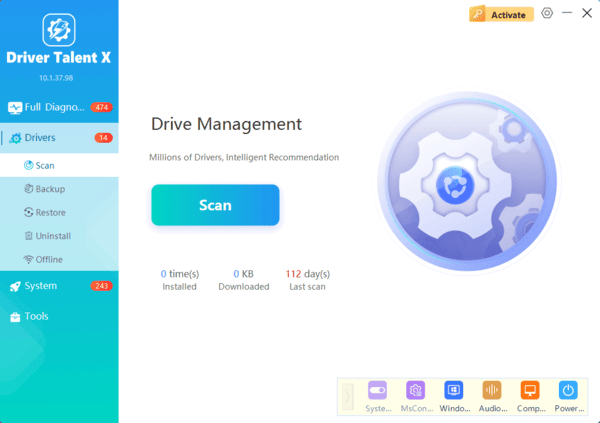
When multiple drivers are outdated simultaneously, or when Lenovo Vantage is unavailable and navigating the support site is unclear, Driver Talent X scans all hardware and identifies every outdated, missing, or corrupted driver in a single operation
Driver Talent X covers hardware that Lenovo Vantage may not flag, including AMD platform-level components and peripheral drivers such as the card reader
Fixing Common Hardware Issues After Driver Update
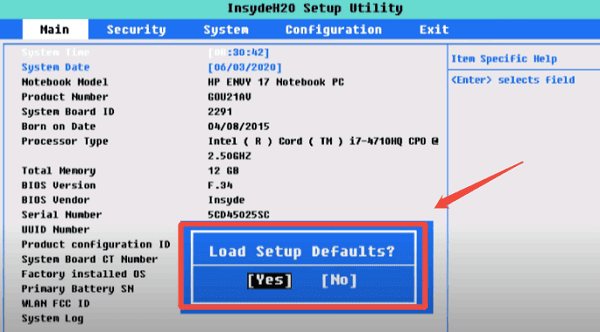
If the touchpad becomes unresponsive after a Windows update, reinstall the touchpad driver from Lenovo's support site. Also check the BIOS settings — press F2 at boot and confirm the touchpad is not disabled in the BIOS configuration menu.
If the AMD Radeon driver produces display flickering or the resolution does not scale correctly, perform a clean installation. Open Device Manager, right-click the display adapter under Display adapters, and select Uninstall device. Check the option to delete the current driver software. Restart, then reinstall the Radeon driver from the downloaded package.
Conclusion
The Lenovo IdeaPad 1 15ALC7 performs best with its full set of OEM-validated AMD platform drivers installed. Lenovo's support site provides model-specific packages for every hardware category. Lenovo Vantage automates detection and installation within the Lenovo ecosystem and is the most straightforward option for most users. Driver Talent X covers all hardware categories in a single scan and is the practical choice when multiple drivers need attention at the same time or when Vantage is not available. After completing any driver update method, verify through Device Manager that no warning icons remain and confirm the driver version dates match the packages installed.
