

Outdated or corrupted keyboard drivers can cause several issues, including unresponsive keys, incorrect key mapping, or even a completely non-functional keyboard. Keeping your drivers up to date is essential for ensuring smooth and reliable performance on your Windows 10 device. This guide will walk you through different methods to update your keyboard drivers and help you fix common keyboard-related issues quickly and effectively.
Update Keyboard Driver via Device Manager
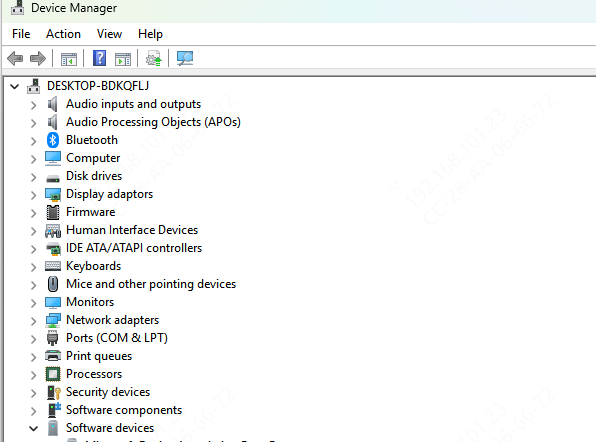
Device Manager is the most straightforward way to manually update or troubleshoot drivers on your Windows 10 device. If your keyboard is not working properly, updating its driver through Device Manager can resolve the issue.
Open Device Manager: Press Windows + X and select Device Manager from the menu
Locate Keyboards: Expand the Keyboards section, where you'll see your keyboard listed
Update Driver: Right-click on your keyboard device and select Update driver
Search Automatically for Updates: Choose Search automatically for updated driver software. Windows will search for and install the latest version of the driver
Restart Your Laptop: After the update completes, restart your computer and check if the keyboard is working properly
Update Keyboard Driver through Windows Update
Windows Update can often include driver updates for various hardware devices, including your keyboard. Sometimes, all it takes is a simple system update to resolve the issue.
Open Settings: Press Windows + I to open Settings
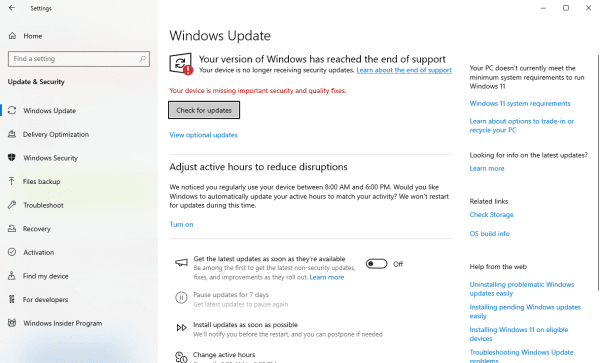
Go to Update & Security: Click on Update & Security, then go to Windows Update
Check for Updates: Click on Check for updates. If there are any available updates, including keyboard driver updates, they will be downloaded and installed automatically
Restart Your Computer: After updates are installed, restart your system and test the keyboard
Use Driver Talent X
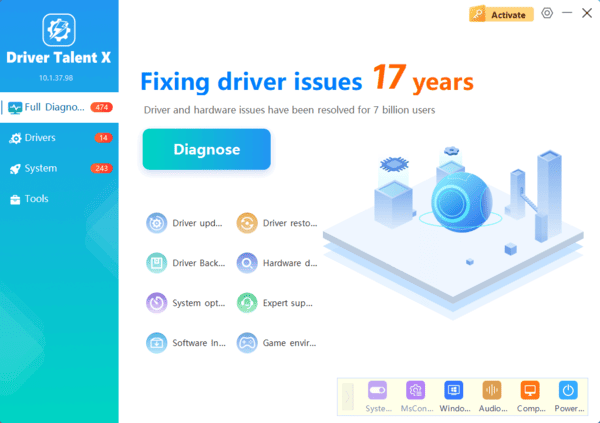
If you prefer an automated solution for managing driver updates, Driver Talent X is an excellent tool to update keyboard drivers. It can save time by scanning your system for outdated drivers and automatically updating them
Roll Back Keyboard Driver
If your keyboard stopped working after an update, it might be due to a newly installed driver causing compatibility issues. In such cases, you can roll back to the previous driver version.
Open Device Manager: Press Windows + X and select Device Manager
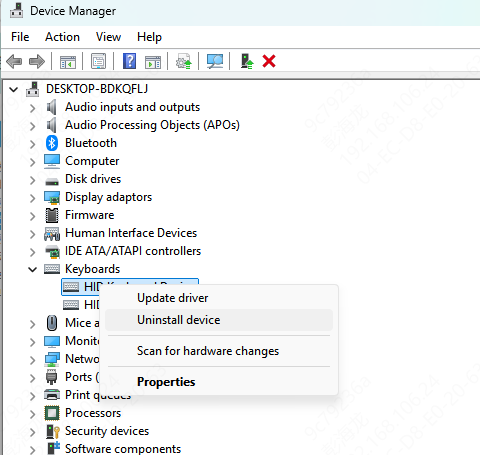
Locate Keyboards: Expand the Keyboards section and right-click on your keyboard device
Go to Properties: Select Properties, then go to the Driver tab
Click Roll Back Driver: If the option is available, click Roll Back Driver and follow the on-screen instructions
Restart Your Computer: After the rollback is complete, restart your laptop and check the keyboard
Troubleshoot Keyboard Driver Issues
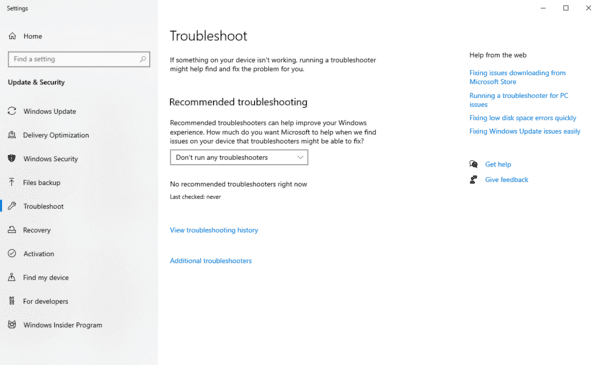
If you're still facing problems, using the built-in Windows Troubleshooter can help detect and fix any keyboard-related issues automatically.
Open Settings: Press Windows + I to open Settings
Go to Update & Security: Select Update & Security, then click Troubleshoot
Run the Keyboard Troubleshooter: Click Keyboard and then select Run the troubleshooter. Follow the on-screen instructions to let Windows automatically detect and fix the issue
Conclusion
Keeping your keyboard drivers up to date is crucial for a seamless Windows 10 experience. Whether you prefer updating drivers manually, through Windows Update, or using automated software like Driver Talent X, the methods outlined above will help you resolve keyboard issues quickly.
