

Keeping your Logitech M325 mouse driver up to date is crucial for maintaining smooth performance, accurate tracking, and full compatibility with Windows 11. An outdated driver can lead to issues such as lag, unresponsiveness, or erratic cursor movement. This guide will walk you through the step-by-step process to update the Logitech M325 mouse driver, ensuring it works seamlessly with your system.
Check the Current Driver Version
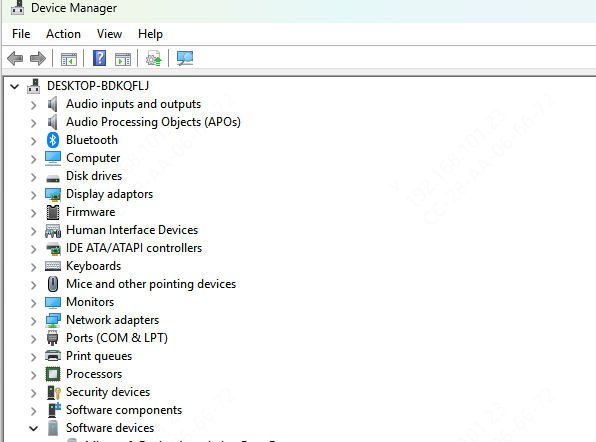
Open Device Manager: Right-click the Start button and select Device Manager
Locate Your Mouse: Scroll down to Mice and other pointing devices and find Logitech M325
Check the Driver Version: Right-click on the mouse entry, select Properties, and navigate to the Driver tab to view the version and release date of the current driver
Verify if an Update is Needed: If the driver is outdated or you're experiencing issues with the mouse, it's time to update
Update Using Logitech Support Website (Manual Method)
If you prefer to manually update the driver or Device Manager doesn't find a newer version, you can download the latest driver directly from Logitech's official support website.
Visit Logitech Support: Go to Logitech Support and search for Logitech M325. Find your specific model in the search results
Download the Latest Driver: Under the Downloads section, select Windows 11 as your operating system, and download the latest driver
Install the Driver: Open the downloaded file and follow the on-screen instructions to install the driver manually
Restart Your PC: After the installation, restart your computer to finalize the driver update

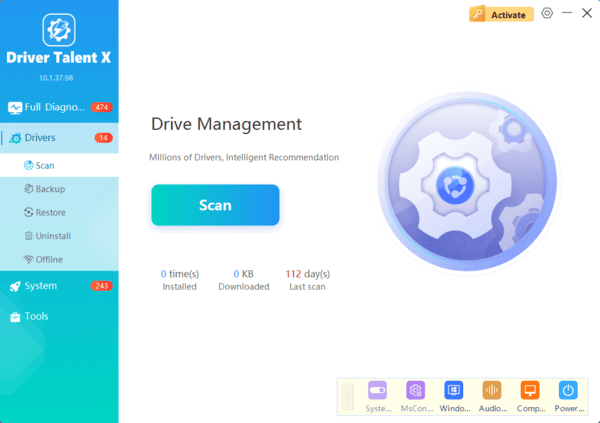
Update with Driver Talent X
If you're looking for an even easier way to keep all your device drivers up to date, including your Logitech M325 mouse driver, consider using Driver Talent X.
Update Logitech M325 Driver Using Logitech Software
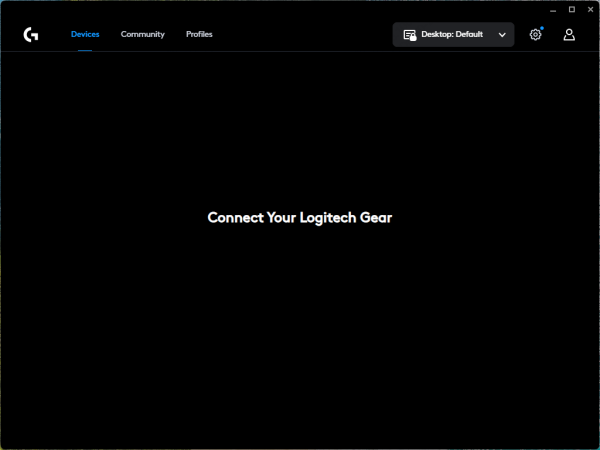
For those who want additional customization and a streamlined update process, using Logitech Options or SetPoint software is the best option.
Install Logitech Options or SetPoint: Download Logitech Options or SetPoint from the Logitech website
Automatic Driver Updates: Open the software, and it will automatically check for the latest driver updates for your connected Logitech devices
Install the Update: If an update is available, the software will prompt you to install it. Follow the on-screen instructions
Restart Your PC: After the update, restart your computer to complete the installation
Update Logitech M325 Mouse Driver via Device Manager
Updating the driver through Device Manager is quick and easy. Here's how to do it:
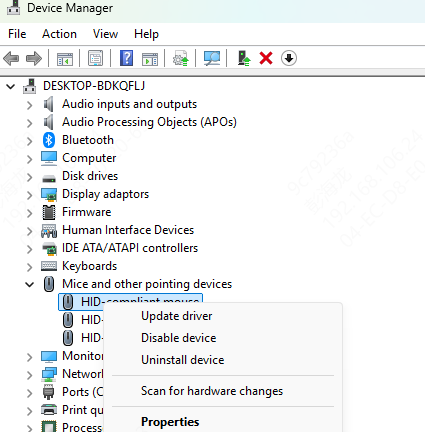
Open Device Manager: Type Device Manager in the search bar and press Enter.
Locate Your Mouse: Find Logitech M325 under Mice and other pointing devices.
Right-click and Update: Right-click on Logitech M325 and select Update driver.
Search for Updates: Choose Search automatically for drivers. Windows will search for the latest version of the driver and install it if available.
Restart Your PC: After the update is complete, restart your PC to apply the changes.
Conclusion
Updating the Logitech M325 mouse driver on Windows 11 is simple and essential for ensuring your mouse works smoothly and efficiently. Whether you choose to update via Device Manager, Logitech Support, or Logitech software, these methods are quick and easy. If you experience any issues during the update process, refer to the troubleshooting section for solutions. Regular driver updates help keep your mouse in top condition, so it's always ready for your work, gaming, or everyday tasks.
