

It can be extremely frustrating when your Acer monitor won't turn on. Whether it's part of your gaming setup, work PC, or home office, a blank or unresponsive screen can quickly interrupt productivity and gameplay. This guide will walk you through quick checks, driver updates, and more advanced solutions to help bring your Acer monitor back to life and restore normal display output.
Quick Power and Cable Checks
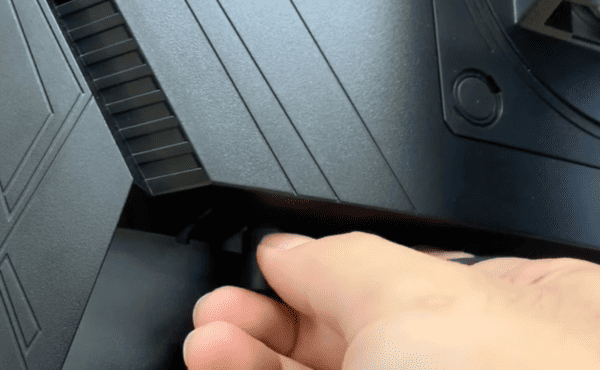
Check the power connection: Ensure the monitor is plugged into a working outlet and that the power cable is fully inserted
Inspect the power cable: Look for frays, bends, or visible damage. Swap in a different power cable if available
Confirm the monitor is powered on: Press the power button and check if the LED indicator lights up
Try another outlet: Sometimes, the issue is as simple as a faulty wall socket or power strip
Check Video Connections
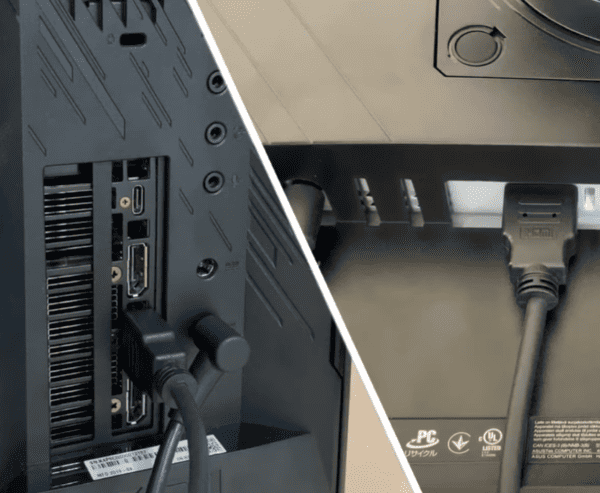
Ensure HDMI, DisplayPort, or VGA cables are securely connected to both the monitor and PC
Test with a different cable or port to eliminate faulty connections
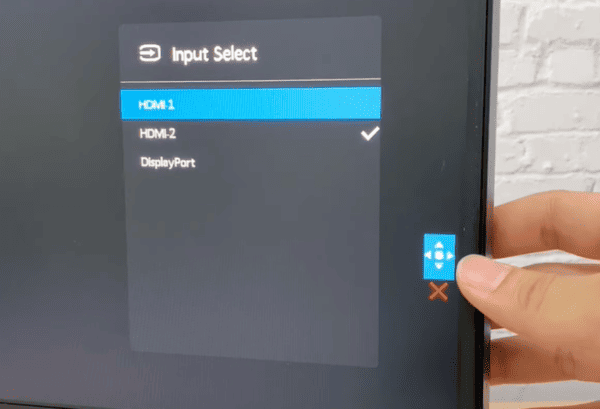
Confirm the monitor's input source matches the cable used (press the Input/Source button on the monitor)
Restart and Power Cycle
Turn off the PC and monitor completely
Unplug all cables, including power and video, for 30–60 seconds
Reconnect and power on the monitor first, followed by the PC
Power cycling resets internal hardware and can restore signal communication
Update Drivers
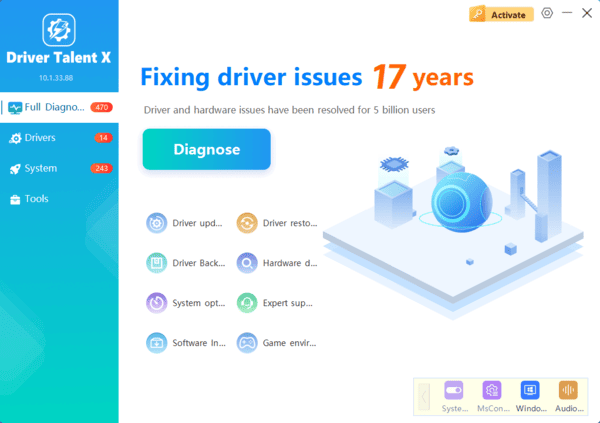
Driver issues can prevent monitors from displaying correctly. To update drivers: Driver Talent X simplifies driver management, reduces installation errors, and often resolves display issues caused by faulty drivers.
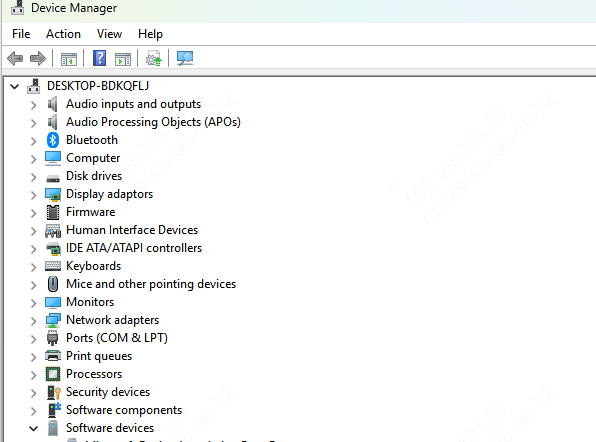
Using Device Manager
Press Windows + X → Device Manager
Expand Display adapters → Right-click your GPU → Update driver → Search automatically
Expand Monitors → Right-click Acer monitor → Update driver
Restart your computer
Using Windows Update
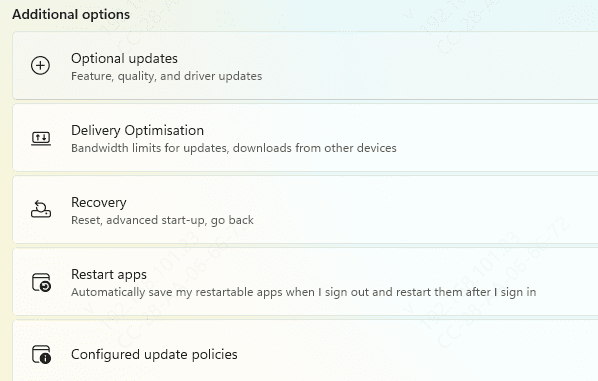
Go to Settings → Update & Security → Windows Update → Optional updates
Look for monitor or display adapter updates and install them
Test on Another Computer or Monitor
Connect your Acer monitor to another computer. If it works, the issue is likely with your original PC
Connect your PC to a different monitor. If the second monitor works, your Acer display may need service
Reset Monitor Settings
Access the on-screen menu on your Acer monitor
Choose Factory Reset or Reset to Default Settings
Test the default resolution and refresh rate to ensure compatibility
Advanced Troubleshooting
If the monitor still does not turn on:
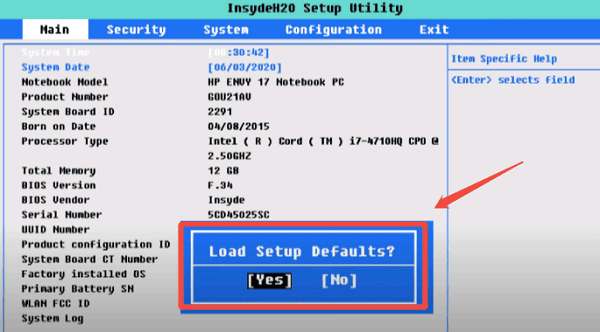
Check BIOS/UEFI settings: Ensure the primary display is correctly set to your GPU or integrated graphics
Inspect hardware: Faulty GPU, motherboard, or monitor components may need professional attention
Conclusion
An Acer monitor that won't turn on is usually caused by simple issues like loose cables, power problems, incorrect input settings, or outdated drivers. To summarize: Using Driver Talent X ensures your monitor and GPU drivers are always up to date, preventing many "no display" issues and keeping your system stable. Regular maintenance and driver updates are the easiest way to keep your Acer monitors working perfectly.
