

If your ASUS monitor will not turn on, shows a blank screen, or displays a "No Signal" message, the problem may be related to the power supply, incorrect input selection, loose video cables, Windows display settings, outdated graphics drivers, or monitor hardware failure. This guide explains several practical ways to troubleshoot an ASUS monitor.
Check Power Supply and Connections
Verify the Power Cable
The first thing to check is the power supply
Ensure the power cable is securely plugged into both the monitor and the power outlet. If you have another working power cable, try swapping it out to rule out the possibility of a faulty cable
Make sure the power cable is properly connected to the monitor's power input
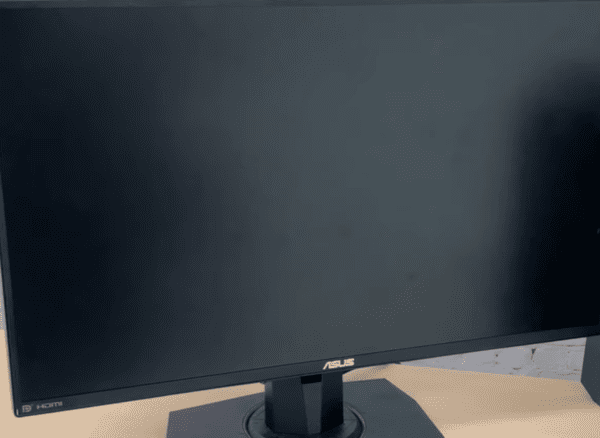
Test the Power Outlet
If the monitor is still not turning on, test the power outlet by plugging in another device like a lamp or phone charger to confirm that the outlet is providing power
Sometimes the issue may be as simple as a power outage or faulty socket
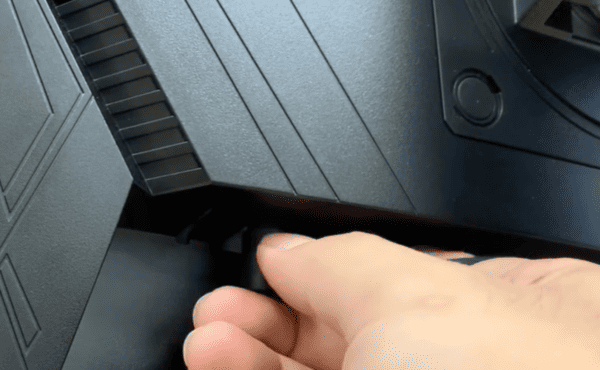
Power Button and LED Indicator
Press the monitor's power button and look for the LED indicator light. If the light is off, it means the monitor isn't receiving power. If the light is flashing or solid, that could indicate a different issue
Refer to your monitor's manual for specific LED behavior codes
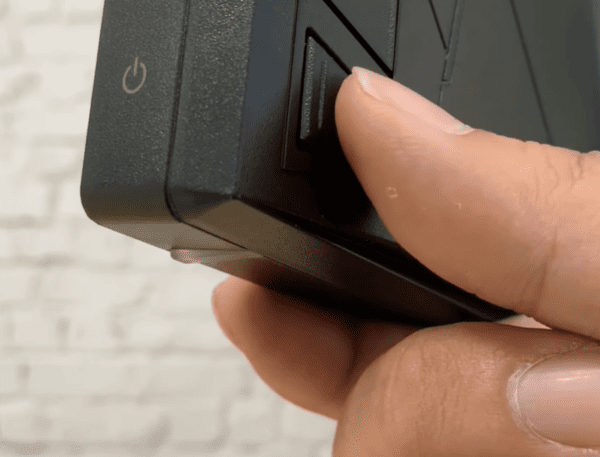
Inspect the Display Settings
Check Input Source
Make sure the correct input source (HDMI, DisplayPort, VGA) is selected on the monitor
If you're unsure which input your computer is using, try cycling through the different input options using the monitor's menu button
This will ensure that the monitor is expecting the correct signal from the computer
Ensure Signal from the Computer
Confirm that the connected computer is properly sending a signal to the monitor
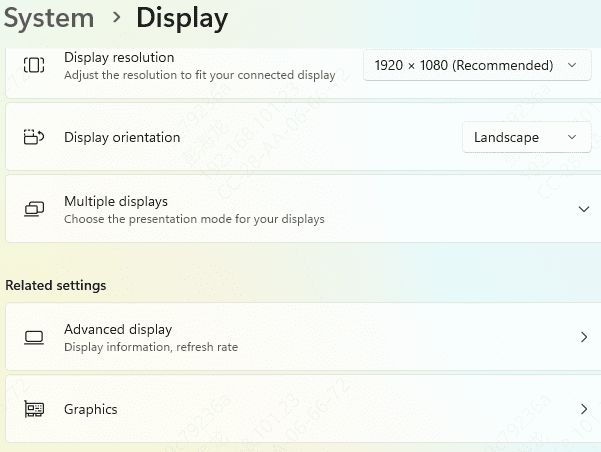
Check the display settings on your computer to make sure the second screen or monitor is enabled
You can do this by right-clicking on the desktop and selecting Display settings
Make sure the monitor is detected and configured to mirror or extend the display
Graphics Card and System Settings
If your monitor isn't receiving a signal, it could be due to a problem with your computer's graphics card
Ensure the graphics card is securely seated in its slot and connected to the monitor. Also, check the display output settings on your computer
In Windows, you can adjust these settings by right-clicking on the desktop and selecting Display settings
Ensure that your system is set to extend or duplicate the display correctly
Update Graphics Drivers
Outdated or corrupted graphics drivers can prevent the monitor from displaying correctly.
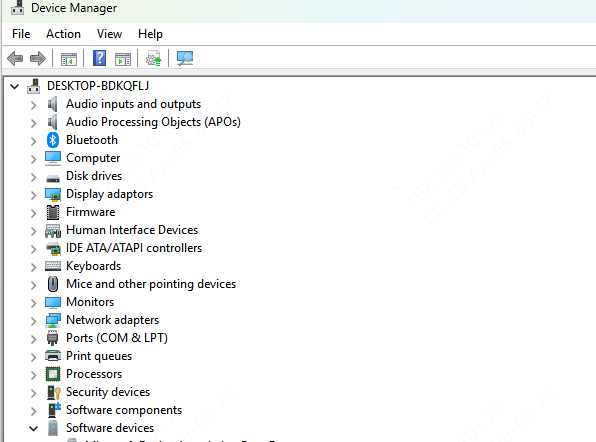
Update via Device Manager
To fix this, update your graphics drivers by going to Device Manager, expanding Display adapters, and selecting your graphics card Right-click Device Manager and select Update driver
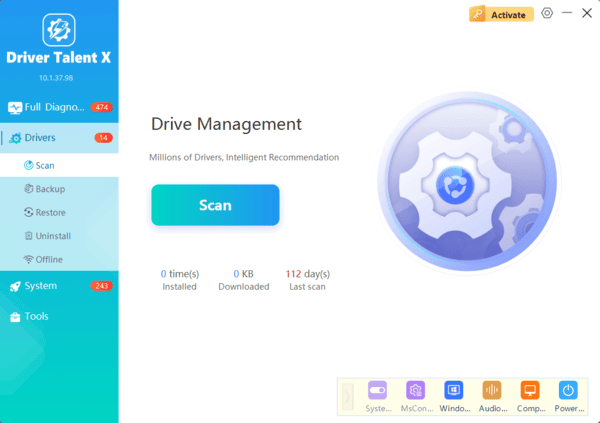
Update via Driver Talent X
You can also use automated tools like Driver Talent X to ensure all your drivers, including graphics, are up to date.
Monitor Firmware Update
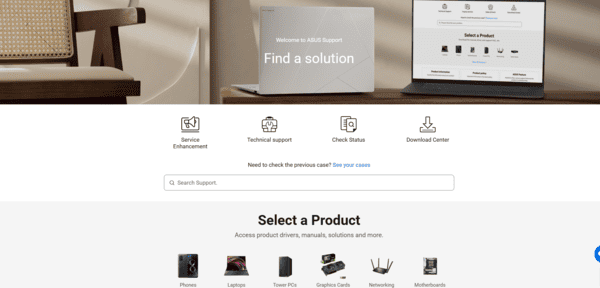
Some ASUS monitors support firmware updates that can improve functionality or fix bugs
To check if your monitor has a firmware update available, visit the ASUS support website, search for your monitor model, and check the Downloads section for the latest firmware
Frequently Asked Questions
What does it mean if my ASUS monitor has no power light?
The monitor is probably not receiving power. Test the wall outlet, reconnect the power cable, and check the external power adapter if your model uses one. A failed internal power board is possible if these checks do not help.
Why does the monitor show "No Signal" when the power light is on?
The monitor is powered but is not receiving video. Select the correct input, reconnect or replace the display cable, and confirm that it is connected to the active graphics port.
Why can I see the ASUS logo but not the Windows desktop?
The monitor is functioning, but Windows may be using an unsupported resolution, faulty graphics driver, or incorrect display mode. Start Windows in Safe Mode and reinstall or roll back the graphics driver.
Conclusion
In most cases, troubleshooting an ASUS monitor that won't turn on is a simple process involving a few key steps. By verifying the power supply, checking cables, adjusting display settings, and ensuring drivers and firmware are up-to-date, you can often resolve the issue without much effort. However, if these steps don't work, seeking professional support or contacting ASUS customer service may be necessary for a more in-depth solution. Stay patient, follow the guide, and you should have your monitor up and running in no time.
