

Experiencing a blank screen on a Dell laptop at startup can be frustrating, especially when you see either a completely black display or a faint backlight with no visible output. This issue can be caused by a range of factors, including system glitches, corrupted display drivers, BIOS problems, power issues, or even hardware faults. Fortunately, in many cases, this problem can be resolved with basic troubleshooting steps. In this guide, we’ll walk you through a step-by-step process to diagnose and fix the Dell laptop blank screen issue on startup, helping you restore normal display functionality quickly and effectively.
Check the Power Supply and Battery
Sometimes, the blank screen issue could be as simple as a power-related problem. Here's what you can do:
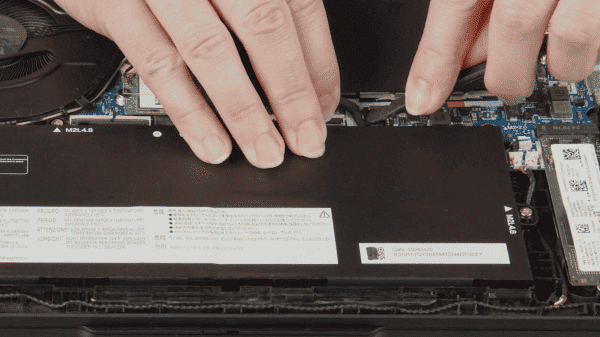
Ensure the laptop is connected to a power source: If the laptop battery is drained, it might not have enough power to display anything. Plug the laptop into a wall outlet and ensure the power light is on
Remove the battery and test with just the power adapter: If your laptop's battery is removable, take it out and plug the laptop directly into the power adapter. This eliminates the possibility that the battery is faulty
Perform a hard reset: Press and hold the power button for about 15-30 seconds to drain any residual power. Afterward, release the button and try to turn it on again
Verify Display Functionality
If the laptop is on but you can't see anything on the screen, it might be a display issue
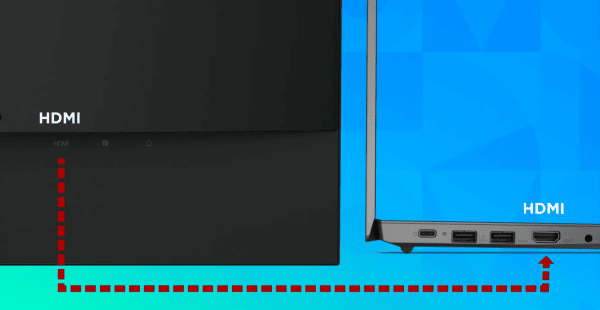
Test with an external monitor: Connect the laptop to an external monitor or TV using HDMI or VGA. If the external display works, the issue is likely with the laptop's built-in display
Toggle the display mode using keyboard shortcuts: Dell laptops often have a shortcut key to switch between internal and external displays. Try pressing Fn + F8 (or another function key, depending on your model) to toggle the display output
Perform a BIOS Reset
A corrupted BIOS could cause the laptop to fail during startup, leading to a blank screen
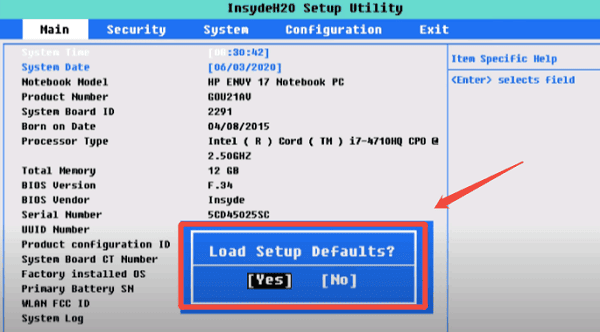
Enter BIOS setup: Disconnect any external devices from your laptop. Turn the laptop on and immediately start pressing F2 to enter BIOS
Restore default settings: Inside the BIOS menu, look for an option like "Restore Defaults" or "Load Default Settings." This will reset the BIOS to its default configuration, which may fix any settings causing the blank screen issue
Exit and save changes: After restoring defaults, save the settings and exit BIOS
Boot into Safe Mode
If the BIOS reset doesn't work, booting into Safe Mode can help you diagnose software or driver issues
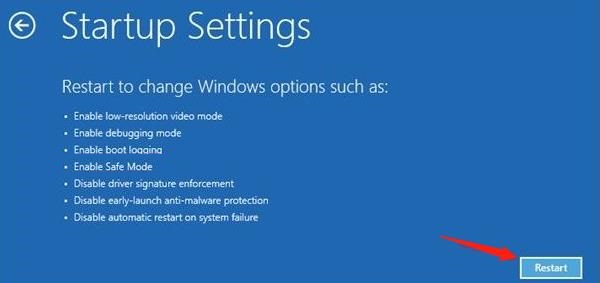
Enter Safe Mode: Press F8 or Shift + F8 during startup (before the Dell logo appears) to open the advanced boot options. Choose Safe Mode from the list
Uninstall problematic software or drivers: Once in Safe Mode, you can try uninstalling recent updates or software that might be causing the issue. Go to Control Panel > Programs > Uninstall a program to remove any recent applications
Update Graphics Drivers
Graphics driver issues can also cause a blank screen or prevent the display from loading properly. Boot into Safe Mode (if necessary)
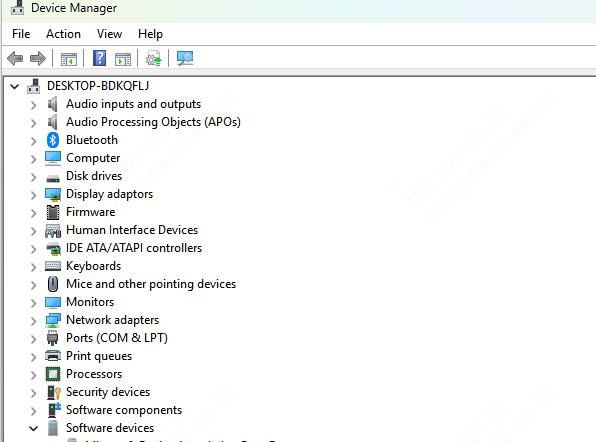
Update drivers Device Manager
Go to Device Manager, expand the "Display adapters" section, and right-click on your graphics card
Select Update driver and follow the on-screen instructions
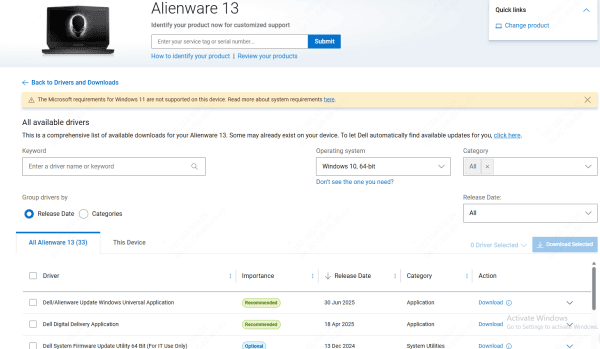
Download drivers from Dell's website
If Windows doesn't automatically reinstall the driver, you can visit Dell's official support page, search for your laptop model, and download the latest graphics drivers
Use Driver Talent X
To make fixing your Dell laptop easier, consider using Driver Talent X. This tool automatically scans your system for outdated or missing drivers and installs the latest updates, preventing issues like blank screens caused by driver problems
Automatic Scans & Updates: Detects and updates outdated drivers with a single click
Fix Driver Issues: Repairs or rolls back problematic drivers to restore system stability
Download Driver Talent X, run a scan, and let it take care of your laptop's drivers, ensuring smooth performance and preventing issues like blank screens

Perform System Restore or Reset
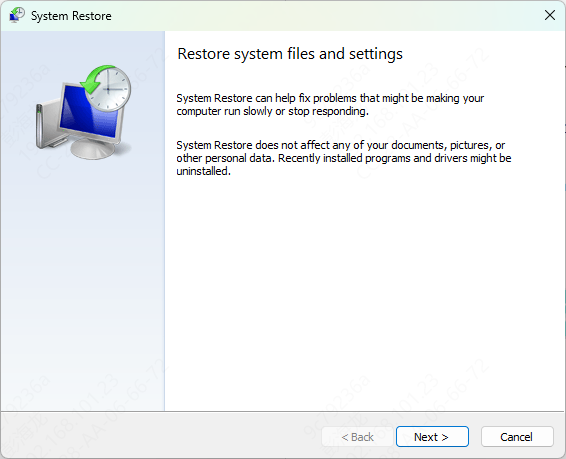
If you can get into Safe Mode or Recovery Mode, you can try performing a system restore to a time before the problem occurred
System Restore: Type System Restore in the Windows search bar, select the restore point, and follow the instructions to restore the laptop to a previous working state
Reset your laptop: If the problem persists and you can't access Safe Mode or Recovery, you might need to reset your laptop. This will reinstall Windows and reset everything to its default state. Settings > Update & Security > Recovery > Reset this PC
Check for Hardware Issues
If the above steps didn't resolve the issue, it might be related to hardware failure
Inspect for internal damage: If you are comfortable opening your laptop, check for any loose or disconnected cables, particularly the cable connecting the display to the motherboard
Check the RAM and storage connections: If the laptop has multiple RAM slots, try reseating the RAM modules or using only one module at a time. Also, ensure that the hard drive or SSD is securely connected
Conclusion
A blank screen on startup can be caused by a variety of issues, ranging from software conflicts to hardware failure. However, following the steps in this guide should help you resolve the problem, whether it's through checking the power supply, resetting the BIOS, updating drivers, or testing hardware connections. If these methods don't work, don't hesitate to contact Dell support for further assistance. Regular system maintenance, such as updating drivers and performing system scans, can help prevent this issue from happening in the future.
