Nothing ruins an intense Apex Legends match faster than a sudden crash accompanied by a Fatal Engine Error. Whether the game closes immediately after launching or crashes in the middle of a fight, this error can prevent you from enjoying a stable gaming experience.
Some players encounter a Fatal Engine Error popup, while others experience freezing, black screens, or unexpected exits to the desktop. The problem may appear after a game update, a graphics driver change, or seemingly without warning.
If Apex Legends keeps crashing on your Windows 10 or Windows 11 PC, the following troubleshooting methods can help you identify the cause and improve game stability.
Fix 1: Repair Apex Legends Game Files
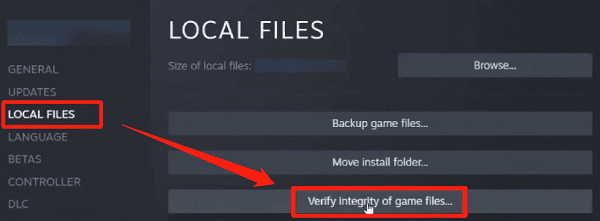
Verify Apex Legends Files on Steam
Open Steam.
Navigate to your Library.
Right-click Apex Legends.
Select Properties.
Open Installed Files.
Click Verify integrity of game files.
Repair Apex Legends Through the EA App
Open the EA app.
Navigate to your game library.
Find Apex Legends.
Open the game's management menu.
Select Repair, if available.
Wait for the process to complete.
Fix 2: Update or Roll Back Graphics Drivers
Apex Legends relies heavily on your graphics hardware and its drivers. If the graphics driver becomes corrupted or incompatible, the game may experience rendering errors, freezing, or fatal crashes.
Driver problems are particularly worth investigating when Apex Legends starts crashing after a Windows update or graphics driver installation.
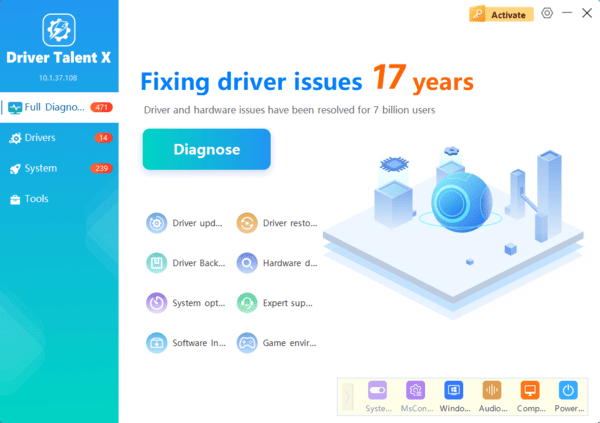
Check Graphics Drivers with Driver Talent X
Driver Talent X is a Windows driver management utility that can identify supported missing, outdated, or problematic drivers.
It provides an additional way to investigate graphics driver issues on compatible Windows computers.
Download Driver Talent X.
Install and launch the application.
Click Scan to examine your computer.
Review any detected graphics driver issues.
Install appropriate compatible updates if available.
Restart Windows.
Update Graphics Drivers Manually
You can also install graphics drivers directly from your GPU manufacturer.
Identify your graphics hardware through Device Manager > Display adapters.
Then visit the appropriate official website:
NVIDIA: https://www.nvidia.com/
AMD: https://www.amd.com/
Intel: https://www.intel.com/

Fix 3: Disable Conflicting Game Overlays
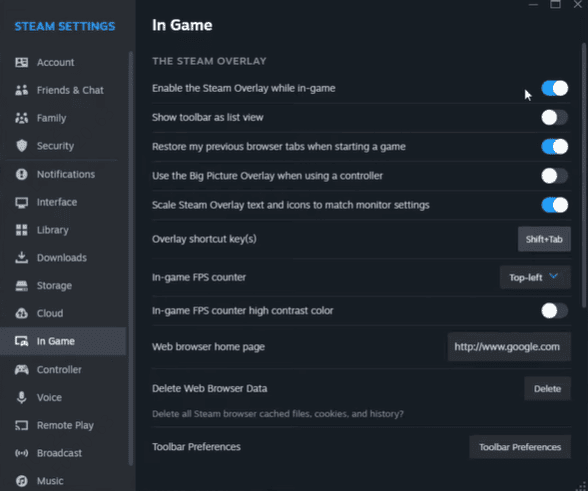
Disable Steam Overlay
Open Steam.
Go to your Library
Right-click Apex Legends.
Select Properties.
Open General.
Disable the Steam Overlay option for the game.
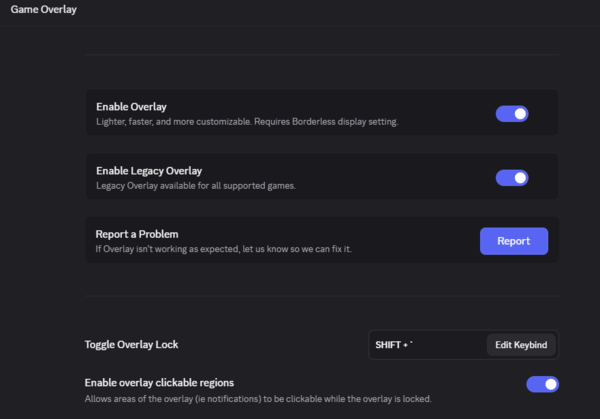
Disable Discord Game Overlay
Open Discord.
Navigate to User Settings.
Find the Game Overlay settings.
Disable the overlay.
Restart Apex Legends.
Fix 5: Lower Apex Legends Graphics Settings
Open Apex Legends and navigate to the video settings.
Consider adjusting the following options:
Reduce the texture streaming budget.
Lower shadow quality.
Reduce effects detail.
Lower other demanding graphics settings.
Set a reasonable frame rate limit.
Close unnecessary GPU-intensive applications.
Fix 6: Update Windows and Repair System Files
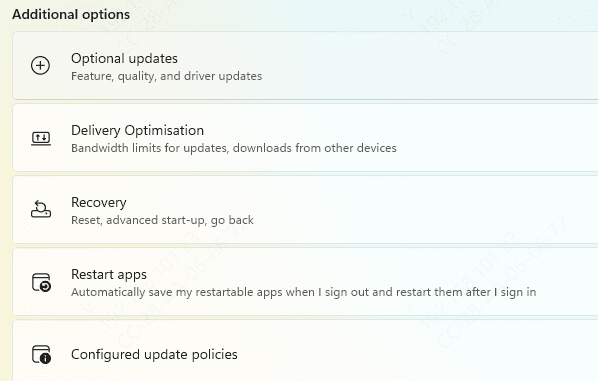
Check for Windows Updates
Open Settings.
Select Windows Update.
Click Check for updates.
Install relevant available updates.
Restart your computer if required.
Run System File Checker
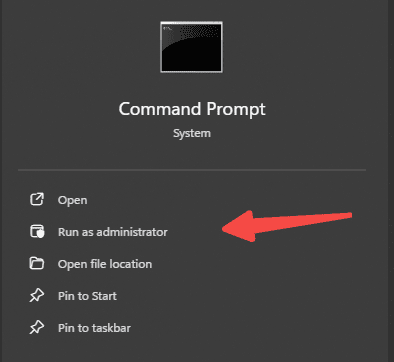
Type cmd in Windows Search.
Right-click Command Prompt.
Select Run as administrator.
Enter the following command:
sfc /scannow
Wait for the scan to finish.
If Windows component corruption is suspected, you can also run:
DISM /Online /Cleanup-Image /RestoreHealth
Fix 7: Check DirectX and Visual C++ Components
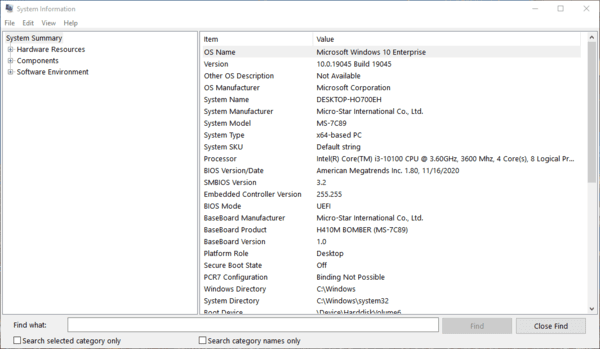
Press Windows + R.
Type dxdiag.
Press Enter.
Review the DirectX information displayed.
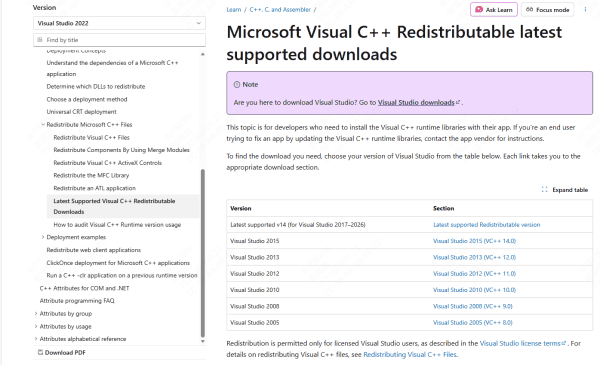
You can also check whether the necessary Microsoft Visual C++ Redistributable packages are installed.
If a runtime installation appears damaged, download the appropriate supported package from Microsoft's official website.
Repair or reinstall the required package according to Microsoft's instructions.
Avoid downloading individual DLL files from unofficial websites.
By identifying when the crash occurs and testing the most relevant solutions, you can narrow down the cause and work toward a more stable Apex Legends experience.