

ASUS driver updates are essential for keeping your Windows 10 or Windows 11 PC running smoothly. Updated drivers improve hardware compatibility, enhance system security, fix bugs, and deliver better overall performance. Whether you choose to update drivers through the ASUS Support website, Device Manager, or ASUS Live Update, it's a good idea to first scan your system with Driver Talent X. The software can quickly identify outdated, missing, or corrupted drivers, helping you avoid installation conflicts and ensuring a smoother update process. This guide covers the most effective methods to update ASUS drivers safely and efficiently.
Method 1: Using ASUS Support Website
Open your browser and go to the ASUS Support website.
Enter your device model in the search bar or select it from the product list.

Navigate to the "Driver & Utility" section.
Select your operating system (Windows 10 or 11).
Download the latest drivers for your chipset, graphics, audio, and network.

Run each installer and follow the on-screen prompts.
Restart your PC after installing all drivers.
Method 2: Using Windows Device Manager
Press Windows + X and select "Device Manager".
Expand the hardware categories (such as Display adapters, Network adapters, or Sound, video and game controllers). Right-click the device and select "Update driver".

Choose "Search automatically for drivers". Windows will search for and install available updates.
Restart your computer after updates are applied.
Method 3: Using ASUS Live Update Utility
Open ASUS Live Update (pre-installed on most ASUS laptops).
Click "Check for updates".

Select the drivers or BIOS updates you wish to install.
Follow the on-screen instructions to complete the update process.
Restart your system to finalize the changes.
Method 4: Update Drivers with Driver Talent X
Updating drivers using Driver Talent X ensures that your ASUS system components such as graphics, chipset, audio, network, and peripherals operate correctly. This step can prevent conflicts during manual updates.

Download and Install:
Click the "Download" button to download the software package.
Run the installer and follow the on-screen instructions. Choose the installation folder and complete the setup.
Run a Scan:
Open the application from the desktop shortcut or Windows Start menu, go to "Drivers" > "Scan", click "Scan".
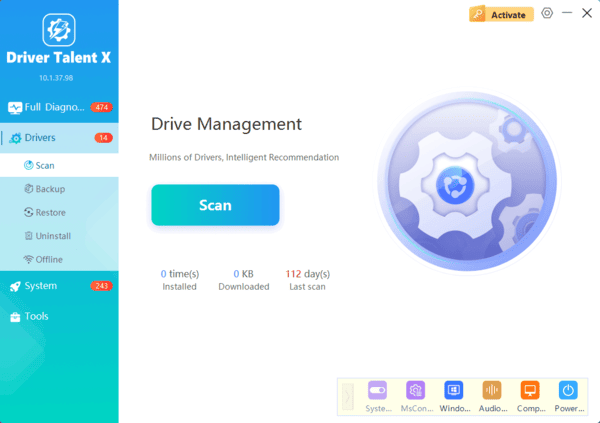
Driver Talent X will detect outdated, missing, or corrupted drivers across all hardware components.
Update All Drivers:
After the scan is complete, the software will display a list of all drivers that need attention. Select the necessary drivers and click the "Upgrade" or "Repair Now" button.
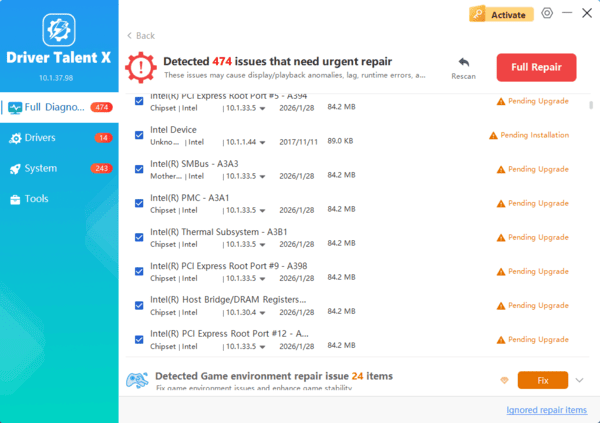
Driver Talent X will reliably download the latest drivers and execute a clean installation, critical for performance enhancements and stability fixes.
Restart Your Computer:
Reboot the system to apply all updates fully.
Once your drivers are updated, your ASUS system is ready for manual driver updates and optimization.
Troubleshooting Common Update Issues
Driver Installation Fails: Ensure your system is fully updated with Windows Updates and that you are using an administrator account.
Conflicting Drivers: Use Driver Talent X to repair corrupted drivers or uninstall conflicting drivers before reinstalling.
Network Issues During Download: Temporarily disable firewall or antivirus software while downloading updates from ASUS servers.
BIOS Updates: Only update BIOS when necessary, and follow ASUS guidelines carefully to prevent system damage.
Conclusion
Updating drivers on ASUS Windows 10/11 devices is crucial for system stability, security, and performance. By first using Driver Talent X to ensure all drivers are current, and then following multiple update methods including ASUS support downloads, Device Manager, and ASUS Live Update, you can maintain a fully optimized system. Regular updates prevent hardware conflicts and keep your ASUS laptop or desktop running smoothly.
