

If your Windows PC suddenly stops showing available Wi-Fi networks, the issue may come from a disabled adapter, incorrect system settings, or a damaged wireless driver. Missing network detection can affect laptops and desktops alike, especially after updates or driver changes. This guide covers practical ways to restore Wi-Fi scanning and fix common wireless adapter problems.
Why Networks Stop Showing Up
The wireless network list goes empty for several reasons. The WiFi adapter may have been disabled by a Windows update. The WLAN AutoConfig service, which is responsible for scanning and displaying available networks, may have stopped running
The network adapter driver may be missing or corrupted. The adapter's frequency band setting may be configured to only show 5GHz networks, hiding all 2.4GHz networks and vice versa
Airplane mode may be on. Or on laptops, a physical WiFi switch or Fn key combination may have toggled the wireless radio off
Fix 1: Check Airplane Mode and the Physical WiFi Switch
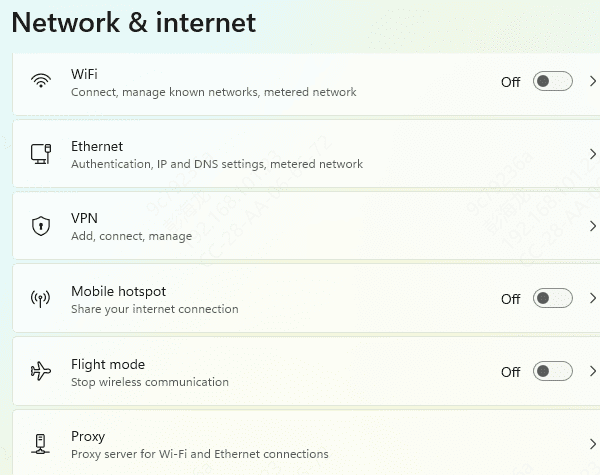
Open Settings and go to Network and Internet. Check Airplane mode and confirm it is off. Also check the WiFi toggle under the WiFi section and make sure it is switched on
On laptops, look for a physical WiFi switch on the side of the chassis. Some older laptop models have a hardware switch that completely cuts power to the wireless adapter when off
Also check your keyboard for an Fn key combination that controls WiFi — usually Fn plus one of the F-row keys with a wireless symbol. Press it once and wait a few seconds to see if networks appear
Fix 2: Enable the WiFi Adapter in Device Manager
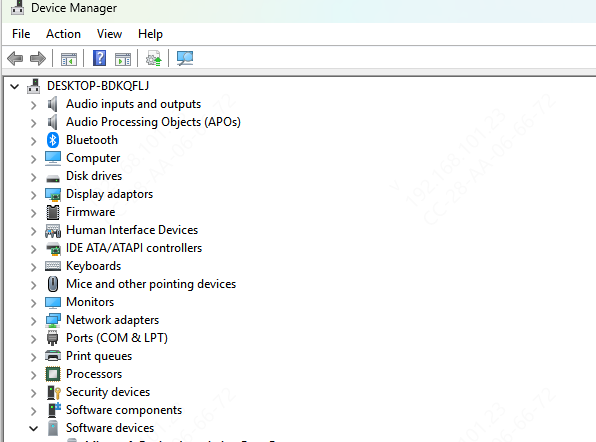
Press Win + X and open Device Manager. Expand Network Adapters. Find your wireless adapter in the list — it will typically say something like Intel Wireless, Realtek WLAN, or Qualcomm Atheros
If the device icon has a small downward-pointing arrow, the adapter is disabled. Right-click it and select Enable device. Wait a few seconds and check whether networks begin appearing in the WiFi list
Fix 3: Restart the WLAN AutoConfig Service
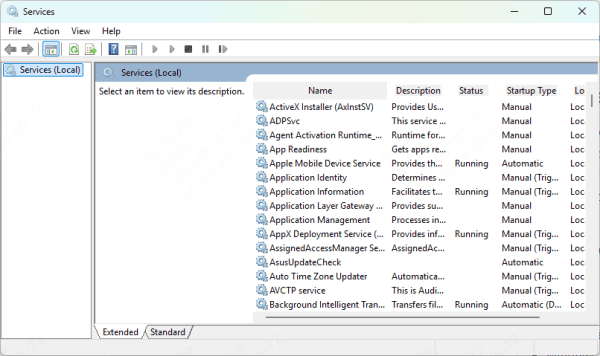
Press Win + R, type services.msc, and press Enter. Scroll down to WLAN AutoConfig. Right-click it and select Restart if it is running, or Start if it shows as Stopped
While you have the properties open, confirm the Startup type is set to Automatic so it starts reliably on every boot. Click Apply and OK. Check whether networks now appear in the WiFi list
This fix resolves the problem for a significant number of users whose adapter appears healthy in Device Manager but whose network list is still empty
Fix 4: Update or Reinstall the Network Adapter Driver
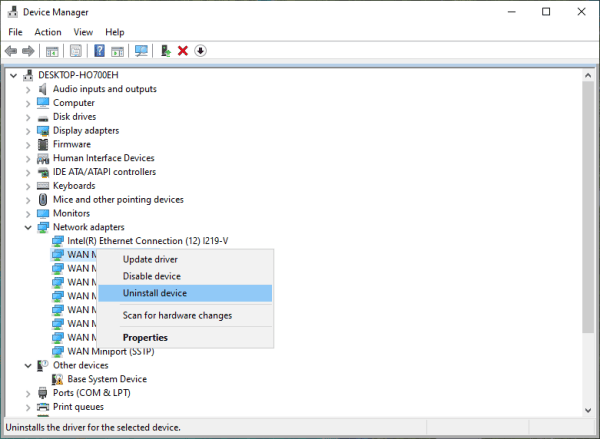
Manual method: open Device Manager, expand Network Adapters, right-click your wireless adapter, and select Update driver. Choose Search automatically for drivers. If Windows finds an updated driver, install it and restart
If updating doesn't resolve it, right-click the adapter and select Uninstall device. Restart the PC. Windows will attempt to reinstall the driver automatically on reboot
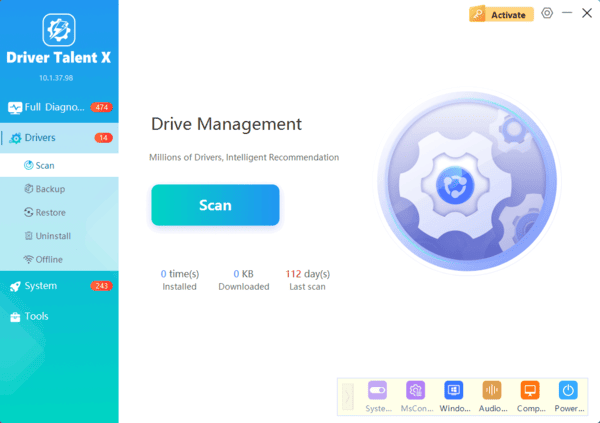
When Windows cannot find the correct driver on its own, use Driver Talent X. It identifies your wireless adapter by hardware ID and installs the exact matched driver, including cases where Device Manager shows the adapter with an error or lists it as an unknown device
This is the most reliable approach when the driver is the root cause and Windows cannot resolve it automatically
Fix 5: Reset Network Settings via Command Prompt
A corrupted network stack can prevent the wireless adapter from scanning correctly even when the driver is working. Resetting the network components to their defaults often clears this without affecting any other system settings or deleting saved WiFi passwords.
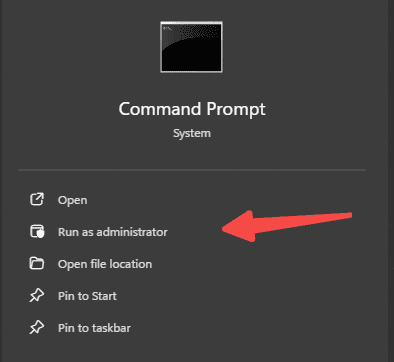
Press Win + S, type cmd, right-click Command Prompt, and select Run as administrator. Enter each of the following commands, pressing Enter after each one:
netsh winsock reset
netsh int ip reset
ipconfig /flushdns
Restart the PC after all three commands complete. Check whether the network list populates after the restart.
Fix 6: Check for Windows Updates
Windows updates occasionally include fixes for network subsystem components and wireless driver compatibility issues. If networks disappeared immediately after a Windows update, a subsequent patch may already have been released to correct it
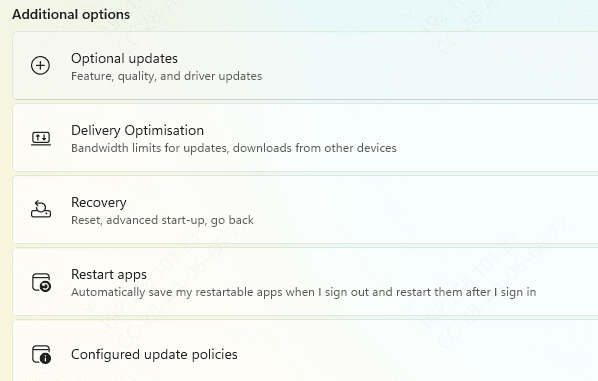
Go to Settings, then Windows Update, and click Check for Updates. Install all available updates and restart. After the restart, check whether the network list is populating again
Fix 7: Perform a Full Network Reset
If none of the fixes above have worked, a full network reset removes all network adapters and reinstalls them from scratch, resetting every network component to its default state. This resolves problems caused by deep configuration corruption that individual fixes cannot reach.
On Windows 10: go to Settings, then Network and Internet, then Status. Click Network reset at the bottom of the page
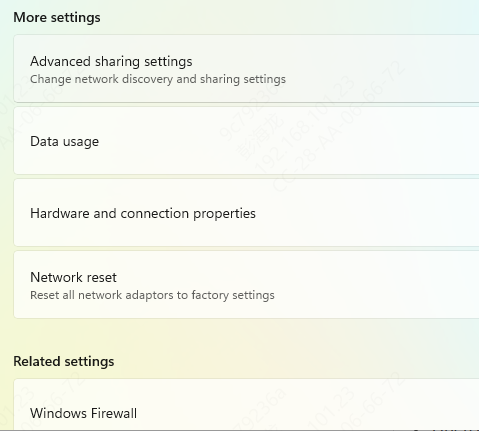
On Windows 11: go to Settings, then Network and Internet, then Advanced network settings. Click Network reset
Confirm and allow the reset to complete. The PC will restart automatically. Note that all saved WiFi passwords are deleted by this process — you will need to reconnect to every network manually and re-enter passwords after the reset
The majority of cases where networks stop showing up on Windows are caused by a disabled adapter, a stopped WLAN AutoConfig service, or a corrupted wireless driver. Fixes 1, 2, and 3 resolve most situations in under five minutes. When the driver is the root cause — particularly after a Windows update — Driver Talent X identifies and installs the correct wireless adapter driver automatically without requiring manual hardware identification.
