

You’ve plugged in your high-performance Corsair keyboard, and while Windows detects the connection, the device remains completely unresponsive—no typing input, no RGB lighting, just a non-functional device. This can be extremely frustrating, especially when everything appears to be connected correctly. This guide provides a structured, step-by-step approach to help you restore full keyboard functionality and ensure optimal performance.
The Physical Foundation: Eliminating Connection Barriers
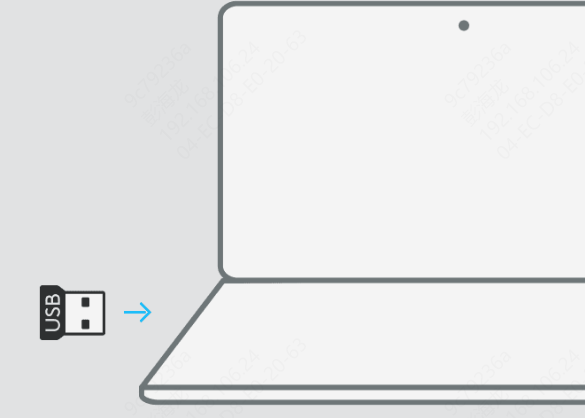
The Direct Connection Rule: Avoid USB hubs or front-panel case ports. Plug the keyboard directly into the motherboard's rear I/O ports
Dual-Plug Strategy: If your keyboard has two USB connectors, ensure the one with the keyboard icon is plugged in first (ideally into a USB 3.0 port)
Check the BIOS Switch: Many Corsair models have a polling rate/BIOS switch on the back. If it is set to "BIOS," certain software features and lighting may be disabled
The Port Swap: USB 3.0 ports are generally preferred, but if your keyboard is an older model, a USB 2.0 port may actually provide better compatibility
Advanced Software Recovery: Corsair iCUE
Force a Firmware Update: Open iCUE, navigate to Settings, and locate your device. Even if it says "Up to Date," select the Force Update option to overwrite potentially corrupted onboard code
The Clean Reinstall: If iCUE fails to detect the device, uninstall the software, delete the %APPDATA%\Corsair folder to remove corrupted profiles, and perform a fresh installation from the official Corsair site
Onboard Reset: For many models (like the K70 or K95), you can perform a Hard Reset: Unplug the keyboard, hold the ESC key, plug it back in, and release the key after 5 seconds

The Driver Communication Bridge
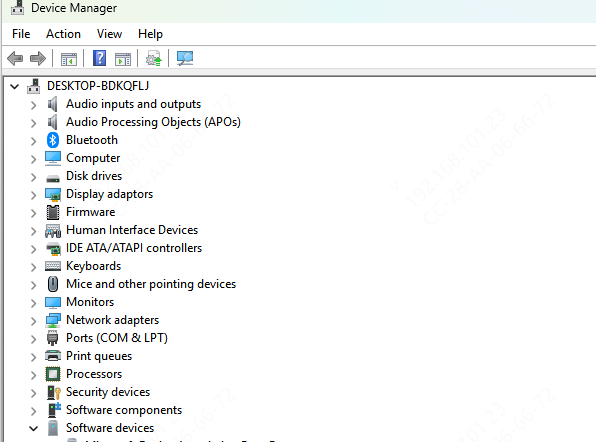
Manual Refresh via Device Manager
Press Win + X and select Device Manager
Expand the Keyboards section
Right-click every "HID Keyboard Device" and select Uninstall Device
Unplug the keyboard and restart your PC. Windows will automatically reinstall a clean generic driver upon reboot
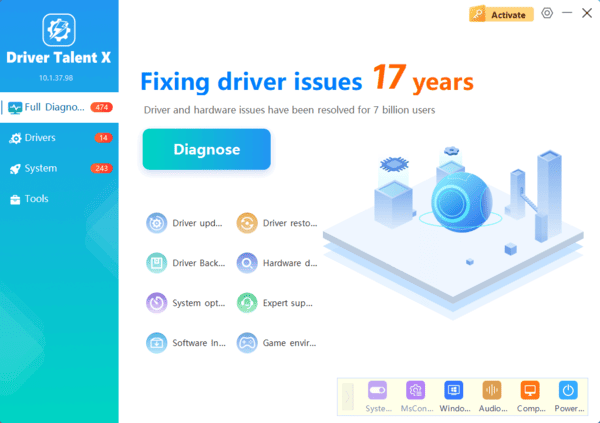
Automated Optimization: Driver Talent X (Recommended)
It checks the keyboard driver along with the USB Controller and Chipset drivers—which are often the real culprits behind connection drops
Simply click Diagnose, and the tool will automatically identify and install the most stable, WHQL-certified drivers for your specific motherboard
Navigating Windows Input Blocks
Windows occasionally "muffles" keyboard input through power-saving or accessibility settings
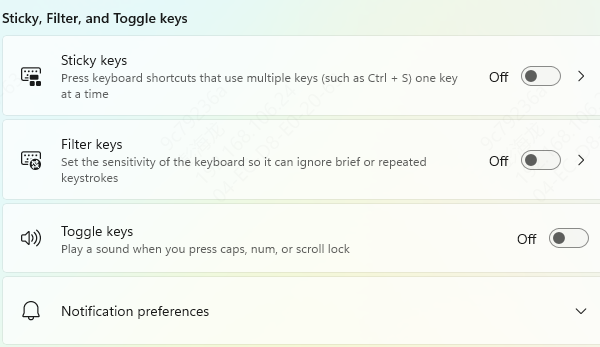
Disable Filter Keys: Go to Settings > Accessibility > Keyboard. Ensure "Filter Keys" is OFF. If on, Windows may ignore brief or repeated keystrokes
USB Power Management: In Device Manager, right-click your USB Root Hub > Properties > Power Management. Uncheck "Allow the computer to turn off this device to save power." This prevents the port from "sleeping" while the keyboard is idle
Troubleshooting Wireless Specifics (Slipstream & Bluetooth)
Dongle Pairing: Use iCUE to initiate a "Pairing" command for the Slipstream receiver
Clear Interference: Move high-traffic Wi-Fi routers away from the keyboard dongle, as both operate on the 2.4GHz band
Wired Mode Check: Always test the device with its charging cable to see if the issue is strictly related to the wireless signal
Proactive Habits: Prevent Future Failure
Profile Backups: Export your custom iCUE lighting and macros to an external file before performing major firmware updates
Avoid Low-Power Hubs: Never use unpowered USB splitters for high-performance gaming peripherals
