

If your Corsair mouse is not working correctly on Windows 10 or Windows 11, downloading or updating the appropriate driver may help resolve the problem. You might experience issues such as an unresponsive mouse, missing DPI settings, malfunctioning buttons, or a device that does not appear in Corsair iCUE. In this guide, you'll learn how to download and install the Corsair mouse driver.
Method 1: Download the Corsair Mouse Software from the Official Website
Step 1: Identify Your Corsair Mouse Model
Check the label on the underside of your mouse or refer to the product packaging and purchase information. Record the full model name so you can find the correct support information.
Step 2: Visit Corsair's Official Download Page
Open the official CORSAIR Downloads page.
You can find iCUE software and other supported Corsair drivers and firmware updates there.
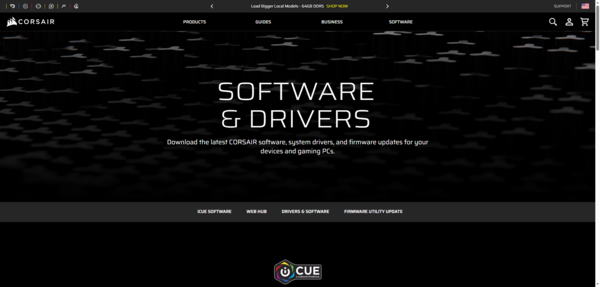
Step 3: Find the Appropriate Software
Look for the iCUE download or search for your specific product in the driver and software section. Check that the available software supports your mouse model and Windows version.
Avoid downloading drivers from unfamiliar third-party websites. Incorrect or modified installation packages may cause compatibility or security problems.
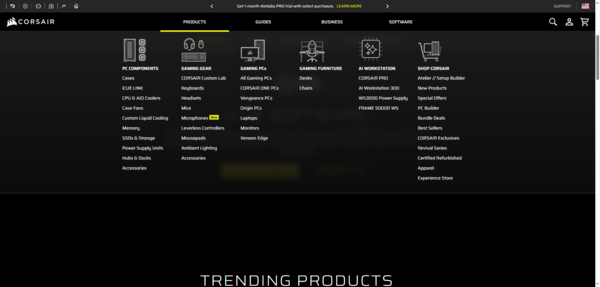
Step 4: Download and Install
Download the appropriate installer and run it. Follow the on-screen instructions to complete the installation.
If Windows requests permission to make changes, verify that you downloaded the installer from Corsair before approving the prompt.
Step 5: Restart and Test Your Mouse
Restart your computer if the installer requests it. Open the software, connect your mouse, and check whether the device appears.
If your mouse works normally but does not appear in iCUE, continue with the troubleshooting methods below.
Method 2: Install Corsair iCUE for Gaming Mouse Features
If you want to customize your Corsair gaming mouse, installing iCUE may be more useful than searching for a separate mouse driver.
Visit the official Corsair iCUE download page.
Download the Windows installer.
Open the downloaded installation file.
Follow the installation instructions.
Restart your computer if prompted.
Open iCUE and check whether your mouse is detected.
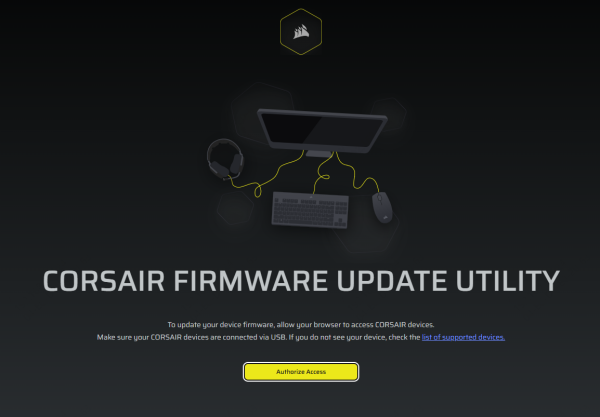
For additional instructions, see Corsair's official guide to installing iCUE.
Configure Your Mouse in iCUE
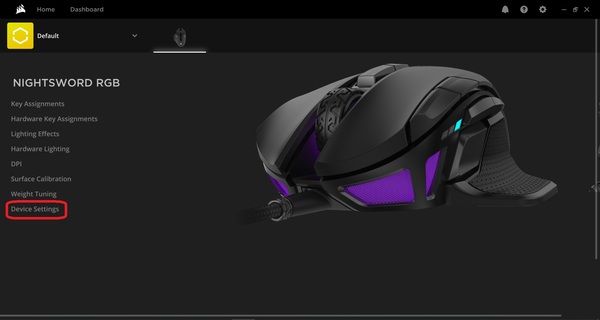
Once your mouse appears in iCUE, select it to view the available settings.
Depending on your model, you may be able to adjust DPI levels, change lighting effects, assign button functions, or save profiles. Some options may not be available on every Corsair mouse.
If iCUE does not detect your device, check the USB connection, close conflicting peripheral-control applications, and make sure you are using a compatible software version.
Method 3: Update the Corsair Mouse Driver in Device Manager
If your mouse is not responding correctly, Windows Device Manager can help you check its driver status and search for an update.
Step 1: Open Device Manager
Press Windows + X and select Device Manager.
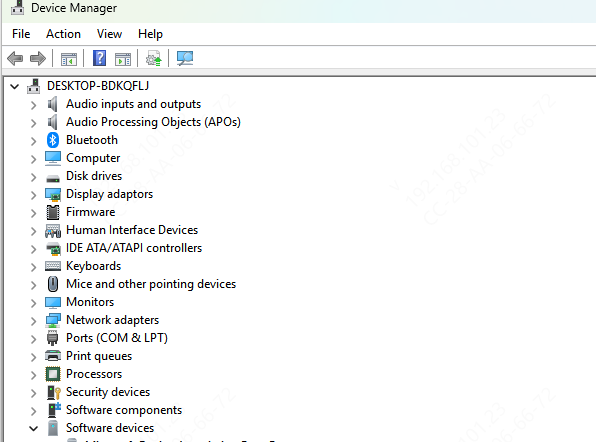
Step 2: Find Your Mouse
Expand Mice and other pointing devices. Your Corsair mouse may appear as a compatible HID mouse rather than displaying the Corsair brand name.
If the device is missing or has a warning icon, also check the Human Interface Devices and Universal Serial Bus controllers categories.
Step 3: Update the Driver
Right-click the relevant mouse device and select Update driver.
Choose Search automatically for drivers and follow any instructions Windows provides.
Keep in mind that Windows may report that the best driver is already installed. This does not necessarily mean that every optional gaming feature is available; those features may depend on iCUE.
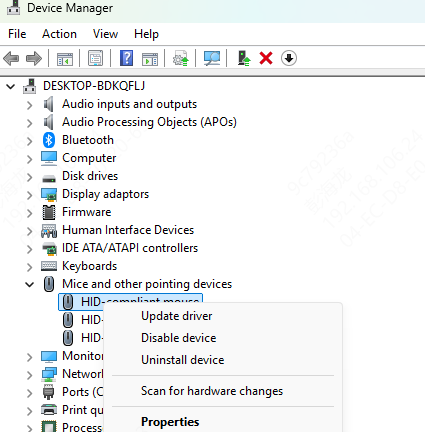
Step 4: Restart Your Computer
Restart Windows if necessary, then test your mouse again.
If the issue persists, try the next method.
Method 4: Use Driver Talent X to Check for Driver Problems
If you are experiencing broader driver issues, such as multiple devices malfunctioning or missing driver entries, a driver-management tool may help you investigate.
Driver Talent X can scan a Windows system for supported driver problems and offer relevant repair or update options.
Download Driver Talent X from the official Driver Talent website.
Install the program and open it.
Run a driver scan.
Review the detected issues and available recommendations.
Apply an appropriate update or repair if one is offered for your system.
Restart your computer if required.
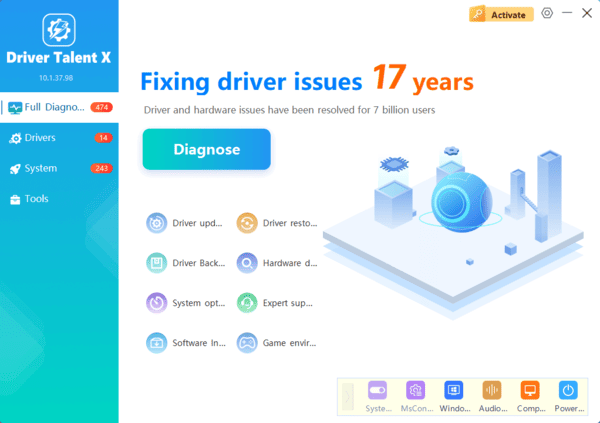
Important: Driver Talent X may not provide a dedicated driver package for every Corsair mouse. If your device needs iCUE for DPI, lighting, macros, or other gaming features, use Corsair's official software. Do not install an unrelated driver simply because a scan recommends an update.
Method 5: Check Windows Update
Windows Update can install compatible drivers and device-related updates. This is worth trying if your Corsair mouse has stopped working after a Windows update or is not recognized correctly.
For Windows 11
Open Settings.
Select Windows Update.
Click Check for updates.
Install available updates.
Open Advanced options and check Optional updates, including driver updates if available.
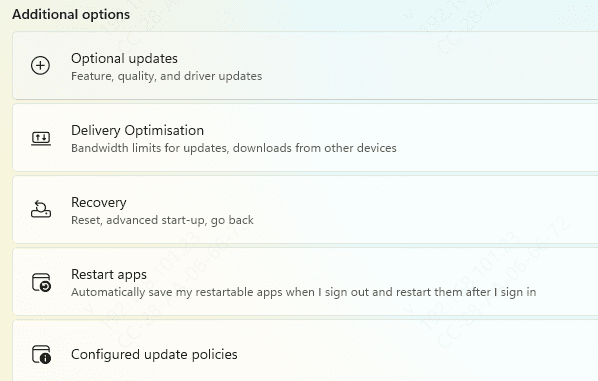
For Windows 10
Open Settings.
Select Update & Security.
Click Windows Update.
Select Check for updates.
Review View optional updates if the option is available.
Restart your computer after installing relevant updates.
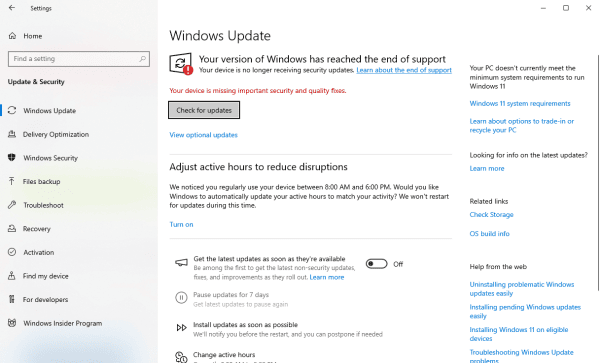
Optional driver updates may not always appear, and Windows Update may not offer a separate Corsair mouse driver. You should still use Corsair's official software for supported advanced features.
Frequently Asked Questions
Is Corsair iCUE necessary for a Corsair mouse?
Not always. Basic pointer movement and clicking may work without iCUE, but supported DPI customization, RGB lighting, macros, and button remapping may require it.
Why is my Corsair mouse not showing up in Device Manager?
Check the USB port, cable, wireless receiver, and battery. Try another port and restart Windows. If the mouse is still missing, test it on another computer to help determine whether the issue is hardware-related.
What should I do if iCUE does not recognize my mouse?
Verify model compatibility, update iCUE from Corsair's official website, connect the mouse directly to the computer, and restart Windows. If the problem persists, consult Corsair's support instructions for your model and software version.
Conclusion
Downloading the correct Corsair mouse software can help you access supported gaming features and troubleshoot device problems on Windows 10 and Windows 11. For basic mouse operation, Windows usually installs a compatible driver automatically. For DPI adjustments, RGB lighting, macros, and other advanced settings, check whether your model supports Corsair iCUE.
Start with Corsair's official downloads, then use Device Manager and Windows Update to investigate driver issues. If the mouse remains undetected, check the physical connection and test it on another computer. Following these steps can help you identify the cause of the problem and restore normal mouse operation.
