

You connect your Dell docking station, and the monitors stay dark. Or the Ethernet port doesn't hand off a connection. Or USB devices plugged into the dock aren't detected. The dock appears to be powered but isn't fully functional. This happens because Dell docking stations require multiple separate driver components to work. This guide covers how to identify which drivers are needed and the best methods for getting them installed.
Why Dell Docking Station Drivers Need Updating
Windows feature updates are the most common cause of dock driver failures. They frequently overwrite or remove the DisplayLink, Ethernet, and audio drivers that were working correctly before the update
Outdated dock firmware compounds the issue — hardware-level incompatibilities between the dock and newer Windows builds can cause USB devices to drop connection, monitors to flicker, or the dock to disconnect and reconnect repeatedly
Method 1: Download from Dell's Official Support Website
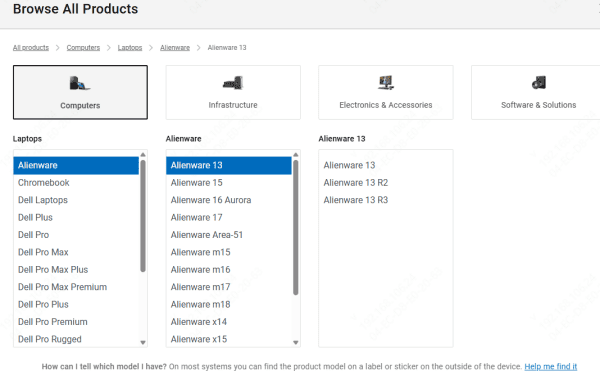
Go to DELL SUPPORT. In the search field, type your dock model number
Filter by your operating system: Windows 10 64-bit or Windows 11 64-bit
Install them in the correct order. Update the firmware first, before installing any Windows drivers
After the firmware update, install the display driver, then Ethernet, then audio. Restart between the firmware update and the driver installations
Method 2: Update Using Driver Talent X
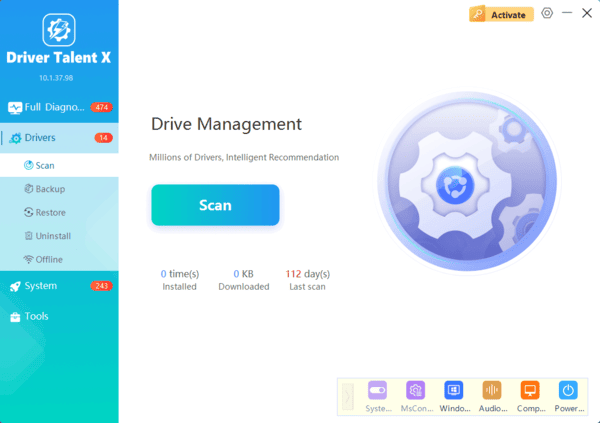
When the Dell support page process takes too long or when multiple dock components are broken simultaneously after a Windows update, Driver Talent X provides a faster path. It detects all hardware components connected through the dock and identifies the correct driver for each one without requiring you to manually navigate Dell's download categories.
Connect the Dell docking station to the laptop. Download and install Driver Talent X. Click Scan. It will audit all detected hardware including dock-connected components and show which drivers are missing, outdated, or corrupted
Click Download to install all identified driver updates in one session. Restart the laptop after installation and reconnect the dock to confirm all functions are restored
This method is most effective after a clean Windows install where all dock drivers are missing, after a Windows update that broke several dock components simultaneously, or when it's unclear which specific driver component is responsible for a particular function not working.
Method 3: Use Dell SupportAssist
Dell SupportAssist is pre-installed on many Dell laptops and can detect hardware connected through a Dell dock. Open SupportAssist and run a full scan
Navigate to the Drivers and Downloads section within the results

Fixing Common Dell Docking Station Driver Problems
USB devices not recognized when plugged into the dock: firmware issues are the most common cause. Update the dock firmware before updating any Windows drivers. Outdated firmware causes USB passthrough failures that driver updates alone cannot fix.
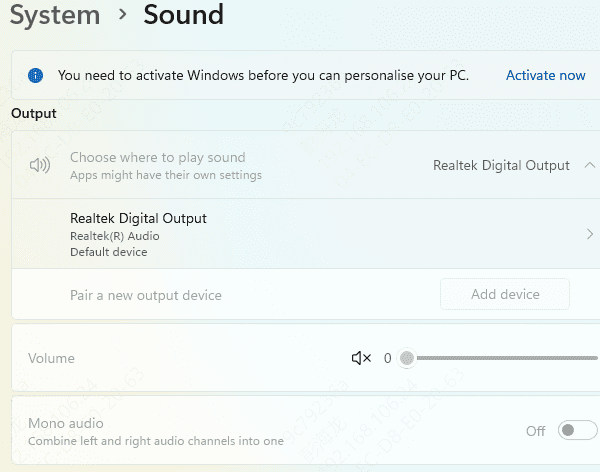
Audio not routing through the dock: after installing the dock audio driver, the dock registers as a separate audio output device in Windows. Go to Settings, then System, then Sound. Select the dock as the output device from the dropdown. The dock won't automatically become the default audio output — it must be manually selected.
Dock disconnects and reconnects repeatedly: this is typically a firmware issue or a Thunderbolt power delivery incompatibility. Update the dock firmware first. Also check the laptop's BIOS or UEFI settings for a Thunderbolt security level setting — on some Dell laptops this needs to be set to No Security or User Authorization to allow stable Thunderbolt device connections.
Conclusion
Dell docking stations need multiple driver components — display, Ethernet, audio, and firmware — each functioning correctly for the dock to work fully. Dell's official support website provides the most complete and precisely matched driver set, with firmware updates that must be installed before Windows drivers to avoid conflicts. Driver Talent X is the fastest alternative for updating multiple components at once, particularly after Windows updates that break several dock functions simultaneously.
