

Dell docking stations are powerful accessories that enhance laptop productivity by allowing users to connect multiple monitors, USB devices, and external storage. However, a common issue some users face is the docking station powering on but not detecting a monitor, which can interrupt workflows and reduce efficiency. This problem is often caused by loose connections, outdated drivers, incorrect display settings, or firmware compatibility issues. Fortunately, it can usually be resolved with a few basic troubleshooting steps. In this guide, we'll walk you through how to fix your Dell docking station when it is not detecting a monitor, helping you restore a stable multi-display setup.
Check the Power Connection
Ensure that the docking station is receiving adequate power. It should be properly plugged into both the laptop and a power source
If you're using a powered docking station, make sure the power brick is plugged in correctly and that the indicator light is on
Test with Different Cables or Monitor
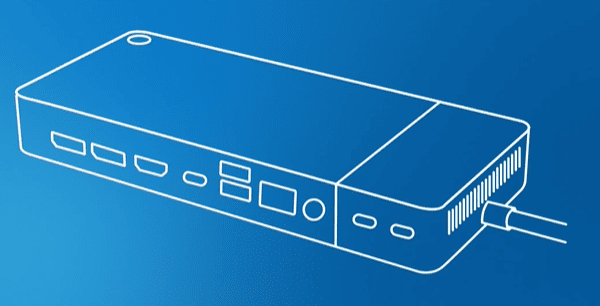
Swap out the cables connecting the docking station to your monitor to rule out any faulty cables
Additionally, if possible, try using a different monitor to see if the issue lies with the monitor itself
Verify Monitor Power and Input
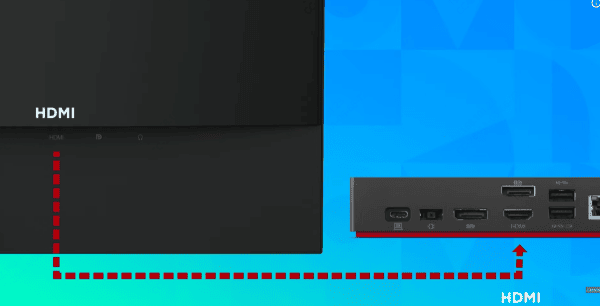
Make sure the monitor is powered on and the correct input source is selected (HDMI, DisplayPort, VGA, etc.)
Sometimes, monitors default to the wrong input source, which can cause them to not display anything
Restart the Laptop and Docking Station
Sometimes a simple restart can resolve minor glitches
Unplug your docking station from the laptop, reboot your laptop, and then reconnect the docking station
Update Drivers
Manual Update
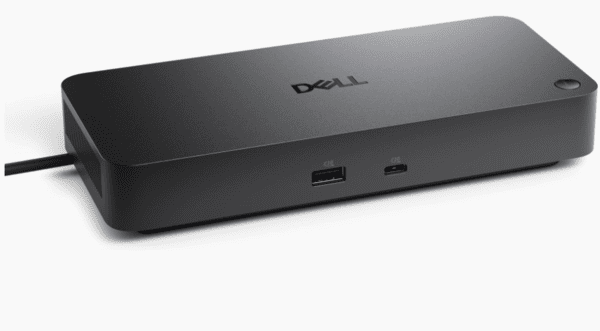
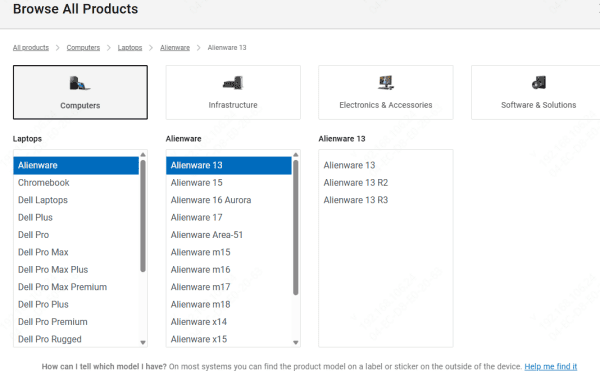
Go to Dell's support website, input your laptop's model, and download the latest docking station drivers for your system
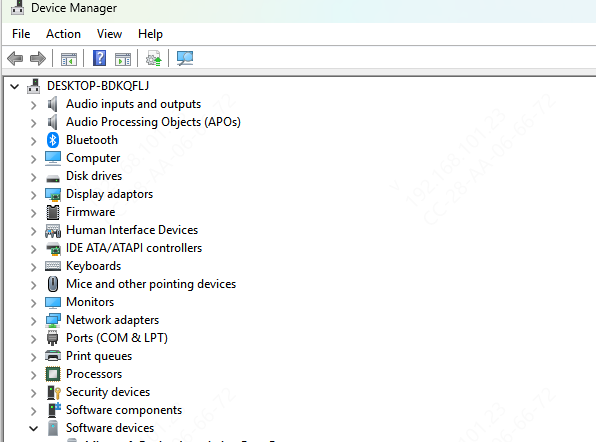
Device Manager
Open Device Manager, right-click on your docking station under "Display Adapters" or "Universal Serial Bus controllers," and choose "Update driver."
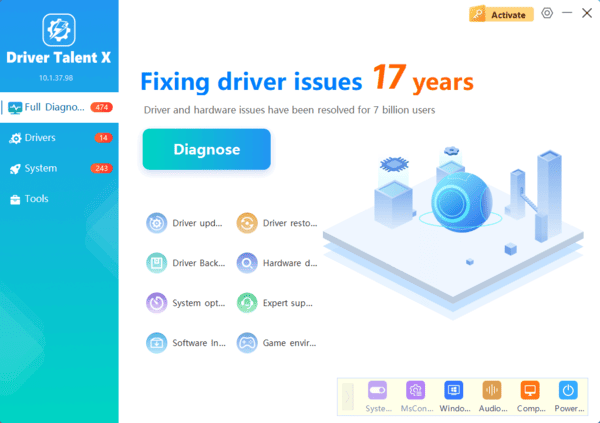
Using Driver Talent X for Quick Driver Updates
To make this process even easier, you can use a driver update tool like Driver Talent X. This software scans your system for outdated or missing drivers, downloads them, and installs them automatically
Driver Talent X is a reliable, time-saving tool that ensures all necessary drivers, including those for your docking station, are fully compatible with your system and up to date
Check Display Settings
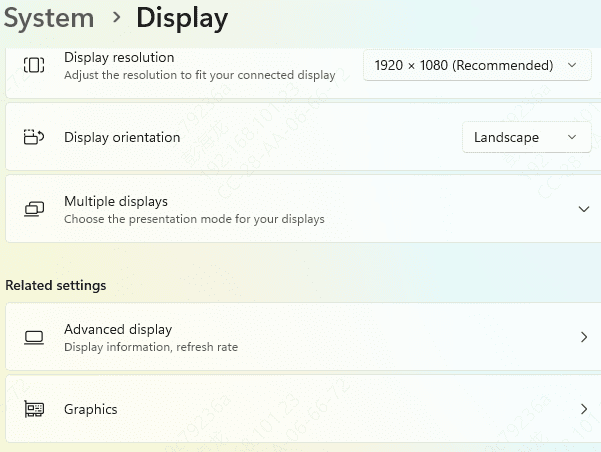
Sometimes the issue is simply due to incorrect display settings on your laptop. To ensure your system is configured correctly:
Right-click on the desktop and select Display Settings
Scroll down and click Detect under the "Multiple Displays" section to force the system to search for connected monitors
Set the display mode to "Extend" or "Duplicate" as needed
Use Keyboard Shortcuts for Display Switching:
Press Windows + P to open the display options and toggle between different display modes like Duplicate, Extend, or Second screen only. Sometimes, toggling between these modes can trigger the system to detect the monitor
Advanced Troubleshooting Steps
Check for Hardware Defects: Test the docking station and monitor on another laptop or PC to check if either is faulty
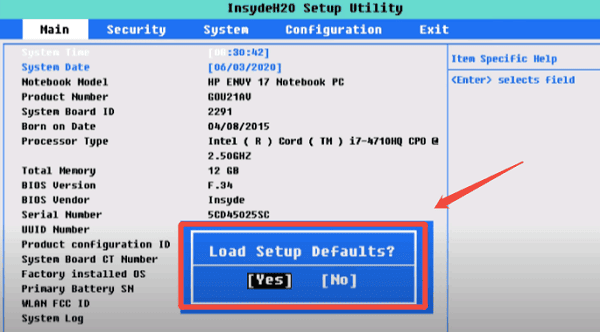
Perform a BIOS Update: Sometimes, a BIOS update can resolve compatibility issues. Check Dell's support website for any available updates and follow the instructions to install them
Check for System Compatibility Issues: Ensure that your operating system is up to date and compatible with your docking station. Check for updates on your operating system and install any available updates
Conclusion
In this guide, we've provided a comprehensive set of troubleshooting steps to help you fix the issue of your Dell docking station not detecting a monitor. Keeping your docking station's drivers up to date is crucial, as outdated or corrupt drivers can often cause detection issues. Using tools like Driver Talent X to easily update your drivers can save you time and help resolve these problems quickly. If the issue persists after trying these steps, consider reaching out to Dell support for further assistance. By following these troubleshooting steps, you can quickly get your Dell docking station working as expected, ensuring a seamless and efficient workspace setup.
